
About this feature
Teacher accounts give faculty members access to the UNILinkd dashboard and mobile app. Admins can enroll teachers in bulk using an Excel or CSV file, or add them one at a time. An enrolled teacher is "Not Onboarded" until they log into the mobile app for the first time that first login activates their account. Admins can also send private system messages to teachers and delete their accounts when needed.
How to Send Private Messages to Teachers (CSV)
Send system messages to specific teachers via CSV upload.
In the sidebar, click "Teachers" "Message". This opens the CSV messaging panel.
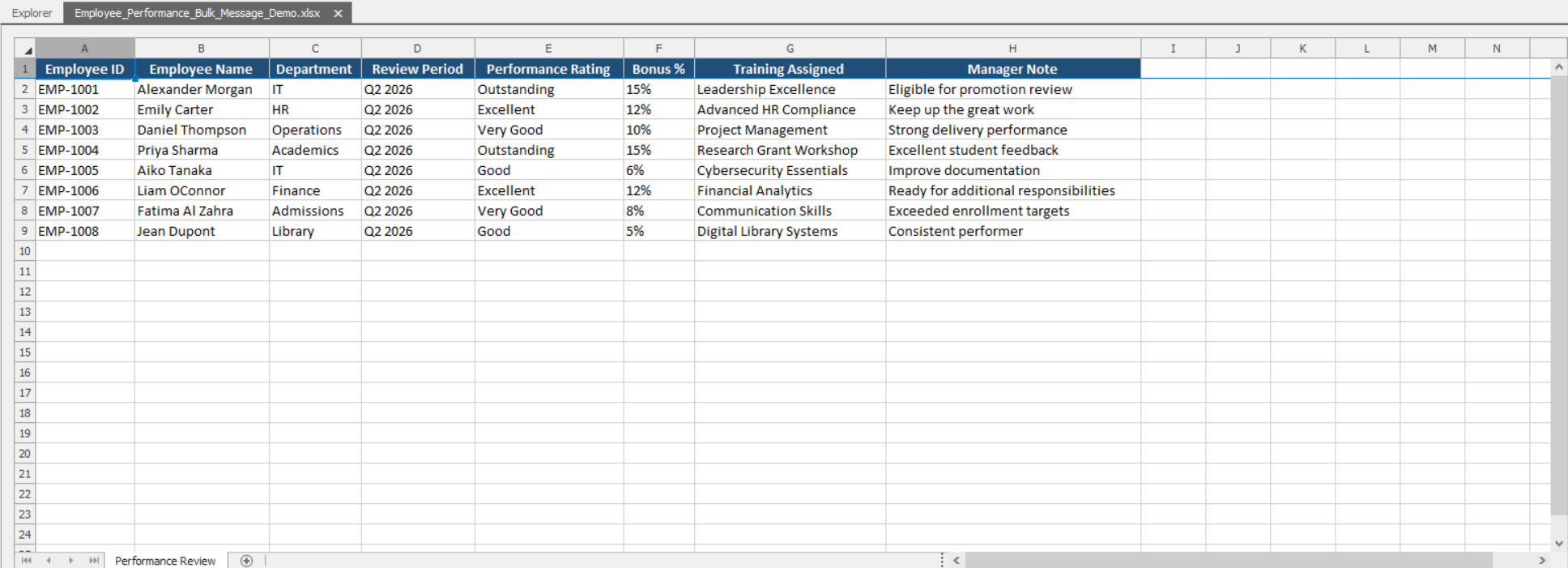
Private messages in UNILinkd are system-generated messages delivered directly to specific users. They cannot reply it is one-way communication from the institution.
Prepare a CSV file with the Employee IDs of teachers to message. Upload the file and select the Primary Key column.
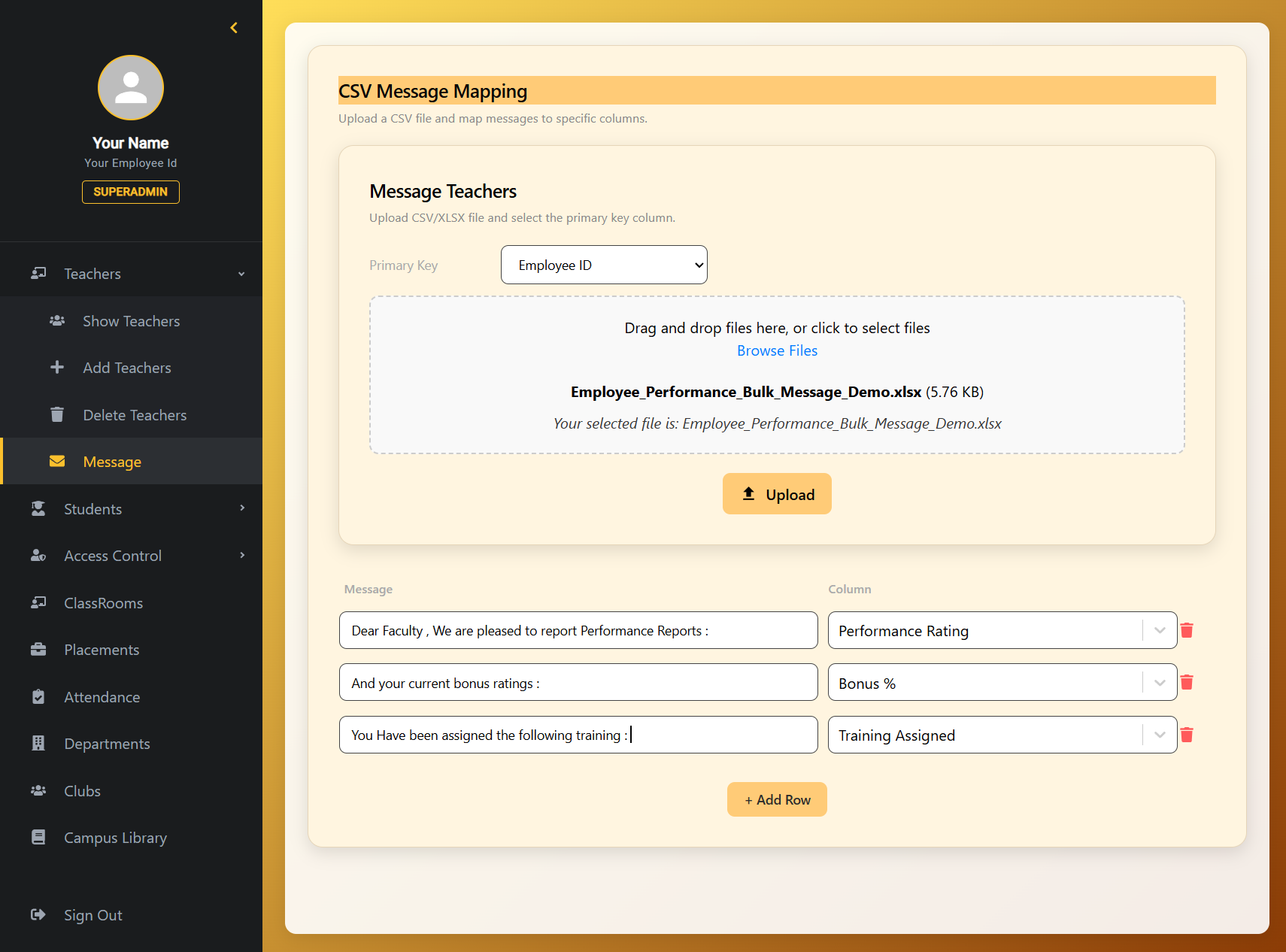
Click "Upload". The message will be delivered to each listed teacher's private messages in the app.
You've completed this guide — How to Send Private Messages to Teachers (CSV)