
About this feature
Student accounts give students access to the UNILinkd mobile app attendance reports, classroom chats, the placement portal, clubs, and the e-library. Admins enroll students via CSV or one at a time. A newly enrolled student is "Not Onboarded" until they log into the app for the first time, which activates their account fully. Each student can belong to only one department; an Admin must reset it if they need to change.
How to Reset a Student's Department
Clear a student's department so they can select a new one in the app.
Students can only belong to ONE department. If a student joined the wrong department or needs to transfer, an admin must reset it from the dashboard.
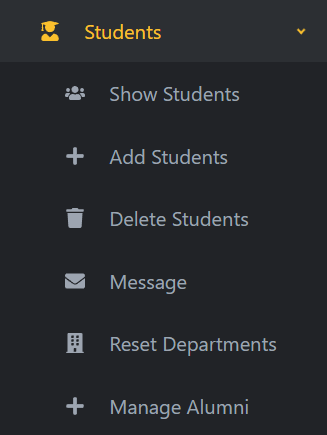
In the sidebar, click "Students" "Reset Departments".
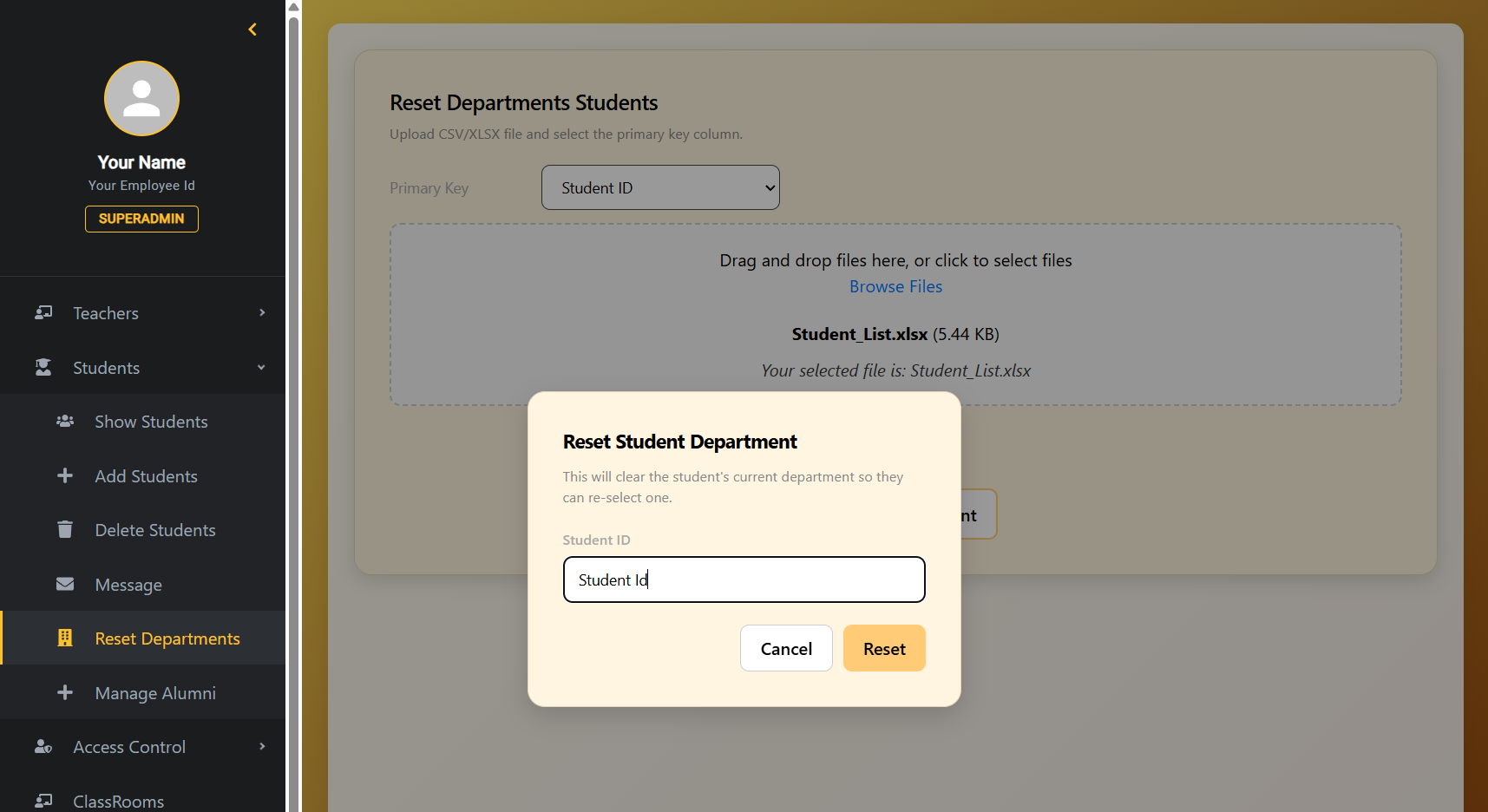
To reset a single student: click "Reset Single Student", enter their Roll Number, and click "Reset".
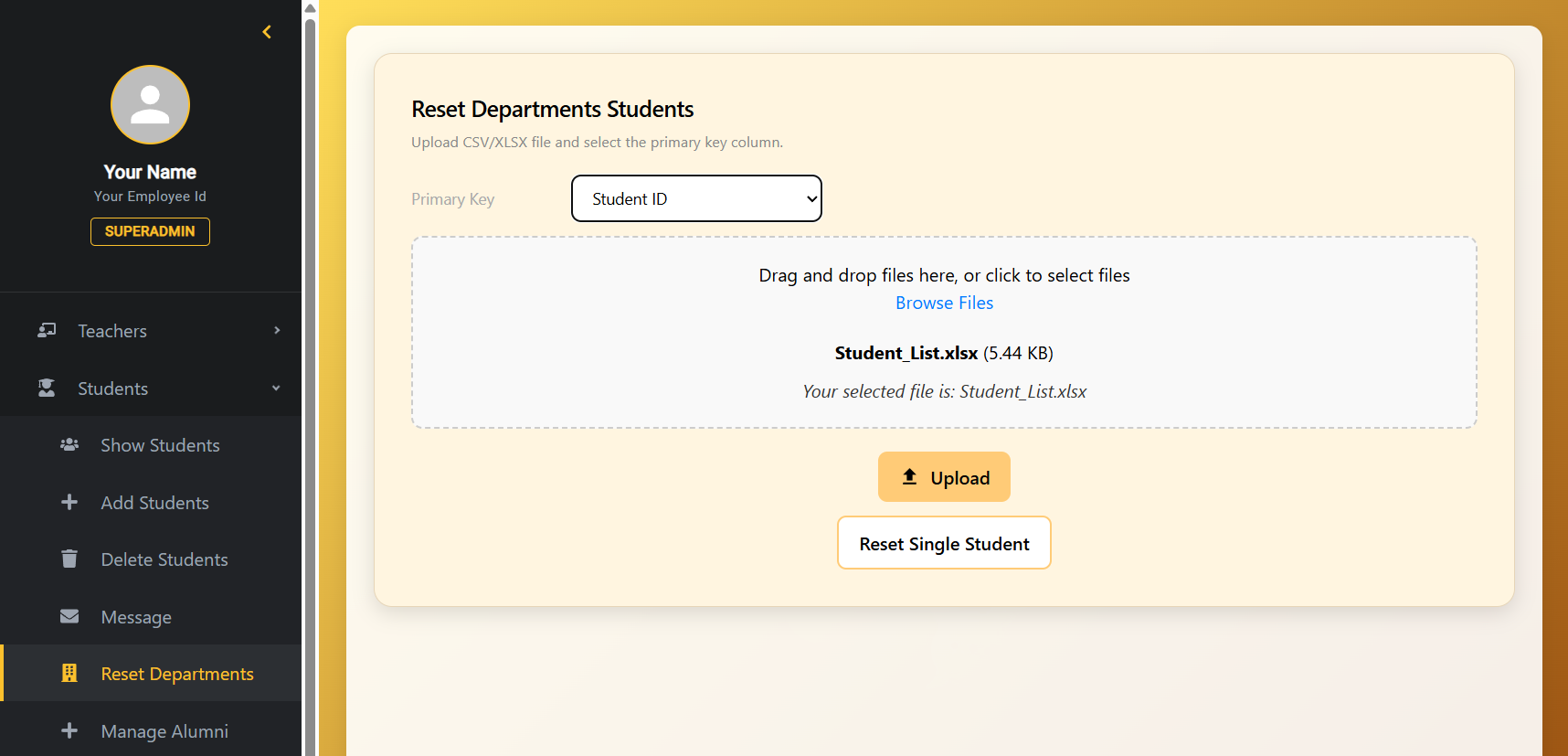
To reset multiple students at once: upload a CSV file with their Roll Numbers and select the Primary Key column, then click "Upload".
Once reset, the student is allowed to re-select the department.
You've completed this guide — How to Reset a Student's Department