
About this feature
Classrooms in UNILinkd replace the need for separate WhatsApp groups for every class batch. Each classroom has a dedicated group chat (faculty post, and students can chat too if you switch it on), a weekly timetable, Google Meet integration for online sessions, and an exportable student list. Classrooms are created from the dashboard by Admins or Sub-Admins and assigned to a faculty incharge who manages them. Each period in a timetable can also have a subject teacher assigned (this is optional), and there is a dedicated Teaching Schedule page to see who is teaching what, and when, across every classroom.
How to Create a Classroom
Create a classroom for a class batch and assign it to a faculty incharge.
Classrooms are created from the dashboard by Admins and Sub-Admins. Once created, they appear in the app for the assigned teacher and students.
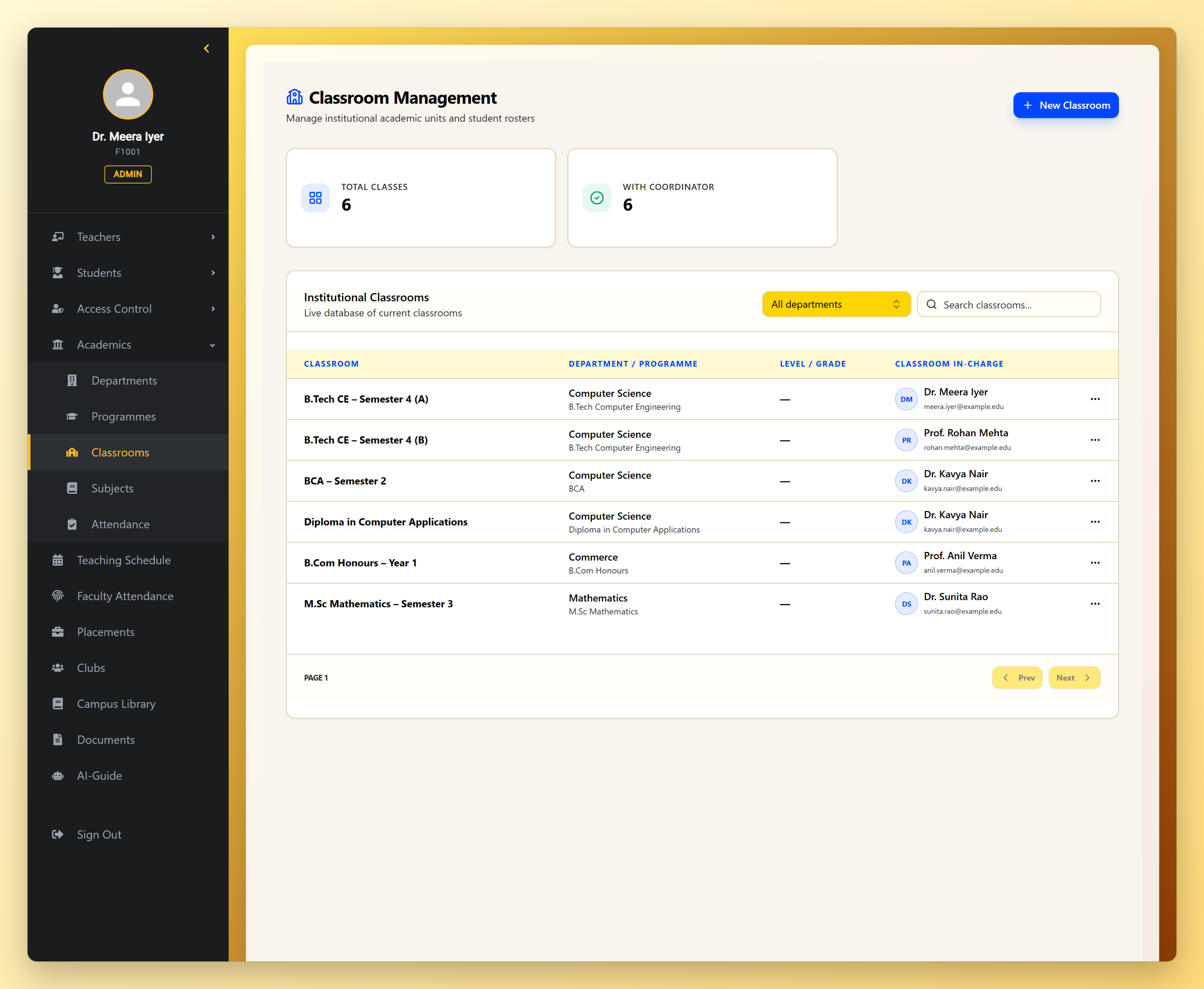
In the sidebar, click "ClassRooms". Click "New Classroom".
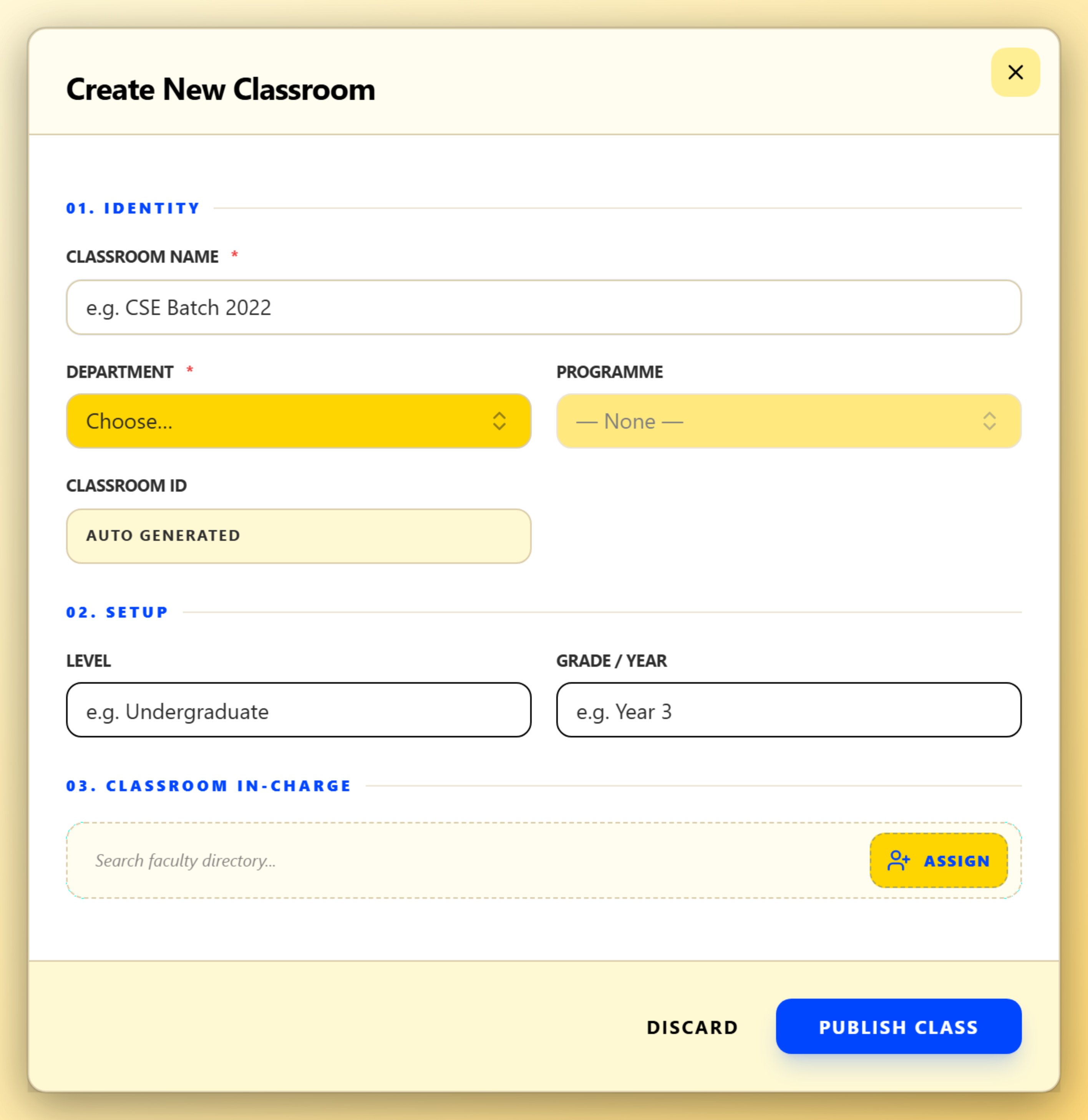
Enter the classroom name (e.g. "B.Sc CS Sem 4"), choose its department and then its programme, and assign a faculty incharge - the teacher responsible for this class. On the Classrooms page you can filter the list by department and programme.
Each classroom has its own chat, so you do not need a separate WhatsApp group. New classrooms start with students read-only and teachers posting; you can let students chat, and decide who may join, from the classroom's Settings (see "How to Control Who Can Join and Chat").
Click "Publish Class". The classroom appears in the app for the assigned incharge teacher.
You've completed this guide — How to Create a Classroom