
About this feature
The Documents module lets Admins, Sub-Admins, and Super Admins design reusable document templates certificates, bonafide letters, ID cards, and more with a background image, editable text, and dynamic fields that auto-fill with each person's own name, email, and ID. Students and faculty then self-serve download their own copy from the mobile app's Library tab no more manual certificate requests. Access can be left open to everyone in a role, or restricted to a specific list of IDs, and Students and Faculty are always controlled completely separately.
How to Control Who Can Download a Document
Set a document to Open or Restricted access, and manage the allowed list.
Student and Faculty access are controlled completely separately for every document restricting it for Students has no effect on Faculty, and vice versa.
From the Documents list, click the Access Control icon on a template. This opens a full-screen panel with a tab for Students and a tab for Faculty.
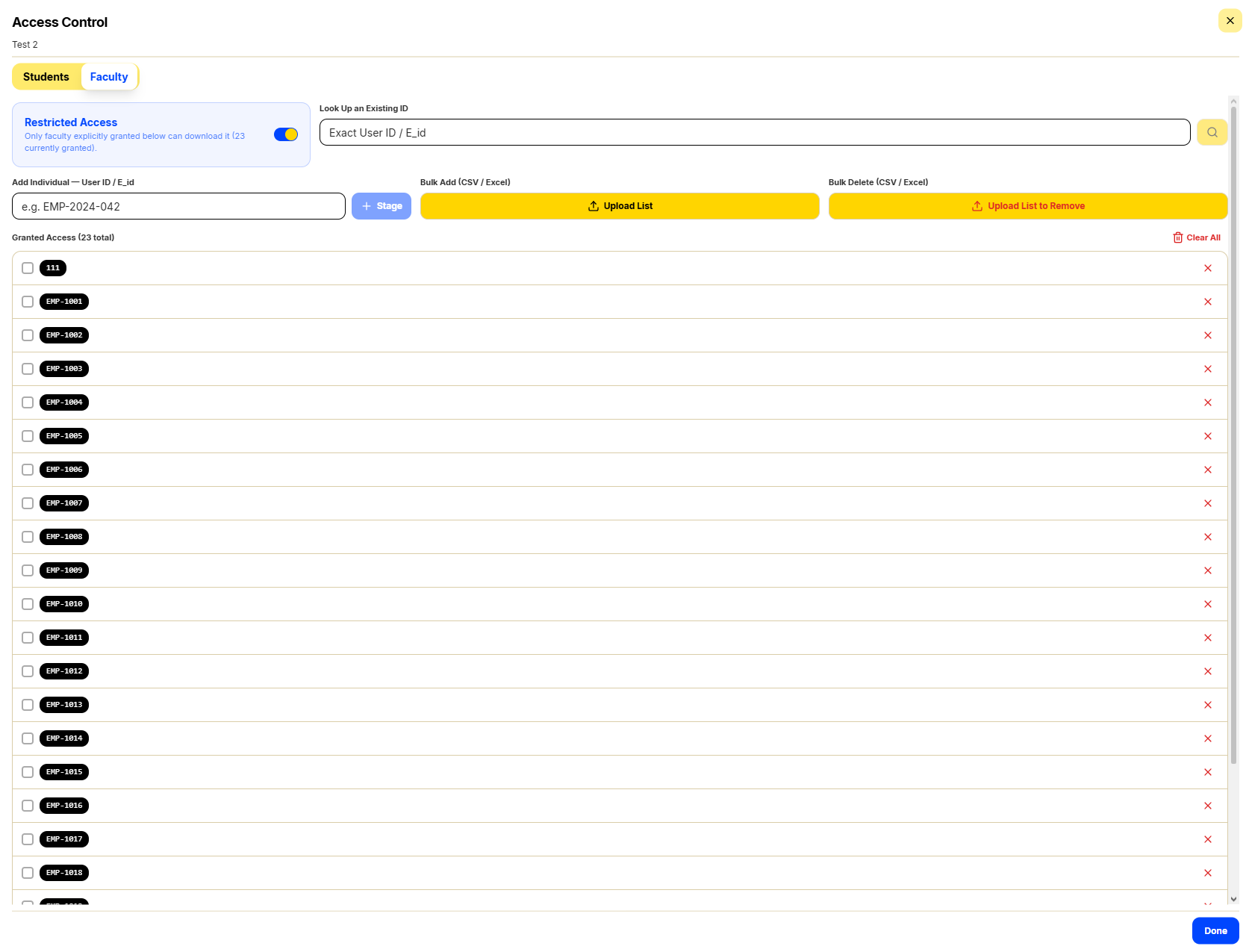
Each tab has a "Restricted Access" switch. Off (Open) means anyone in that role can download it. On (Restricted) means only the IDs you explicitly grant below can.
Add people individually by User ID / E_id, or upload a CSV/Excel list for bulk add both stage the change rather than applying it immediately. Bulk delete works the same way, via its own file upload.
The granted list is paginated and searchable by exact ID useful once a list has grown to hundreds or thousands of people. Select multiple rows to remove them together, or use "Clear All" to remove everyone (always asks for confirmation first).
Nothing is sent to the server as you make changes everything is staged locally first. Review the full summary of what will change and click "Confirm & Apply" to save it as a single request.
You've completed this guide — How to Control Who Can Download a Document