
About this feature
Classrooms in UNILinkd replace the need for separate WhatsApp groups for every class batch. Each classroom has a dedicated group chat (faculty post, and students can chat too if you switch it on), a weekly timetable, Google Meet integration for online sessions, and an exportable student list. Classrooms are created from the dashboard by Admins or Sub-Admins and assigned to a faculty incharge who manages them. Each period in a timetable can also have a subject teacher assigned (this is optional), and there is a dedicated Teaching Schedule page to see who is teaching what, and when, across every classroom.
How to Set Up a Timetable
Build a weekly timetable for a classroom, and optionally assign a subject teacher to each period.
Timetables can be created by any Faculty account not just the classroom's incharge.
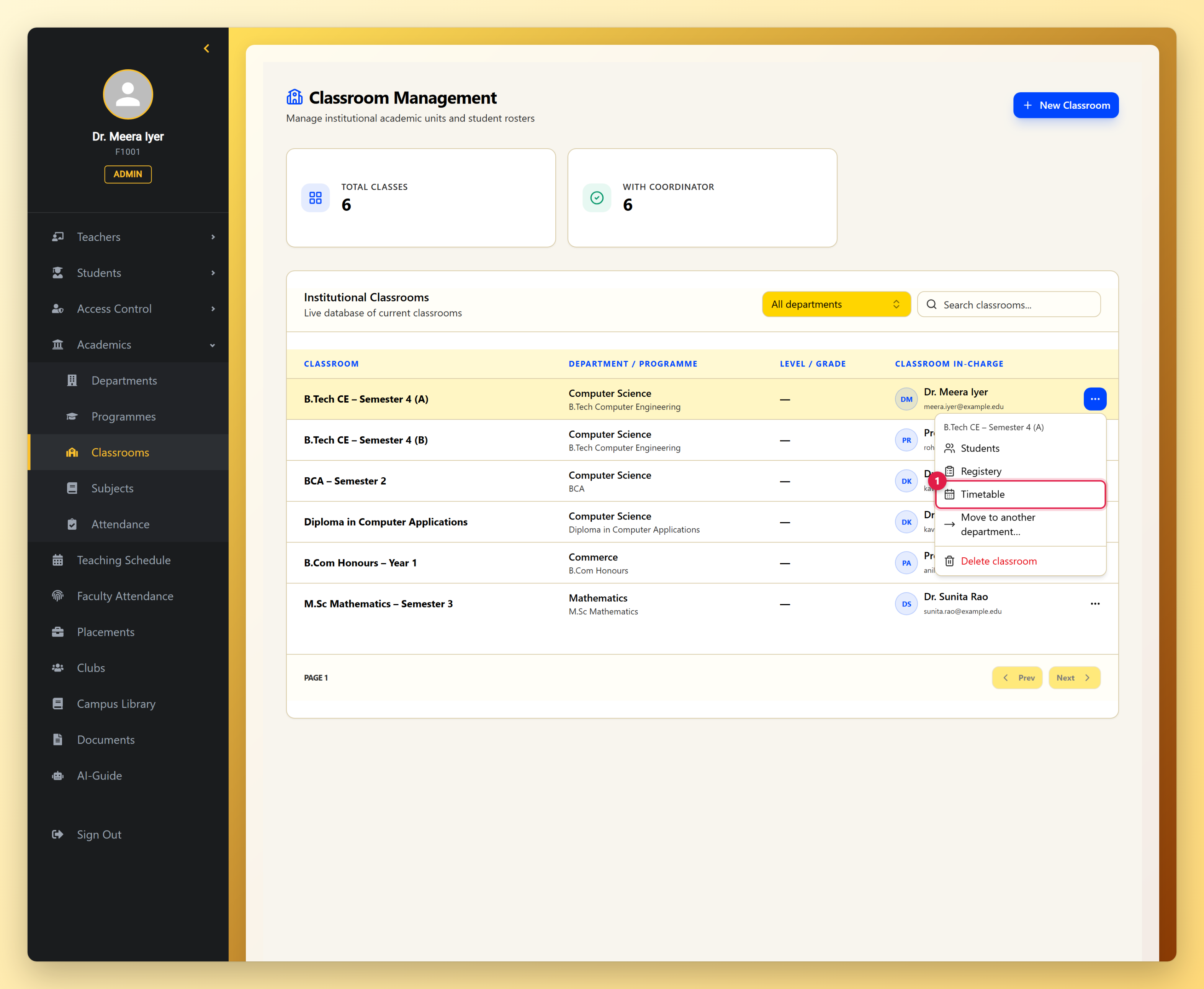
Open the ClassRooms module, select a classroom, and click "Timetable".
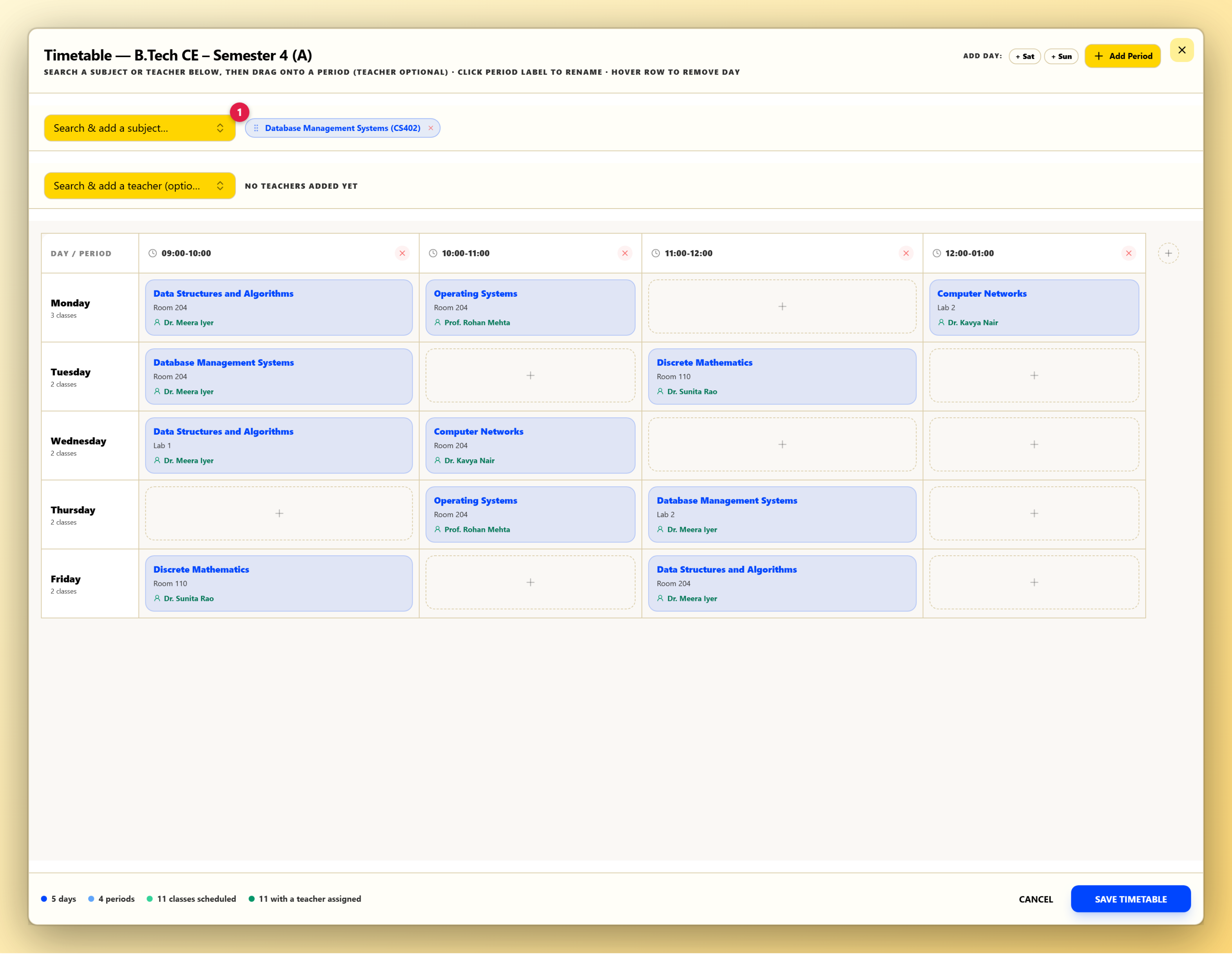
The editor shows a weekly grid. Search for a subject in the "Search & add a subject" box below the grid it gets added as a draggable chip. Drag the chip onto any period cell to schedule it.
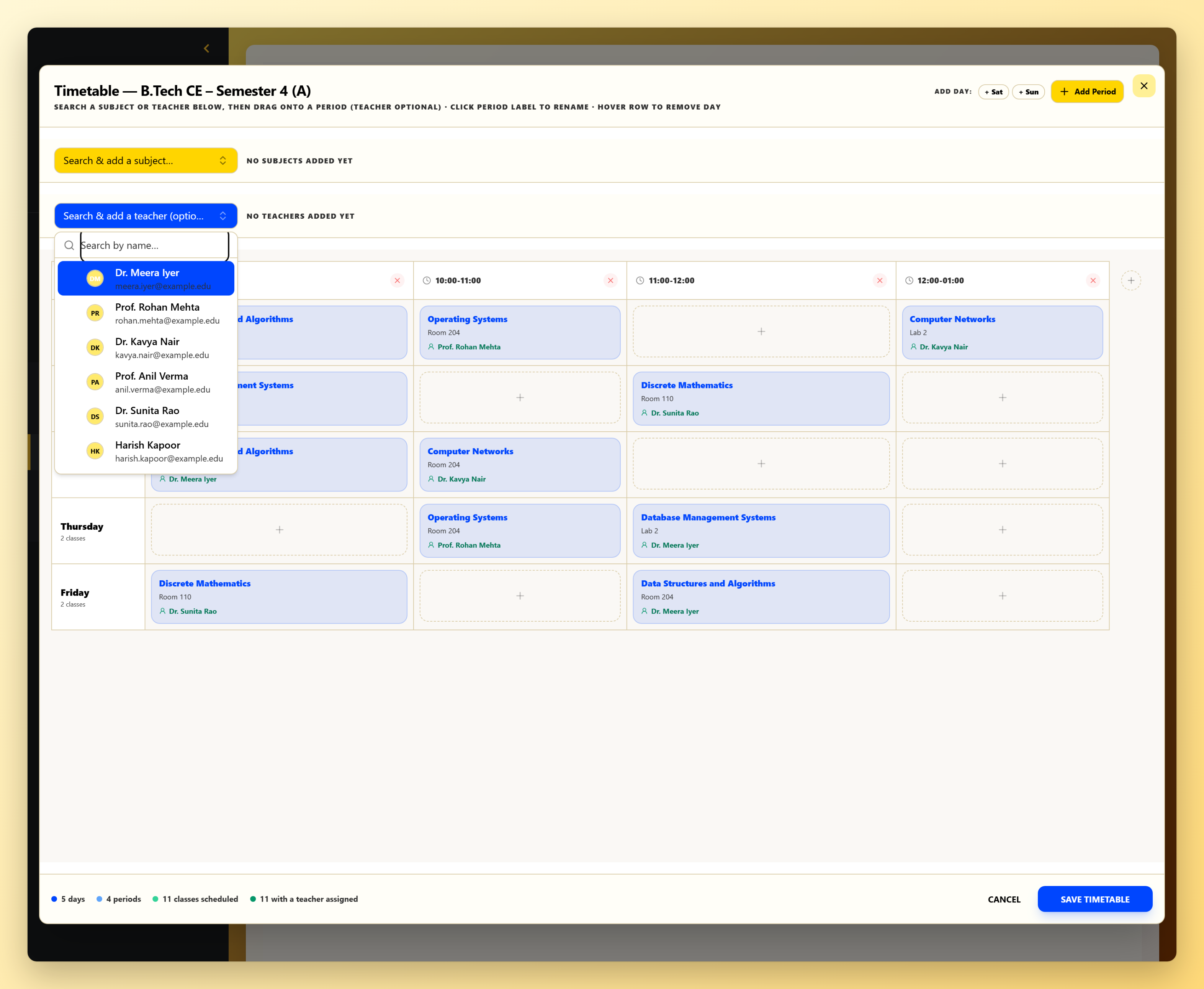
Assigning a subject teacher is optional. Use the second "Search & add a teacher" box the same way search by name (their photo is shown alongside the result to help tell people with similar names apart), then drag the teacher chip onto a period. A period can have a subject with no teacher, a teacher with no subject, or both.
You can remove just the teacher from a period without removing the subject hover the period and click the small X next to the teacher's name.
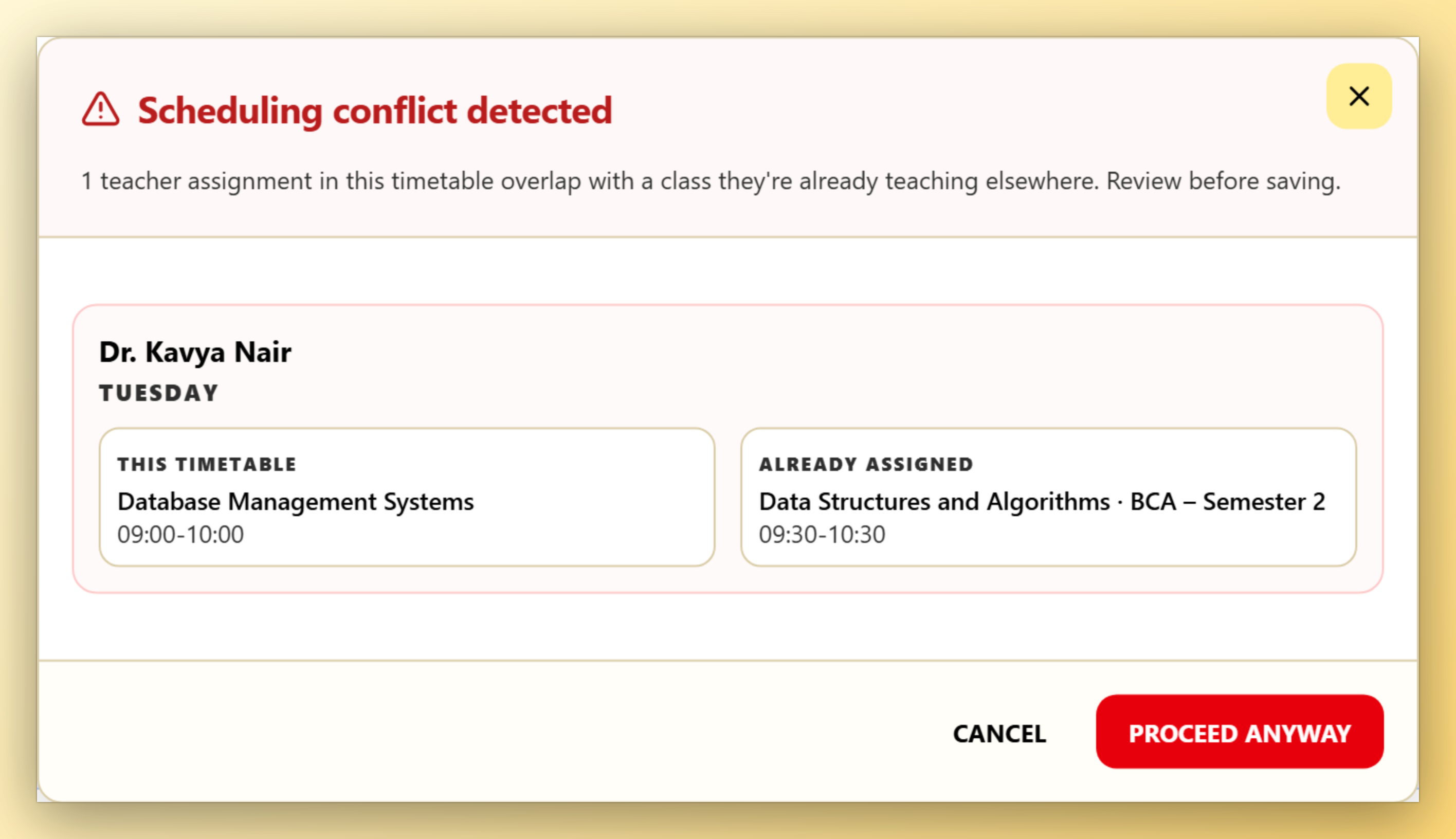
Click "Save Timetable". If a teacher you just assigned is already teaching a different classroom at an overlapping day and time, a "Scheduling conflict detected" report appears listing every clash in full detail. You can Cancel and adjust the timetable, or click "Proceed Anyway" to save it as-is.
Once saved, students in that classroom see the timetable in the app, and any assigned teacher's class shows up automatically in their own Teaching Schedule.
You've completed this guide — How to Set Up a Timetable