
About this feature
The UNILinkd web dashboard is a browser-based management platform for your institution. It is used by Admins and Sub-Admins for day-to-day operations enrolling users, managing departments, setting up classrooms. Faculty members also have limited access to view records and manage their assigned responsibilities. Everything here is scoped to your institution only other colleges cannot see your data.
Roles and Permissions Explained
A full breakdown of every role on the faculty side what each can and cannot do.
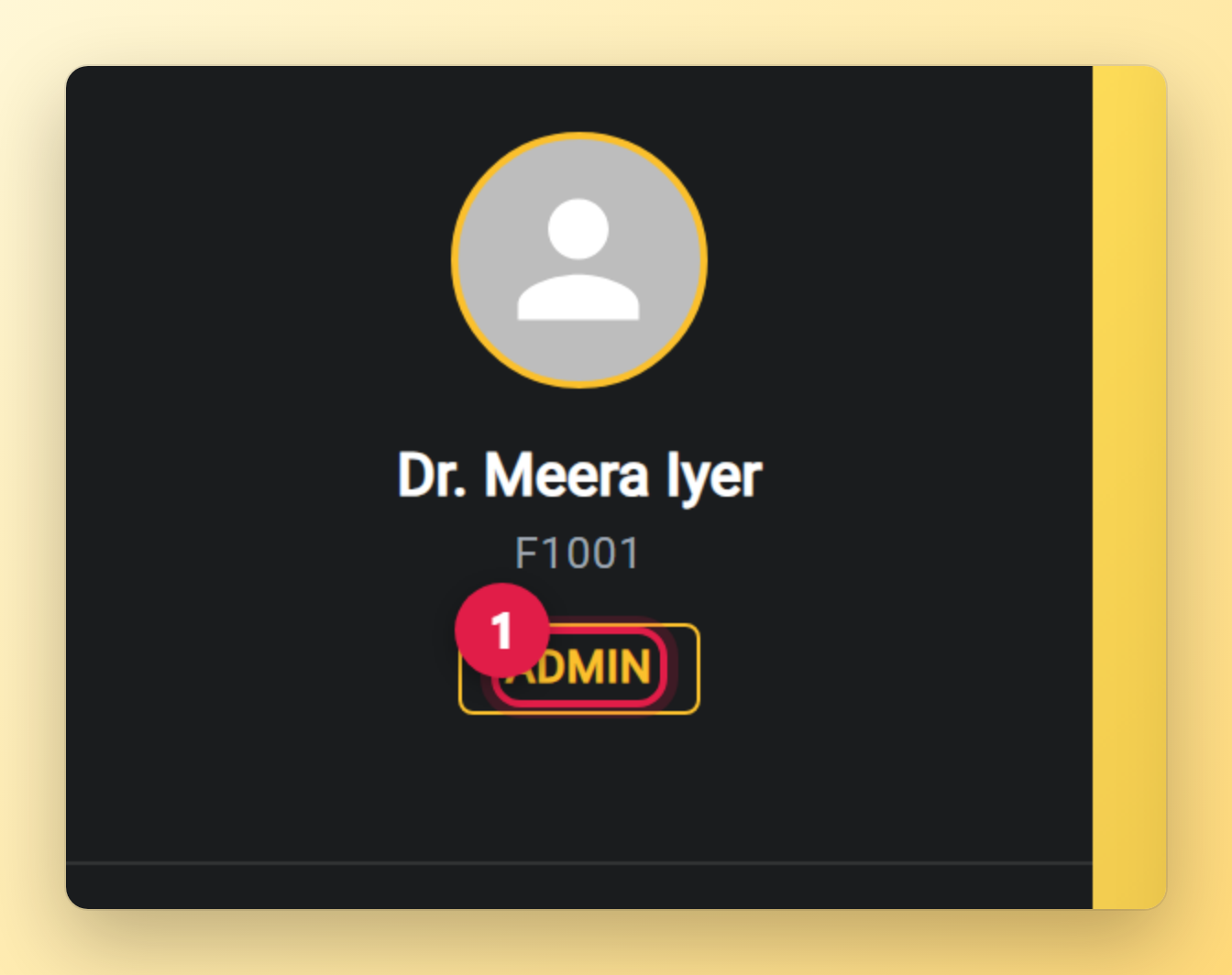
UNILinkd uses four roles for faculty and staff: Super Admin, Admin, Sub Admin, and Faculty. Your role is assigned when your account is created and controls exactly what you can see and do in both the dashboard and the app. Your current role appears as a badge in the sidebar header.
SUPER ADMIN This is the highest role. A Super Admin has full, unrestricted access to every module and every action in the dashboard and app. Super Admins can create, modify, and delete any account including other Admin accounts. They can manage teachers, students, classrooms, departments, placements, alumni, clubs, and the campus library. They can also assign and revoke admin roles. Typically held by the head of IT or the Principal.
ADMIN Admins have broad management access but cannot touch Super Admin accounts or other Admin accounts. An Admin can: add and delete teacher accounts (individually or in bulk via CSV), add and delete student accounts (individually or in bulk via CSV), create and manage classrooms, create and manage departments, post placements and revoke student access, manage alumni records, view and manage clubs, and create, modify, or delete Sub Admin accounts. Admins can also send private system messages to specific users via CSV upload. What Admins cannot do: create or modify other Admin accounts, change Super Admin settings.
SUB ADMIN Sub Admins have a similar scope to Admins but with key restrictions on deletion and account management. A Sub Admin can: add teacher and student accounts (individually or in bulk), update existing user details, create and manage classrooms, programmes and subjects, manage placements and alumni. What Sub Admins cannot do: create or change departments or attendance policies, delete teacher or student accounts (only Admins and Super Admins can delete), create or modify Admin or Sub Admin accounts, change role assignments.
FACULTY Faculty members have a narrower scope focused on classroom and content management, not user administration. On the Dashboard, a Faculty member can: view the full list of teachers and students (read-only), take attendance registers and share them with colleagues, view and manage their assigned classroom's timetable and GMeet sessions, and view alumni records. On the Mobile App, faculty additionally get: submitting attendance directly from the app, posting in their department's announcement channel and the campus Bulletin, creating and managing clubs, creating note sets and sharing them with students via access code, and managing their assigned classrooms (GMeet, timetable, student export). What Faculty cannot do: add or delete user accounts, create classrooms or departments, create or manage placements, modify other admin or faculty accounts.
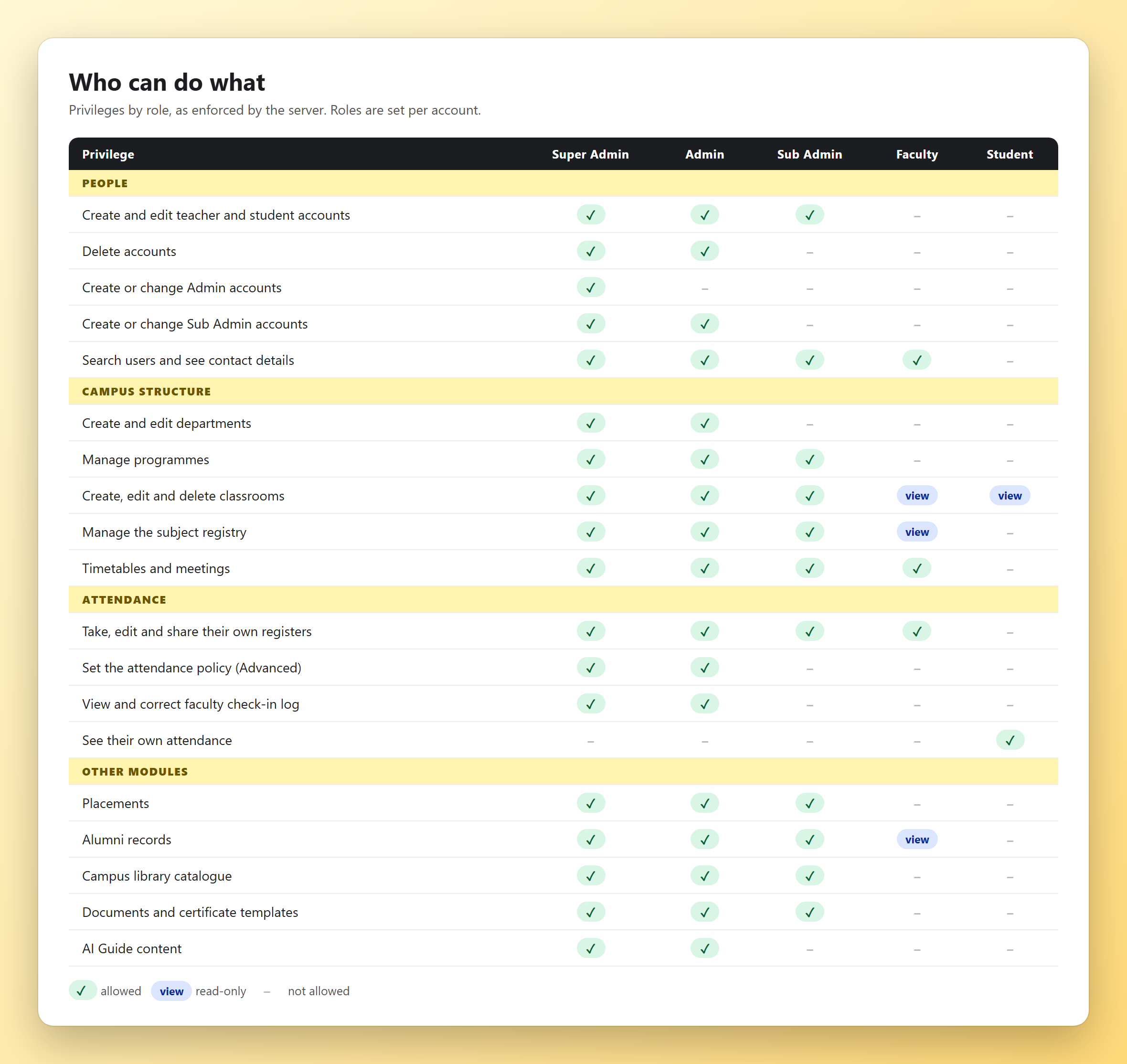
SUMMARY TABLE Super Admin: full access everywhere. Admin: manage all users + modules, can delete, can manage Sub Admins. Sub Admin: manage all users + modules, cannot delete users or touch admin accounts. Faculty: view users, submit attendance, manage their assigned classroom, create content (notes, clubs, announcements) cannot manage users or create departments/classrooms. If a button or option is missing from your view, your role does not permit it. Contact a Super Admin to request a role change.
You've completed this guide — Roles and Permissions Explained