
About this feature
The Alumni module maintains a permanent directory of former students. There are three ways in: students are archived automatically when they are deleted with the "Add to Alumni" toggle turned on, an admin can add one alumnus at a time with the "Add Alumni" form, or upload many at once from an Excel or CSV sheet with "Bulk Add". Any alumni record can be edited later. Alumni also receive a short update survey by email every few months to share their current employment and location, which keeps the directory current. Super Admins, Admins and Sub Admins can add, edit and delete alumni records; Faculty can only view them.
How to Edit an Alumni Record
Correct or update the details of any alumnus.
In the Alumni Directory, click the person's card to open their profile, then click "Edit Alumni Record" at the bottom of the panel.
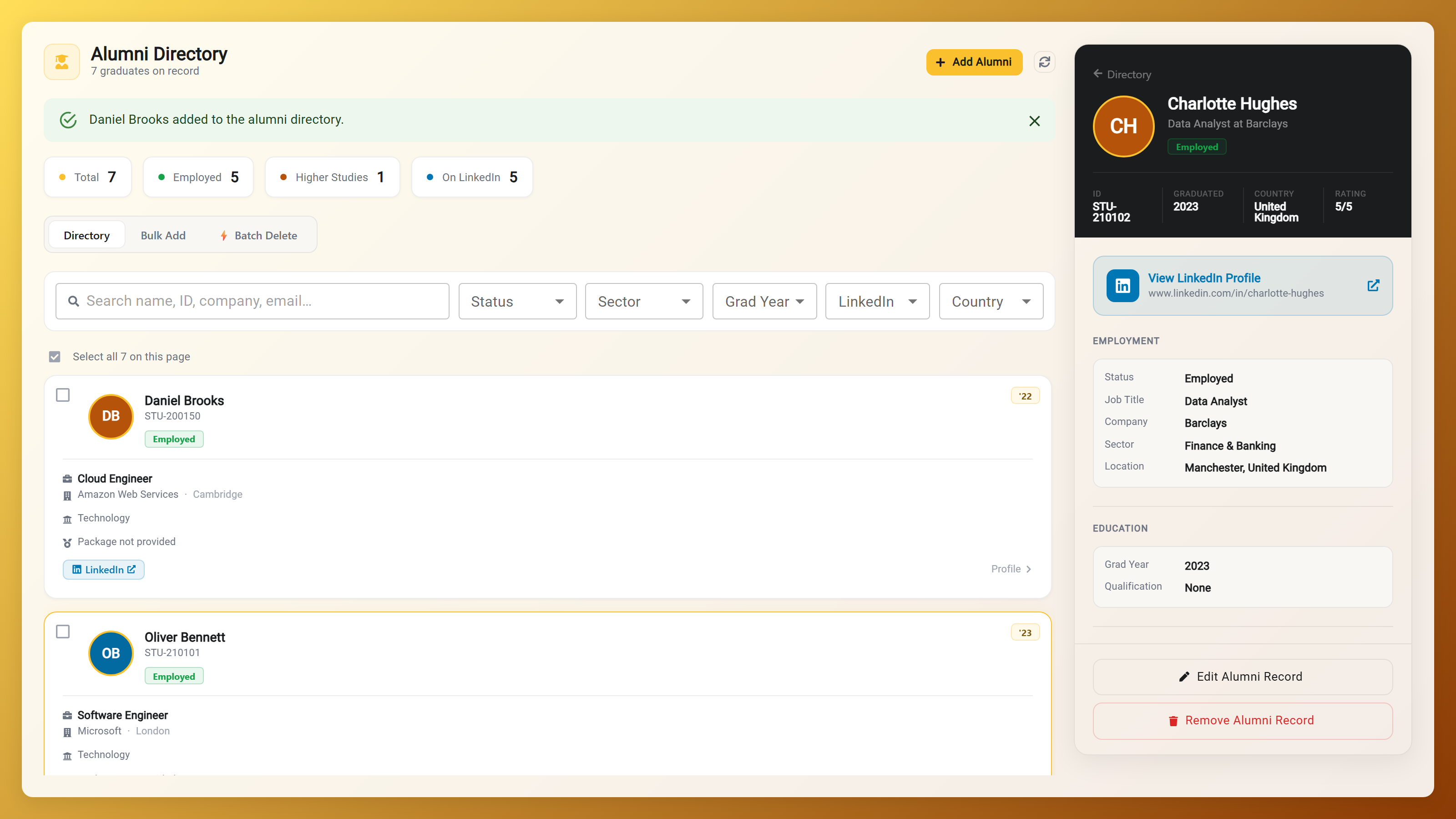
The form opens with their current details. Change what you need; the same rules apply as when adding (Name, Email, ID and Graduation Year are required). Any record can be edited, whether it was archived from Students or added by hand.
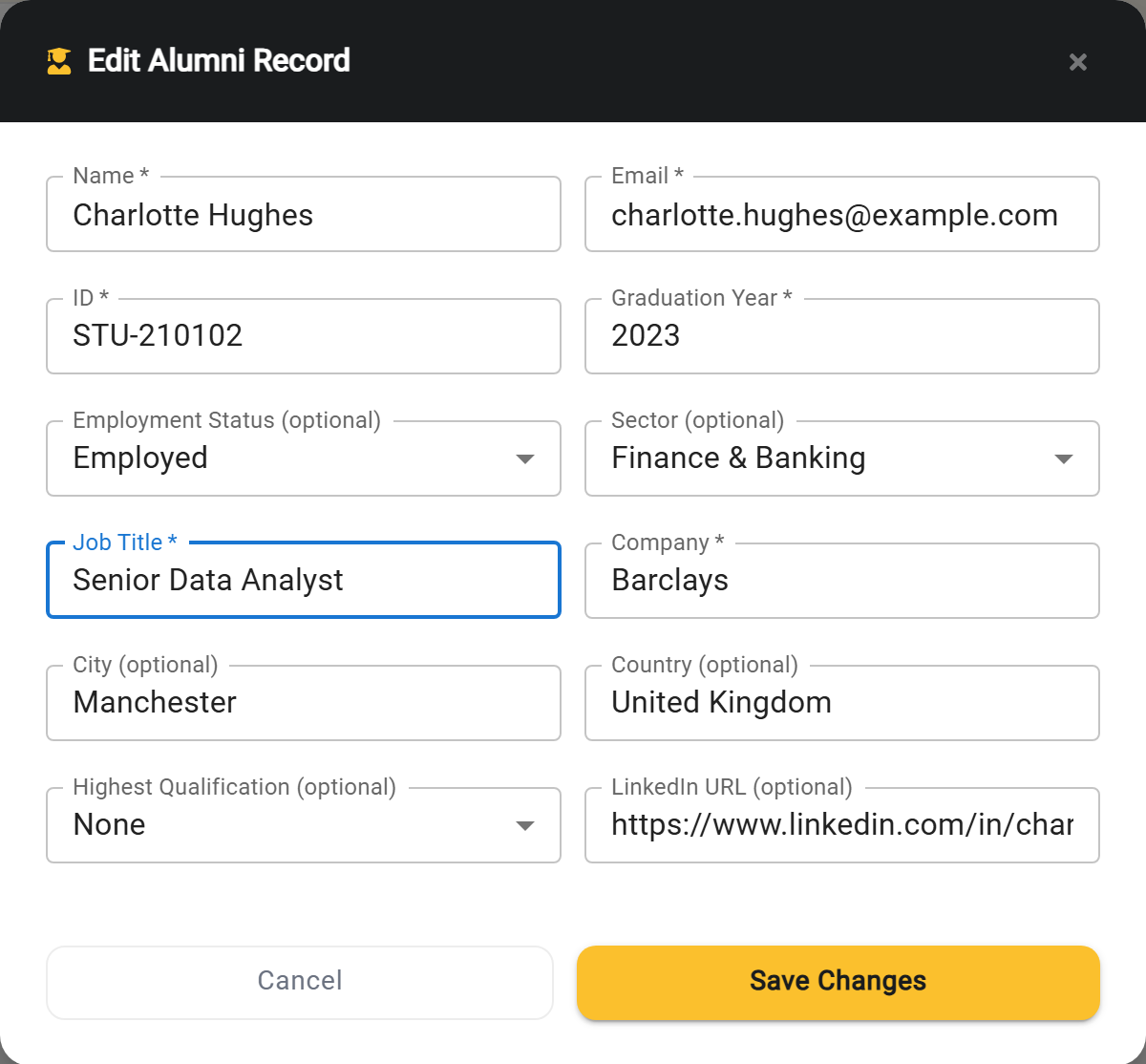
Click "Save Changes". The profile updates straight away. The alumnus's own survey answers, such as ratings and feedback, are kept. If you change the email or ID to one another alumnus already uses, the change is refused.
You've completed this guide — How to Edit an Alumni Record