
About this feature
The Attendance Registry replaces manual attendance sheets. Faculty take a register for a classroom on a date - from the mobile app or the dashboard - marking each student present or absent (or on leave / excused). What the form asks for depends on the classroom's attendance policy: some institutes take attendance subject-wise, others for the whole class with no subject, and some use fixed daily slots such as "Morning" and "Afternoon". Registers you take are private to you; you can share any one of them with a colleague as view-only or editable. You can review, filter, correct and delete your registers, see live summary stats, and export a full workbook that is emailed to you. In the sidebar, Attendance sits inside the "Academics" group together with Departments, Programmes, Classrooms and Subjects.
How to Take Attendance from the Dashboard
Pick a classroom and date, follow the form it asks for, mark absentees, and submit the register.
In the sidebar, open the "Academics" group and click "Attendance". Click "Take Attendance".
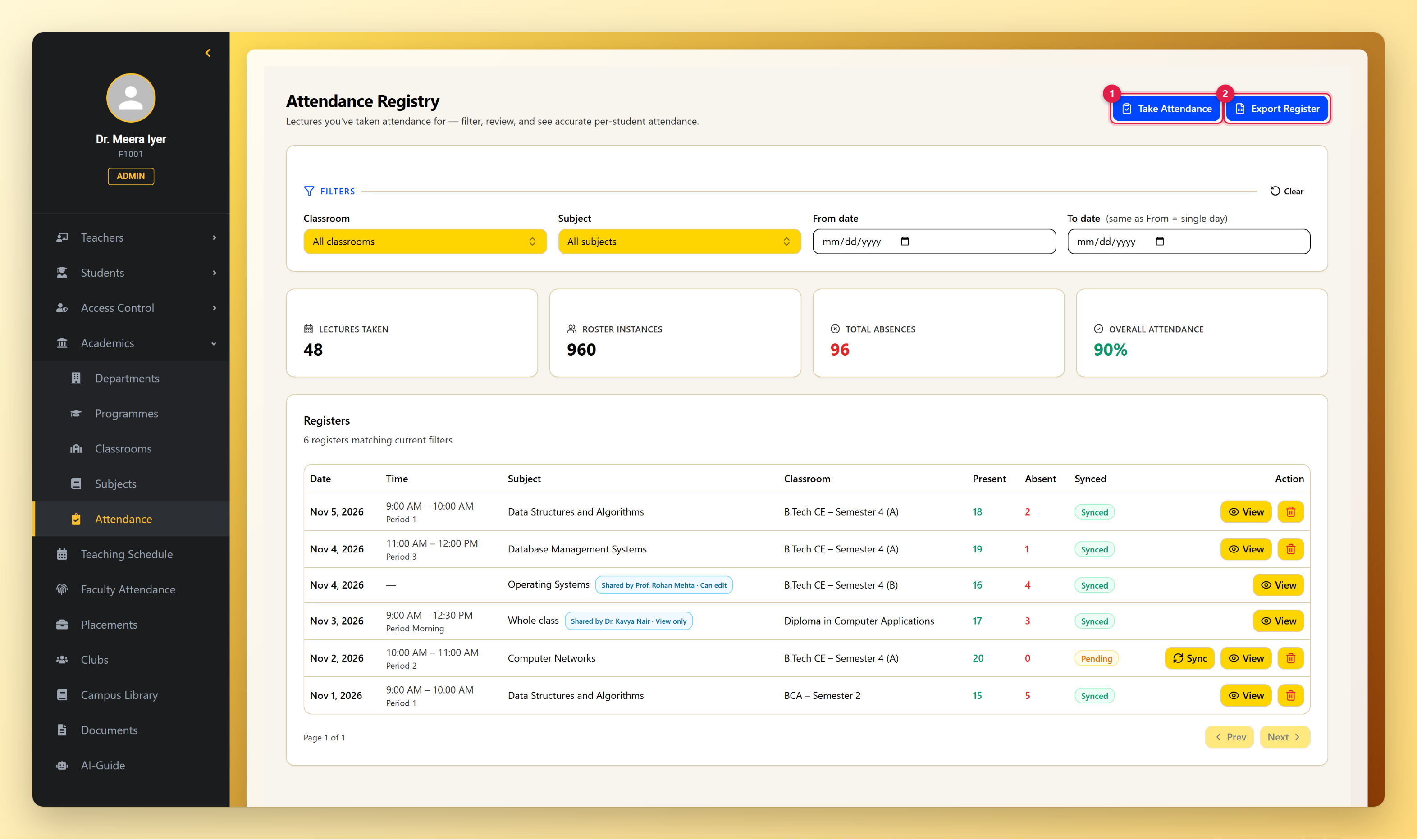
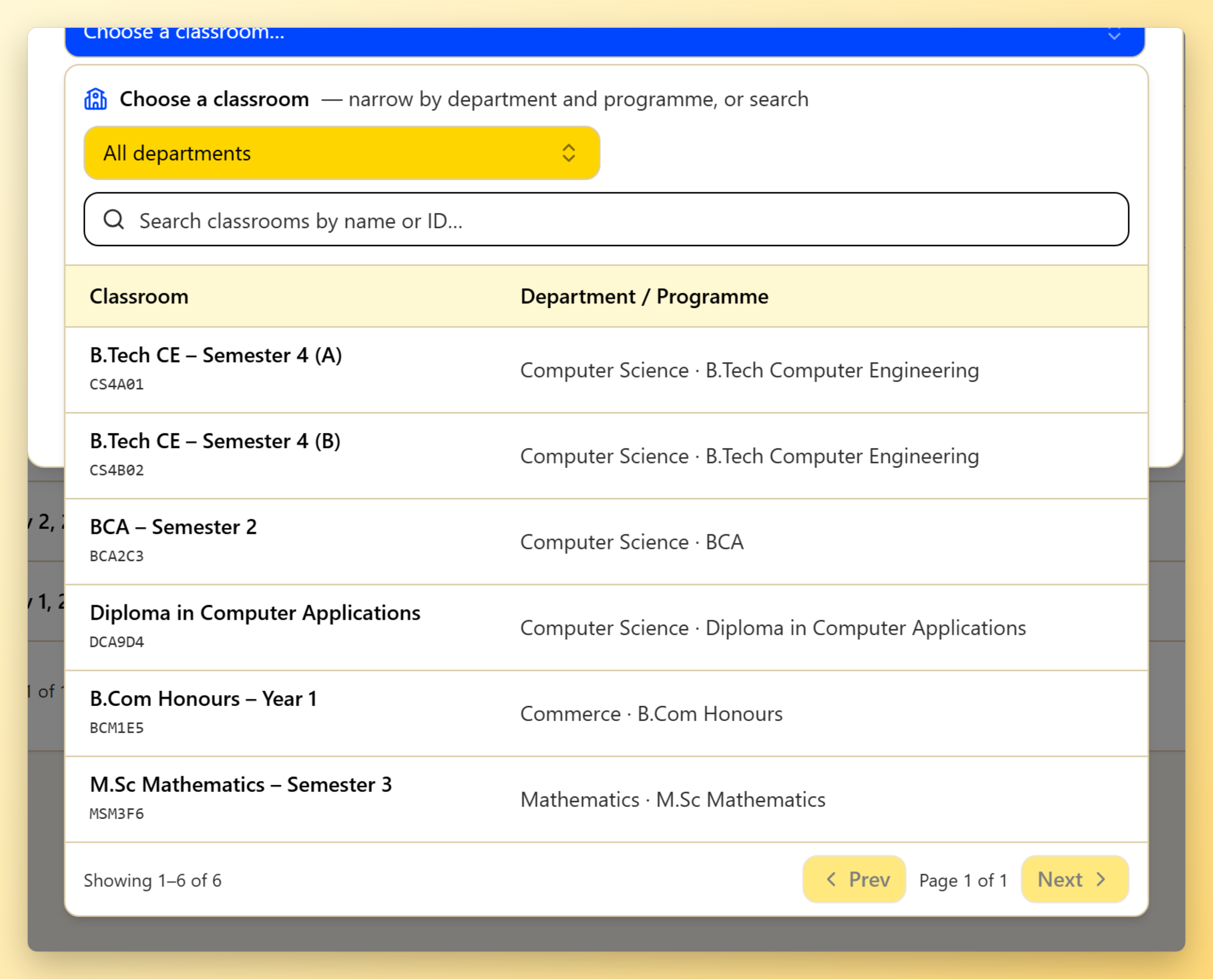
Click the Classroom field. A picker opens where you can narrow the list by department and then programme, or simply type a classroom name or ID. Pick the classroom - large campuses with thousands of classrooms stay fast because the list is searched and paged on the server.
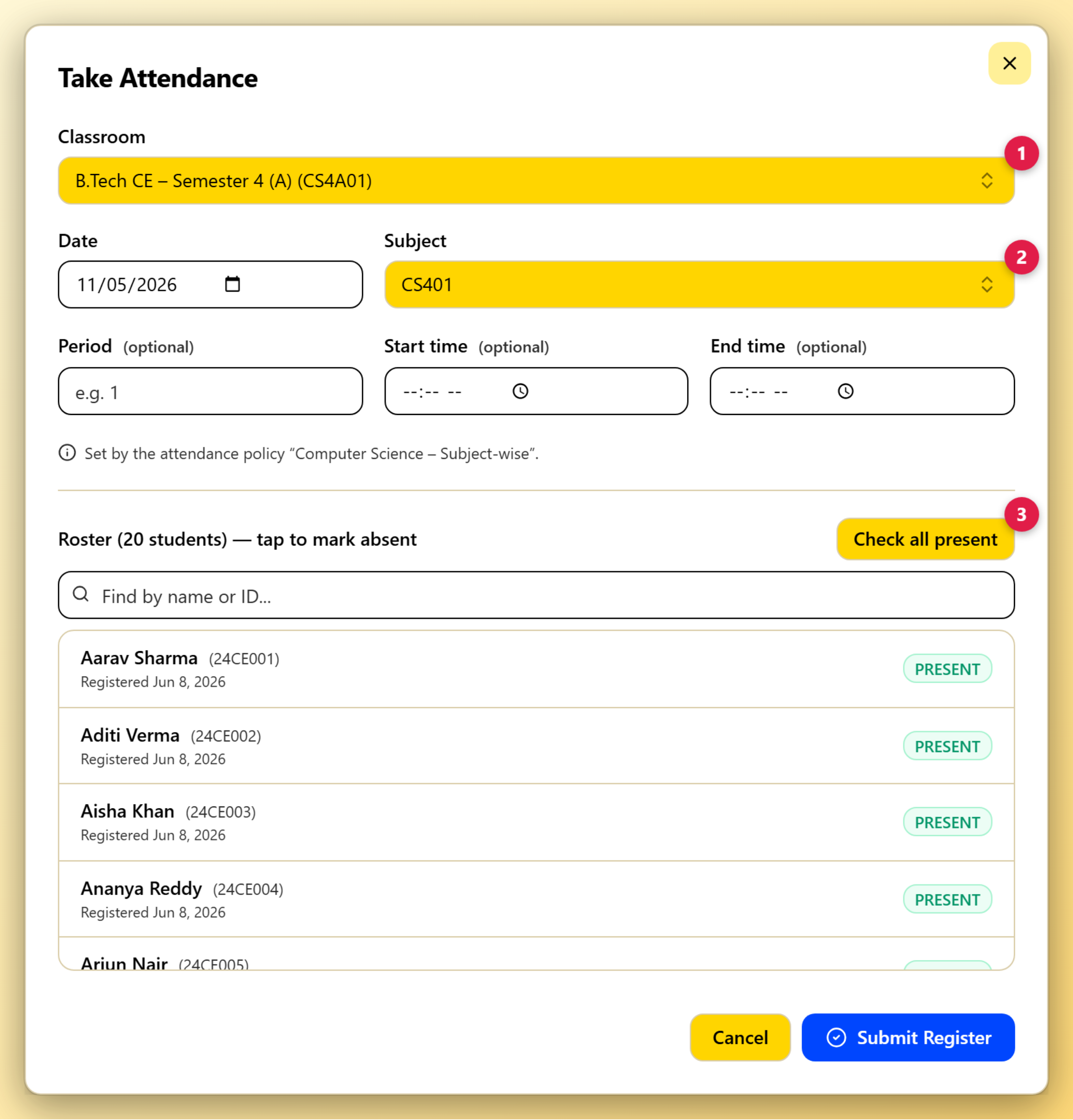
Choose the date (defaults to today). The form now adapts to the classroom's attendance policy, and a small note under the form says so: "Set by the attendance policy ...". There are two modes. Subject-wise: search and pick the subject taught (a "This programme" tab lists the classroom's own programme subjects first). Whole class: there is no subject field - the date is all you need.
If the policy defines fixed slots (for example Morning and Afternoon), pick the slot this register is for. A tick marks slots that already have a register today, and a hint lists the slots "Not taken yet on this date". With a single slot there is nothing to choose. If the policy has no slots, you may optionally type a period and start/end times.
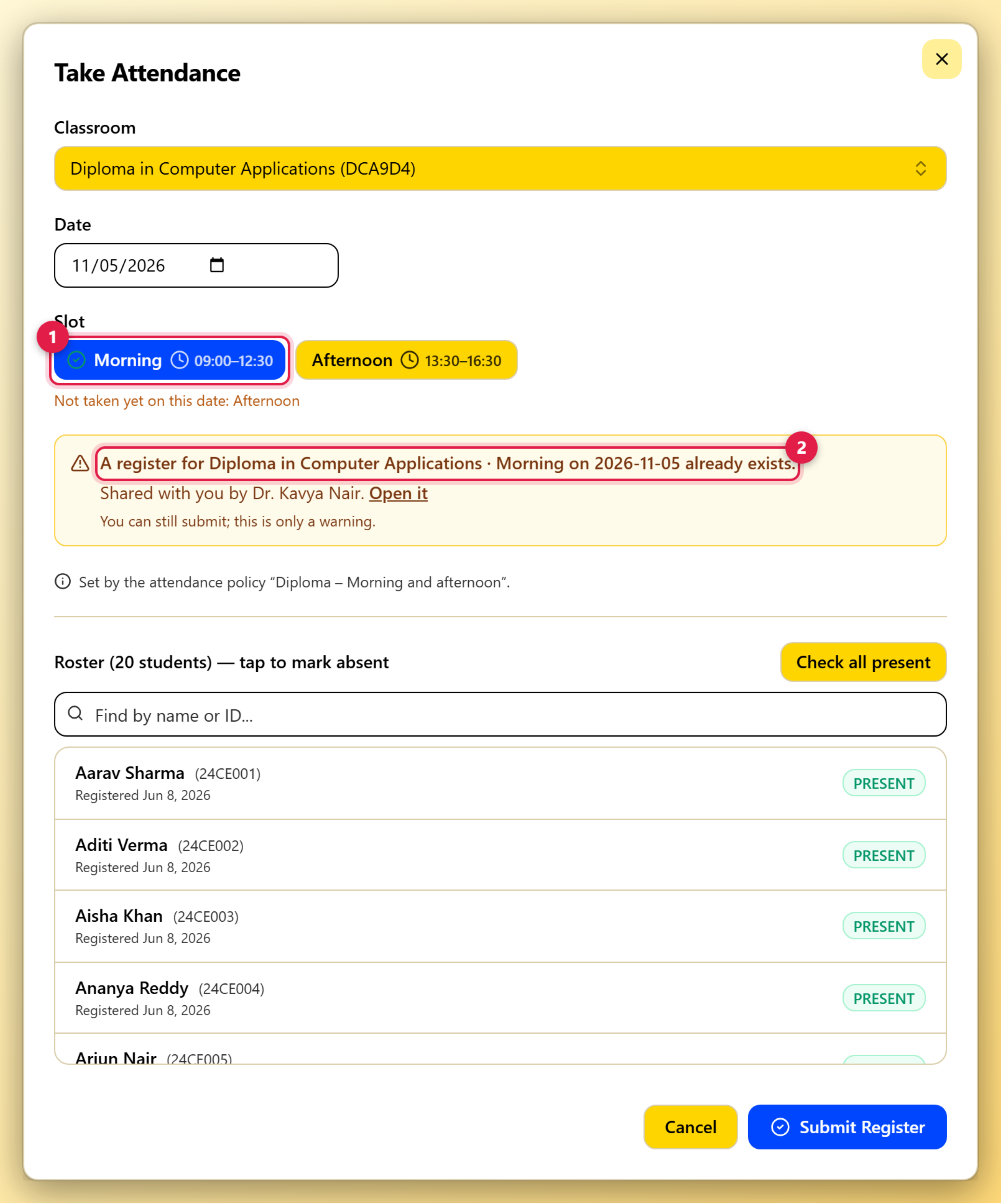
If the policy has the duplicate warning switched on and a register for the same classroom, date and slot already exists, an amber warning appears with an "Open it" link. It is only a warning - you can still submit.
The roster loads with everyone marked PRESENT. Tap a student to mark them absent, then use the small menu next to them to choose why: Absent, On leave, Excused, or "Other..." to type your own reason (for example "medical"). Use "Check all present" to reset, and "Find by name or ID" to jump to a student.
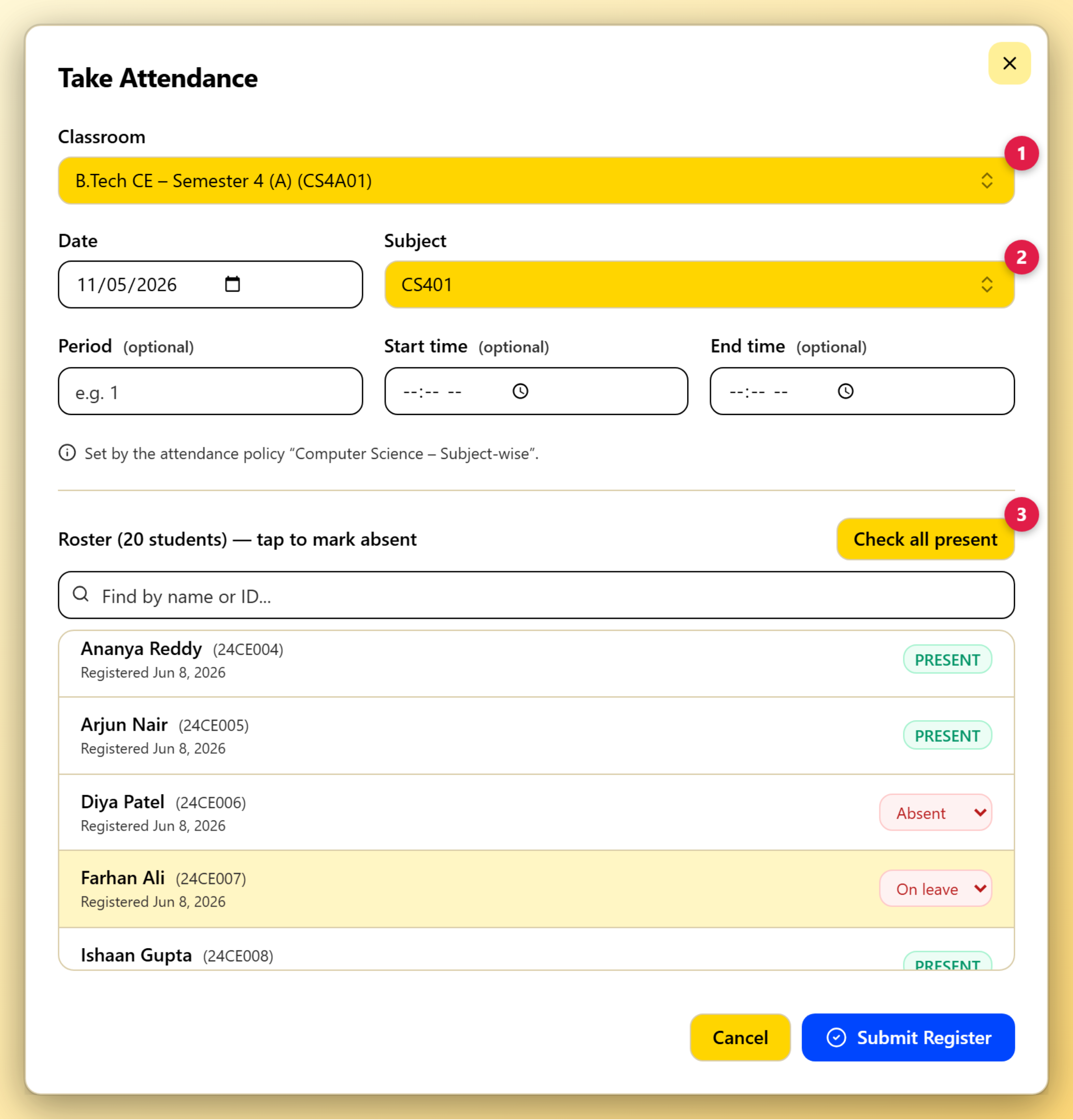
Click "Submit Register". You will see "Saved - N present, M absent", and every student's attendance updates in their app straight away (unless the policy hides attendance from students).
You've completed this guide — How to Take Attendance from the Dashboard