
About this feature
The Attendance Registry replaces manual attendance sheets. Faculty take a register for a classroom on a date - from the mobile app or the dashboard - marking each student present or absent (or on leave / excused). What the form asks for depends on the classroom's attendance policy: some institutes take attendance subject-wise, others for the whole class with no subject, and some use fixed daily slots such as "Morning" and "Afternoon". Registers you take are private to you; you can share any one of them with a colleague as view-only or editable. You can review, filter, correct and delete your registers, see live summary stats, and export a full workbook that is emailed to you. In the sidebar, Attendance sits inside the "Academics" group together with Departments, Programmes, Classrooms and Subjects.
How to Review, Edit, and Export Attendance Registers
Filter your registers, correct a mistake, and export a classroom's full workbook by email.
Open "Attendance" from the Academics group. The page shows summary cards and the list of registers: the ones you took, plus any a colleague has shared with you (tagged "Shared by ... - View only" or "Can edit").
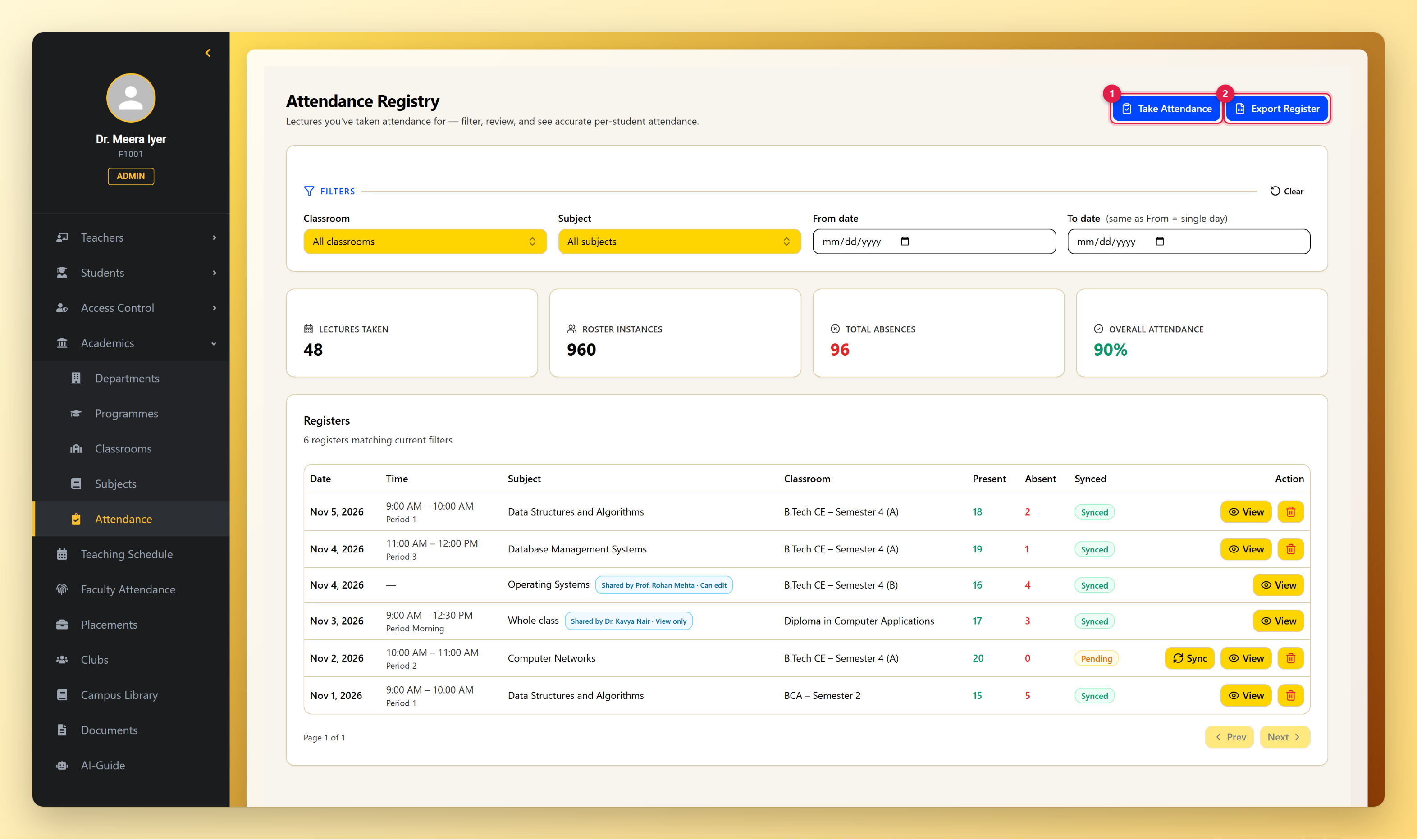
Use the Filters to narrow the list by classroom, subject and a date range (set To equal to From for a single day). Click "Clear" to reset.
Each row shows its sync status. A register marked "Pending" has not reached students' apps yet - click Sync to retry.
Click "View" on a register to open its detail: the whole roster with who was present and who was absent, and why.
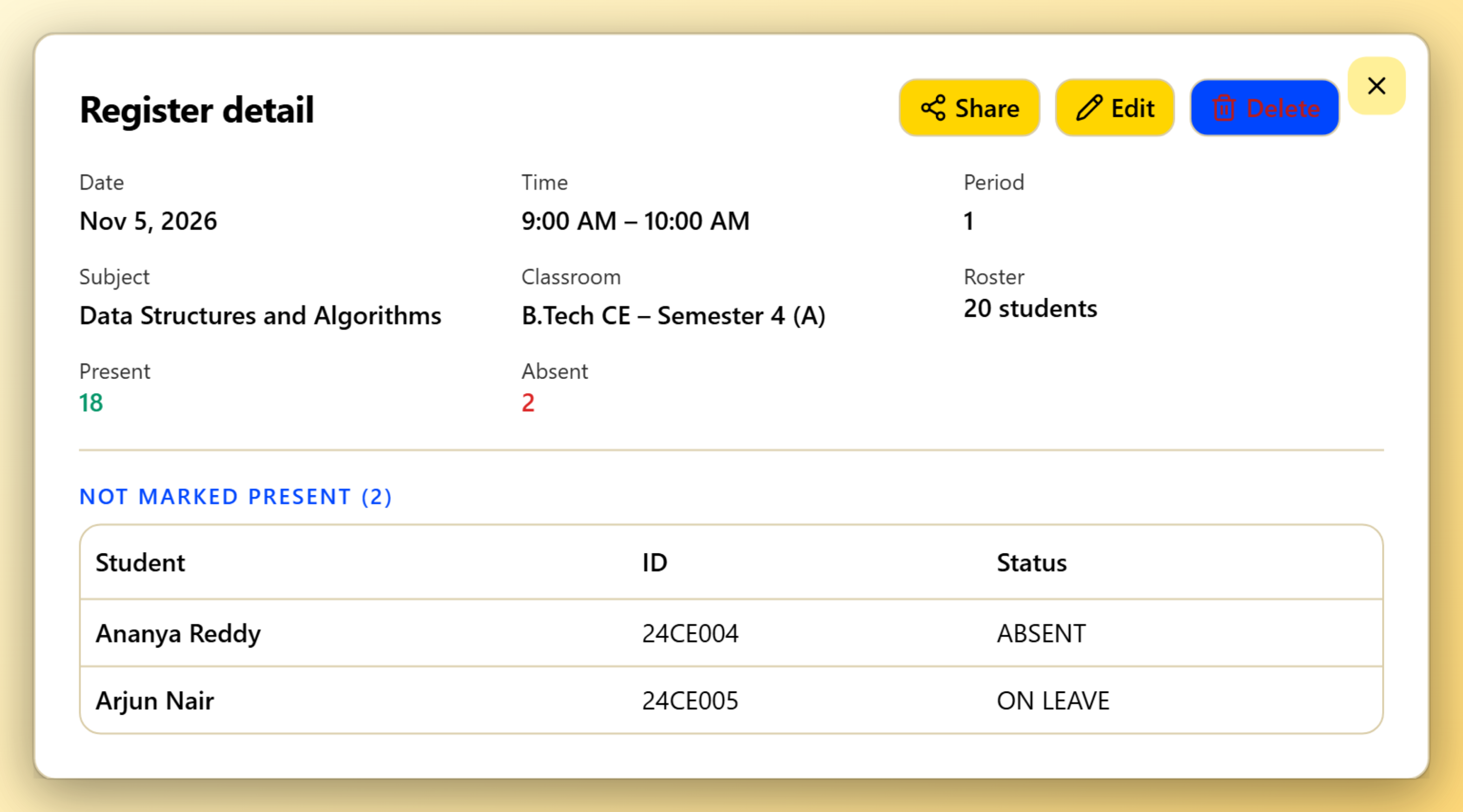
To fix a mistake, click "Edit" in the detail, change the date, slot, or any student's mark, and click "Save Changes". If a colleague shared the register with you as "Can edit" you can do the same; if it is "Can view" you can only look.
Click "Export Register". Choose the classroom first. If its policy is whole-class there is no subject to pick; otherwise search for a subject, or choose "No subject (whole class)". Optionally set a From and To date, then click "Generate & Email Me".
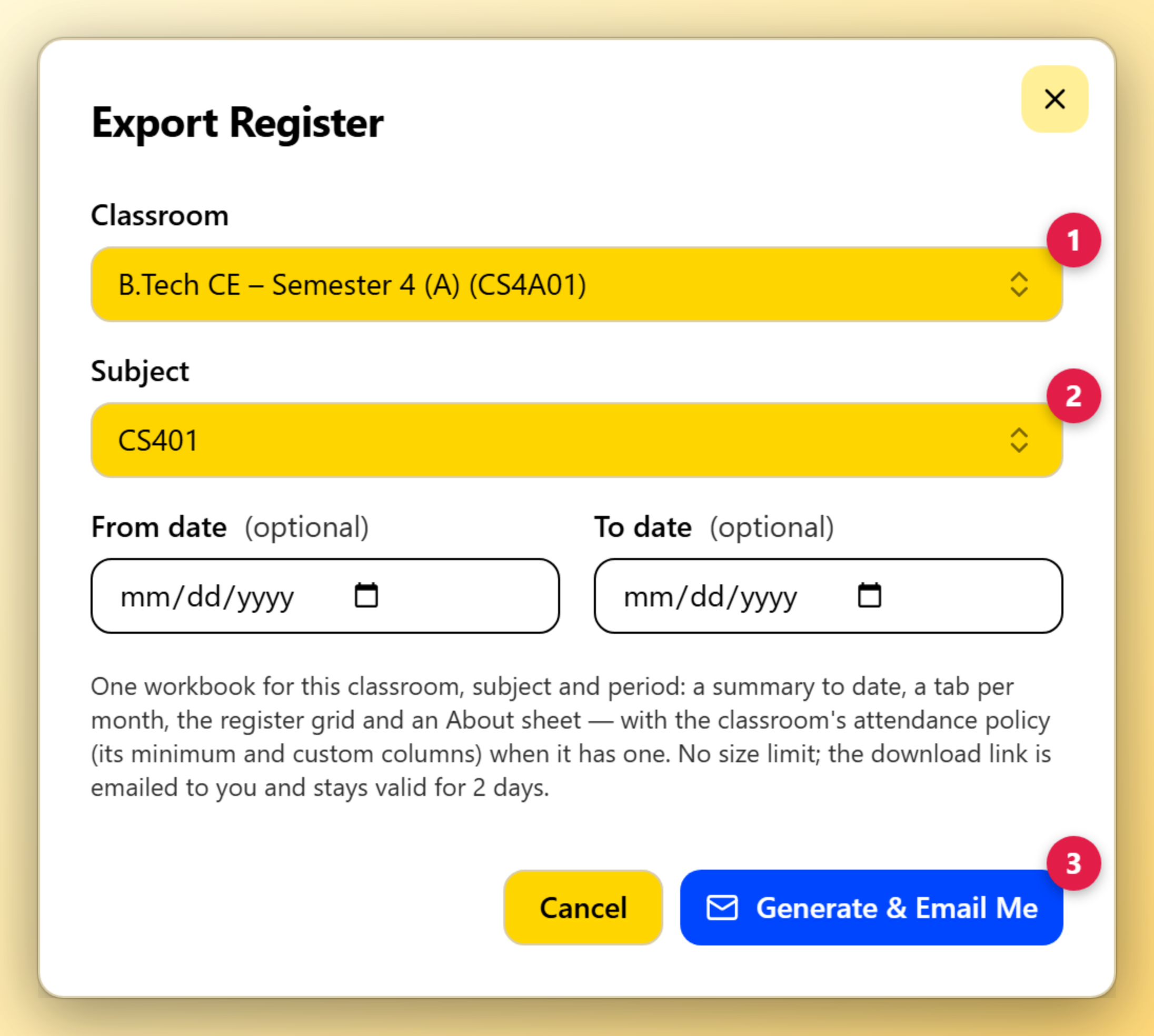
The export is one workbook: a summary to date, a tab for each month, the register grid, and an About sheet. If the classroom has an attendance policy, its minimum percentage and any custom report columns are included. There is no size limit; the link is emailed to you and stays valid for 2 days.
Made a register by mistake? Click the trash icon on its row and confirm. Only the faculty member who took a register can delete it.
You've completed this guide — How to Review, Edit, and Export Attendance Registers