
About this feature
Access Control manages the hierarchy of administrative power at your institution. Each role in UNILinkd has a specific set of permissions from the Super Admin who has full control, to Faculty who can only view records and submit attendance. Only Super Admins can create or modify Admin accounts. This section lets you view who currently has elevated access and manage their roles.
How to Promote, Demote or Remove Elevated Access
Change someone between Faculty, Sub Admin and Admin, and know who is allowed to do it.
Open "Access Control" in the sidebar. Admins lists everyone with the Admin role, Sub Admins lists Sub Admins, and Super Admin lists Super Admins. Use the search box to find a person by name or ID.
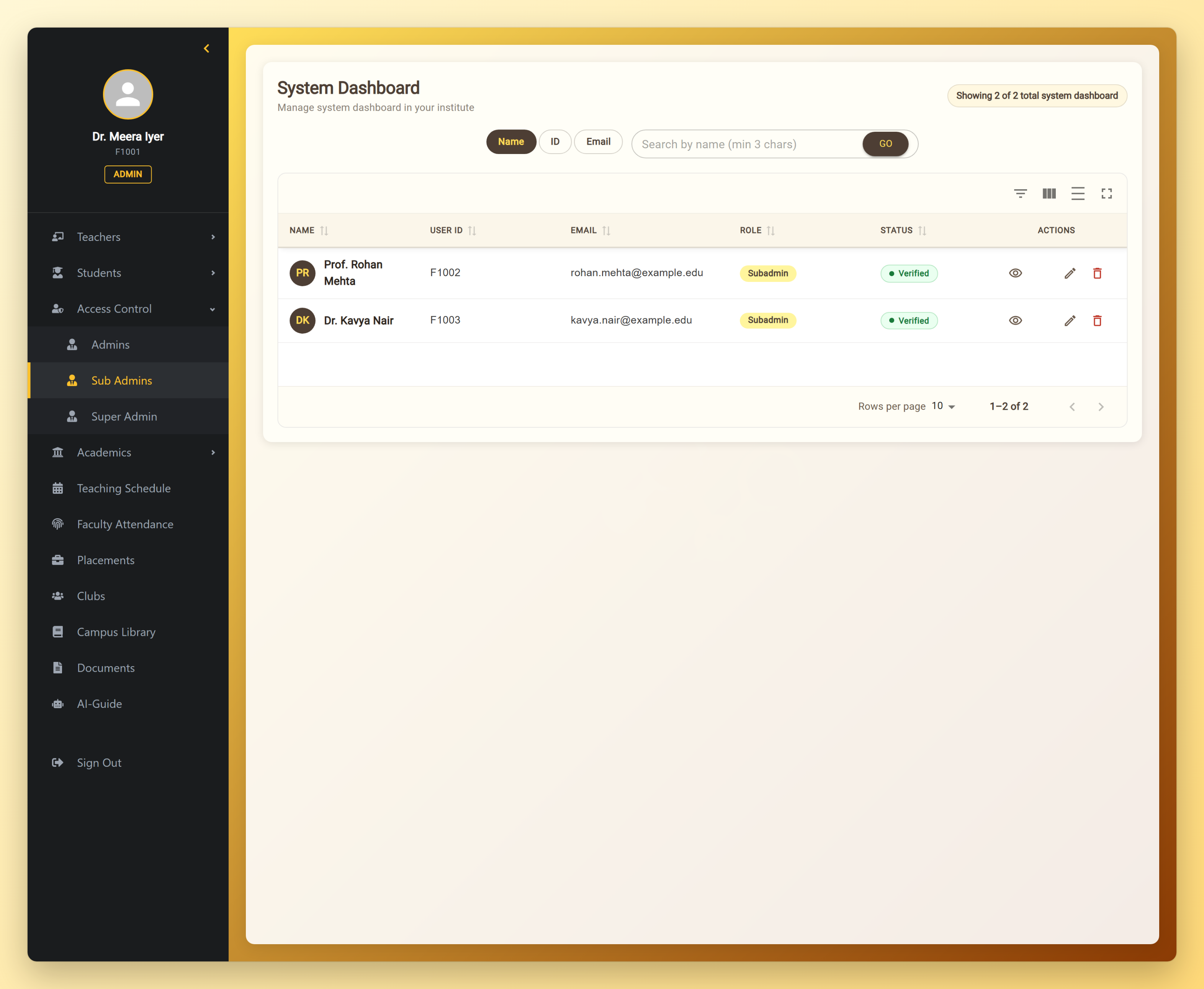
Who can change what: a Super Admin can change Admin and Sub Admin roles; an Admin can change Sub Admin roles; a Sub Admin cannot change roles. Super Admin accounts are managed by Super Admins only. The server enforces this, so a change you are not allowed to make is refused.
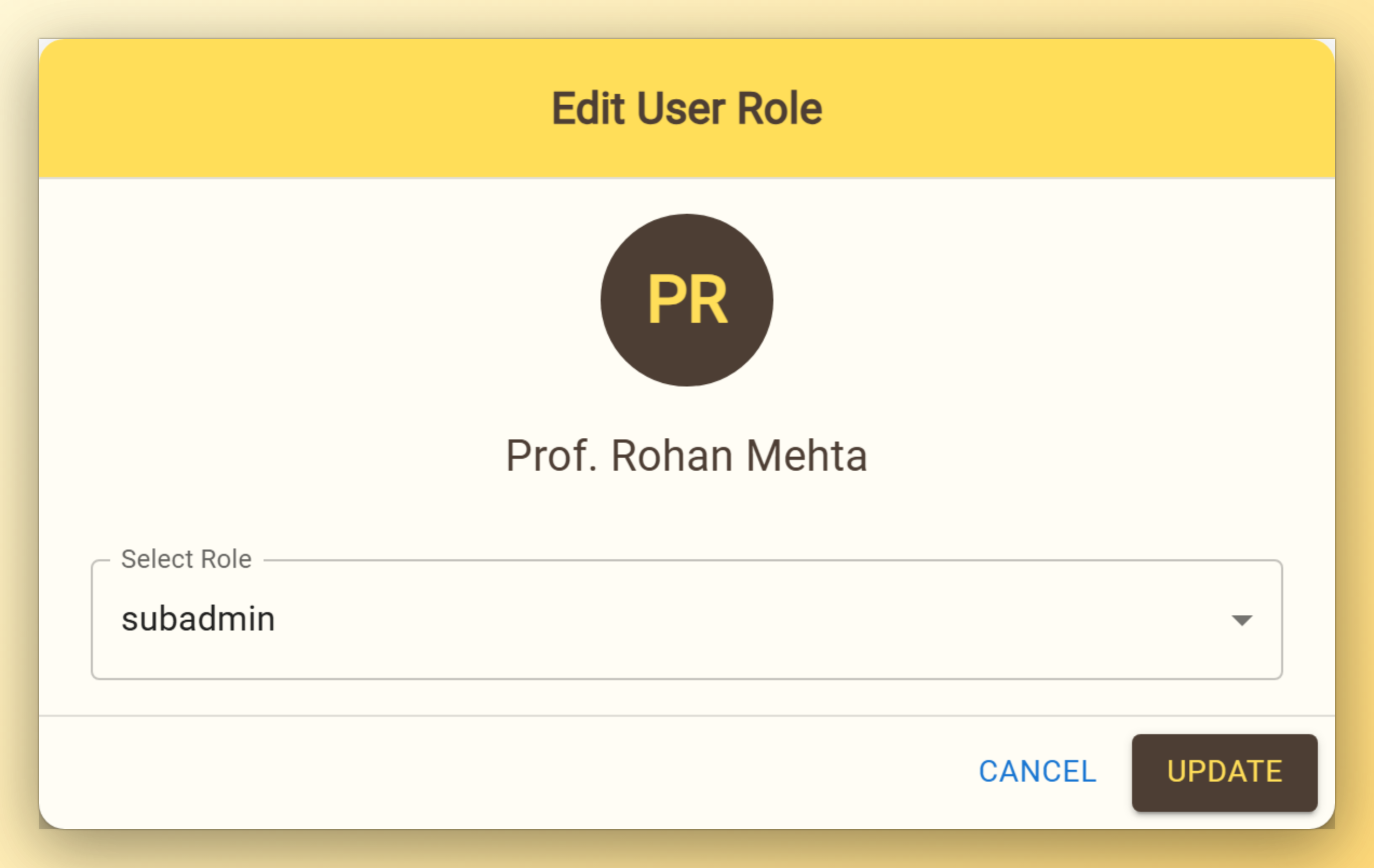
To promote a faculty member, find them in the list and click the pencil icon ("Edit role") in the Actions column. In the "Edit User Role" window open "Select Role", choose the new role, and click "Update". A confirmation appears, for example "role updated from faculty to subadmin".
A person who has not signed up in the app yet shows "User has not signed up yet" and their role cannot be changed until they do.
To demote someone, open the same window from their row, choose Faculty, and click "Update". Their extra menus disappear the next time they sign in or refresh.
Good practice: promote only when someone needs the extra tools, and demote as soon as they no longer do - for example when a coordinator's term ends. Fewer elevated accounts means fewer places for a mistake or a stolen password to do damage.
You've completed this guide — How to Promote, Demote or Remove Elevated Access