
About this feature
The Documents module lets Admins, Sub-Admins, and Super Admins design reusable document templates certificates, bonafide letters, ID cards, and more with a background image, editable text, and dynamic fields that auto-fill with each person's own name, email, and ID. Students and faculty then self-serve download their own copy from the mobile app's Library tab no more manual certificate requests. Access can be left open to everyone in a role, or restricted to a specific list of IDs, and Students and Faculty are always controlled completely separately.
How to Create a Document Template
Design a certificate or letter template with a background, text, and dynamic fields.
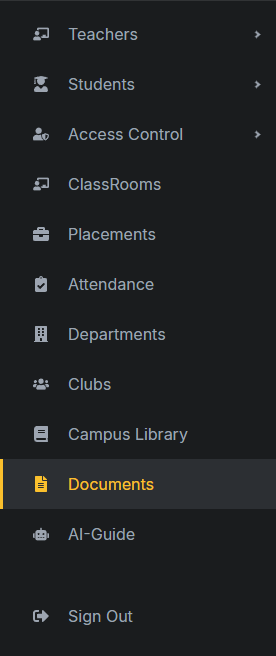
In the sidebar, click "Documents".
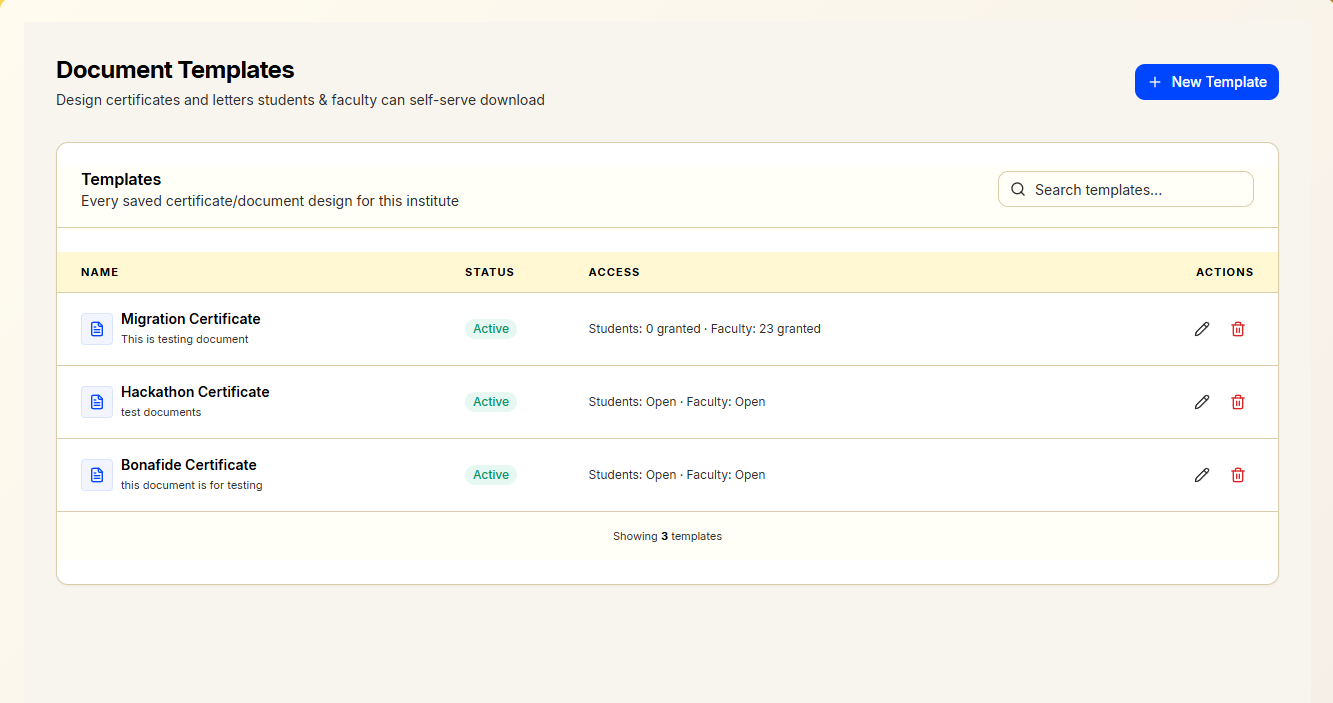
Click "New Template" to open the template designer.
Give the template a name (e.g. "Bonafide Certificate") and an optional description. Upload a background image it is automatically compressed and resized on your device before upload, so a large photo won't bloat storage.
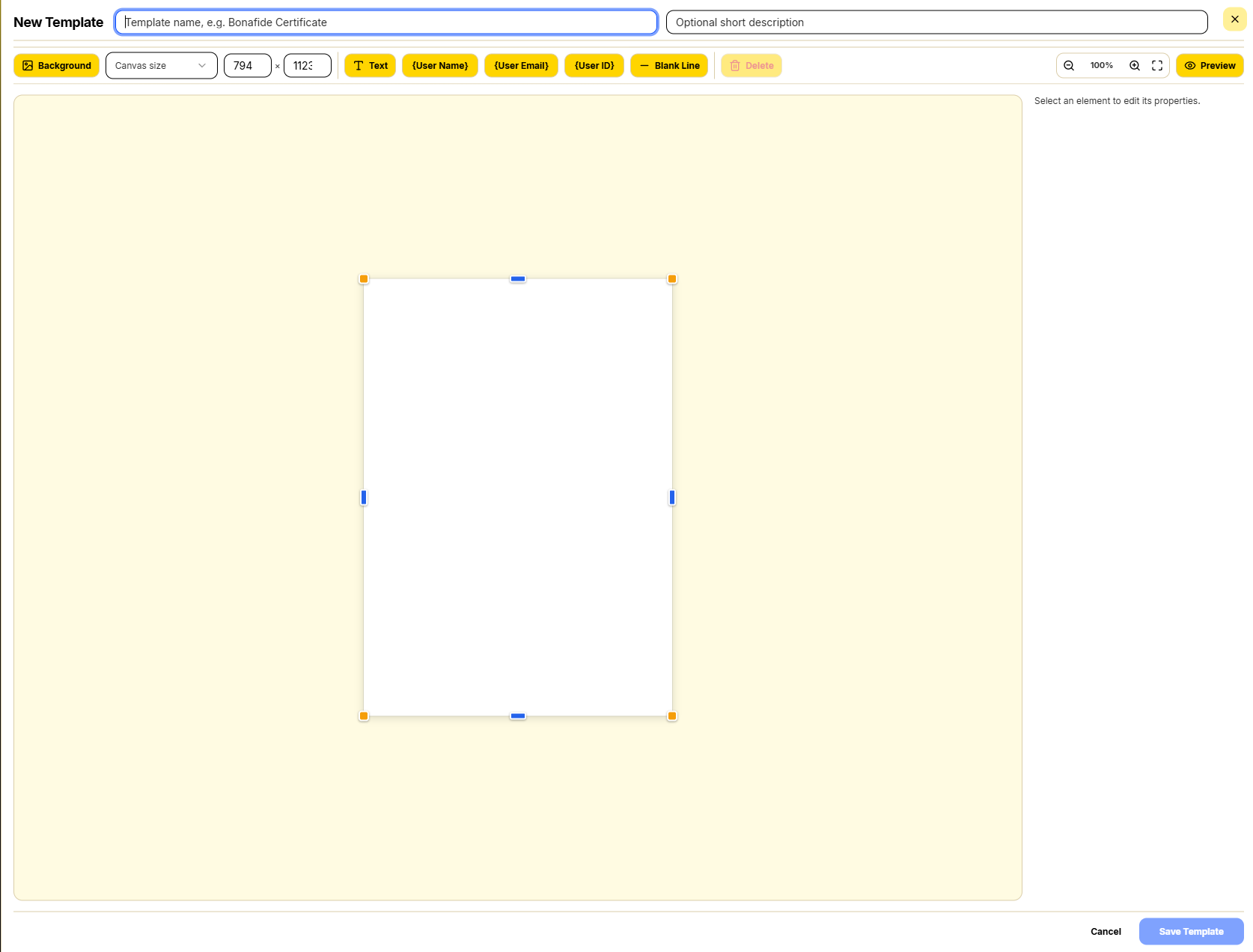
Use the toolbar to add elements onto the canvas: free Text, a Blank Line (for a signature or a manual-fill blank), or one of three Wildcards {User Name}, {User Email}, {User ID}. Wildcards automatically fill in with each person's own details when they download.
Drag elements to position them, and use the corner/edge handles to resize. Use the inspector panel on the right to set font, size, bold/italic, alignment, and color for whichever element is selected.
Click "Preview" at any time to see the template rendered with sample data, and use the Print button there to test the final printed output.
Click "Save Template" when done. New templates default to open access for both Students and Faculty use Access Control to restrict who can download it.
You've completed this guide — How to Create a Document Template