
About this feature
The Attendance Registry replaces manual attendance sheets. Faculty take a register for a classroom on a date - from the mobile app or the dashboard - marking each student present or absent (or on leave / excused). What the form asks for depends on the classroom's attendance policy: some institutes take attendance subject-wise, others for the whole class with no subject, and some use fixed daily slots such as "Morning" and "Afternoon". Registers you take are private to you; you can share any one of them with a colleague as view-only or editable. You can review, filter, correct and delete your registers, see live summary stats, and export a full workbook that is emailed to you. In the sidebar, Attendance sits inside the "Academics" group together with Departments, Programmes, Classrooms and Subjects.
How to Share a Register with a Colleague
Give another faculty member view-only or edit access to one register.
Registers are private: nobody else - not even an admin - sees a register you took unless you share it. Sharing is done one register at a time.
In the register list, click "View" on the register you want to share, then click "Share" at the top of its detail window.
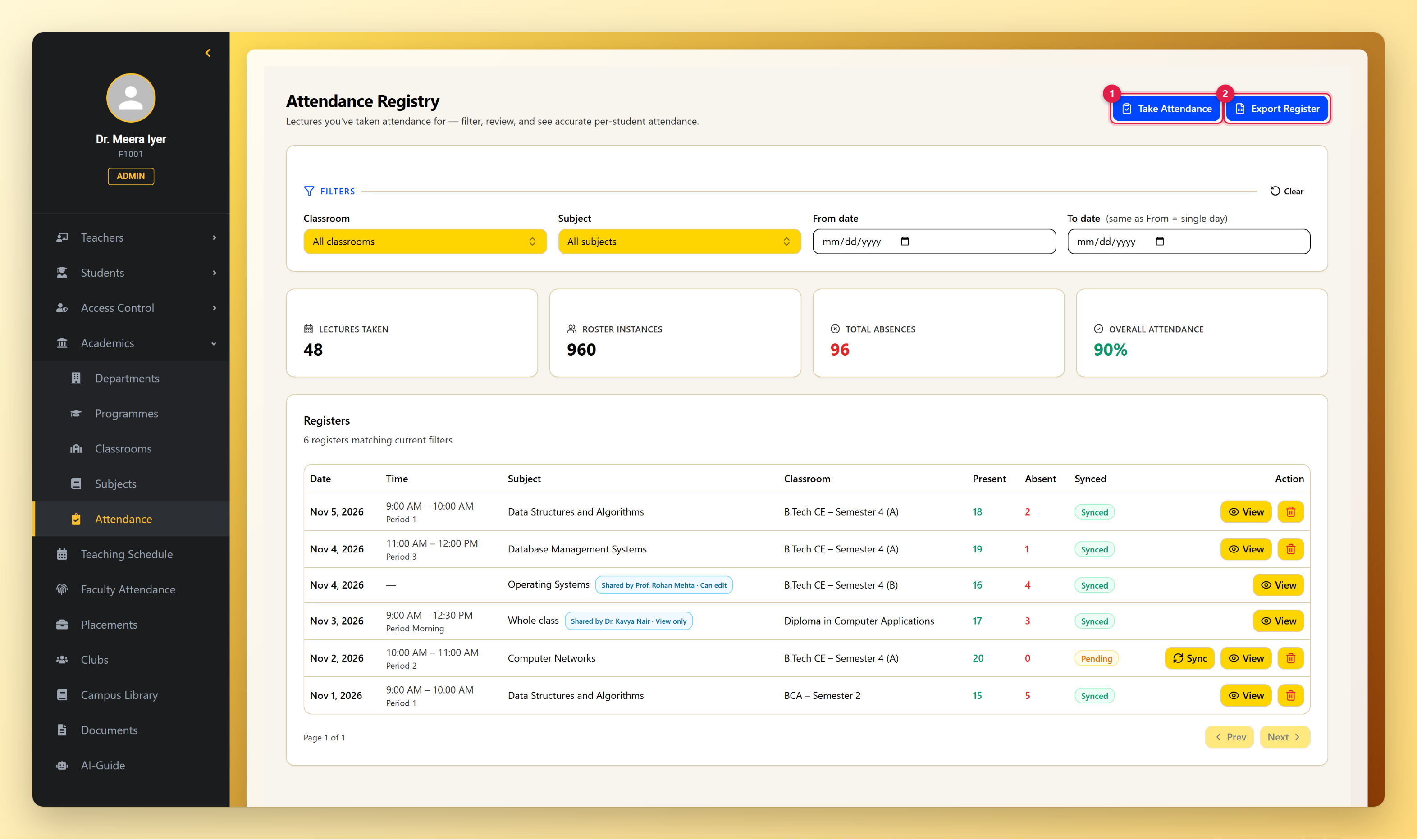
In the "Share register" window, search for a faculty member by name. Before adding them, choose their access: "Can view" lets them open it, "Can edit" also lets them change its marks, date and slot.
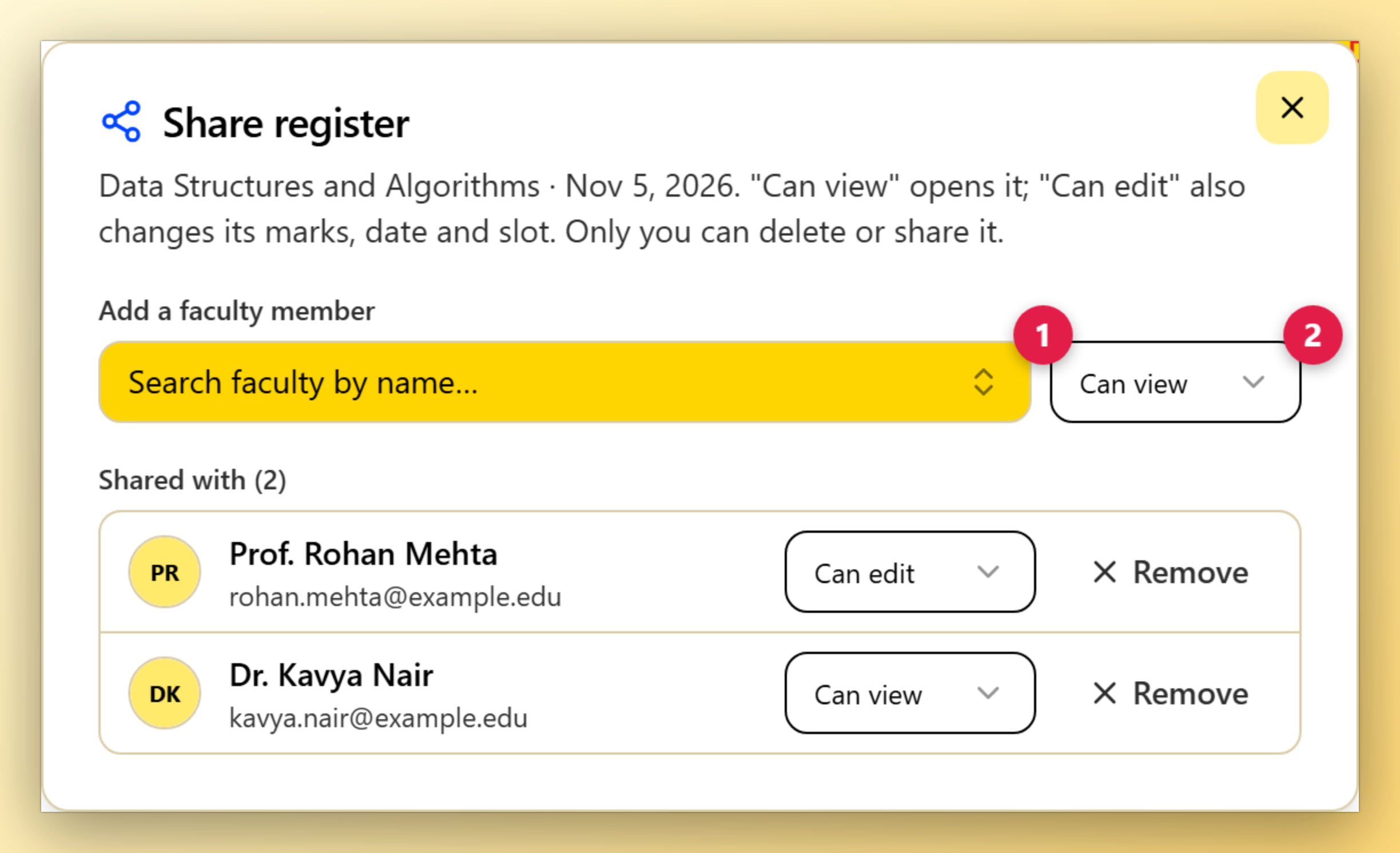
Each person you share with appears in the "Shared with" list with their photo and email. Change their access from the dropdown beside their name, or click "Remove" to take the register back.
Only you can delete or re-share the register. The colleague sees it in their own list tagged with who shared it and their level of access ("View only" or "Can edit"). The duplicate warning also takes shared registers into account.
You've completed this guide — How to Share a Register with a Colleague