
About this feature
Classrooms in UNILinkd replace the need for separate WhatsApp groups for every class batch. Each classroom has a dedicated group chat (faculty post, and students can chat too if you switch it on), a weekly timetable, Google Meet integration for online sessions, and an exportable student list. Classrooms are created from the dashboard by Admins or Sub-Admins and assigned to a faculty incharge who manages them. Each period in a timetable can also have a subject teacher assigned (this is optional), and there is a dedicated Teaching Schedule page to see who is teaching what, and when, across every classroom.
How to View Teaching Schedules
See your own weekly teaching schedule, or look up a colleague's, across every classroom.
In the sidebar, click "Teaching Schedule". By default this shows your own schedule every period across every classroom where you are assigned as the subject teacher.
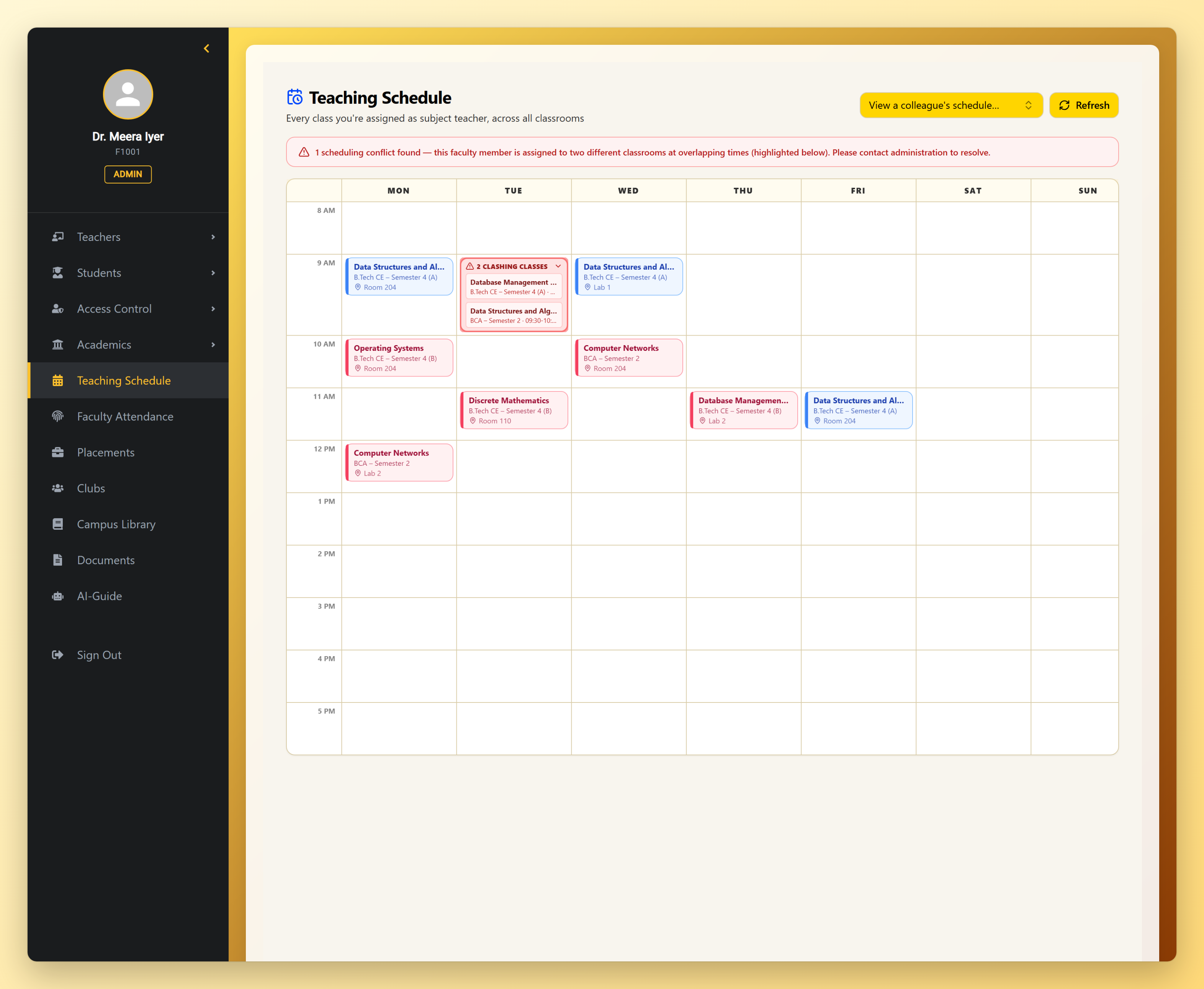
The schedule is shown as a weekly calendar, with hours down the side and days across the top, the same way a personal calendar app looks. Each class is color-coded by classroom so a recurring class is easy to recognize at a glance.
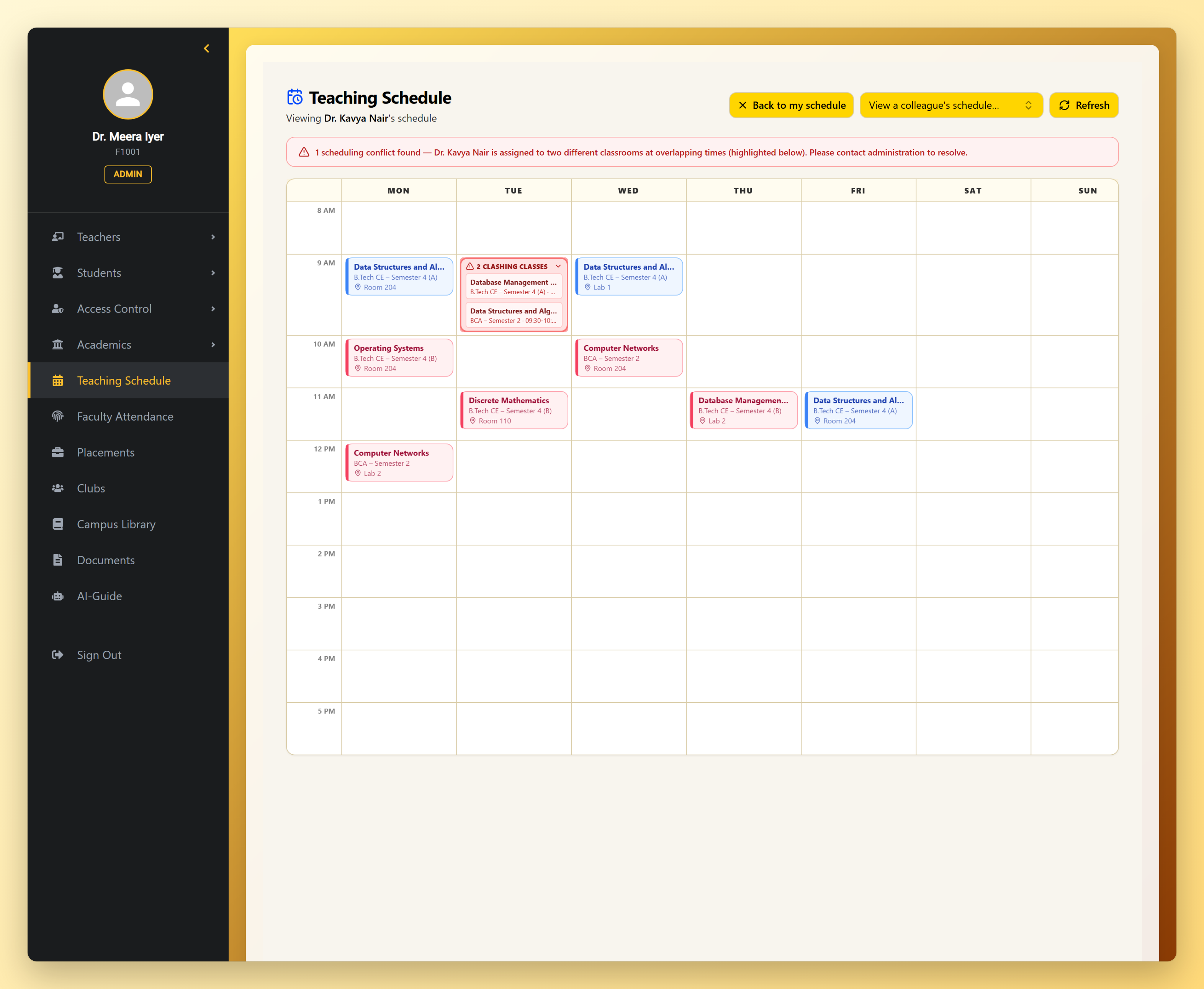
To look up a colleague's schedule instead, use the "View a colleague's schedule" search box at the top and select their name. Click "Back to my schedule" to return to your own. This is only available on the web dashboard, not in the app.
If the same faculty member is scheduled in two different classrooms at an overlapping time, both classes are merged into one red cell labeled "N clashing classes" instead of overlapping each other. Click the cell to expand it and see the full detail of every clash, or click again to collapse it.
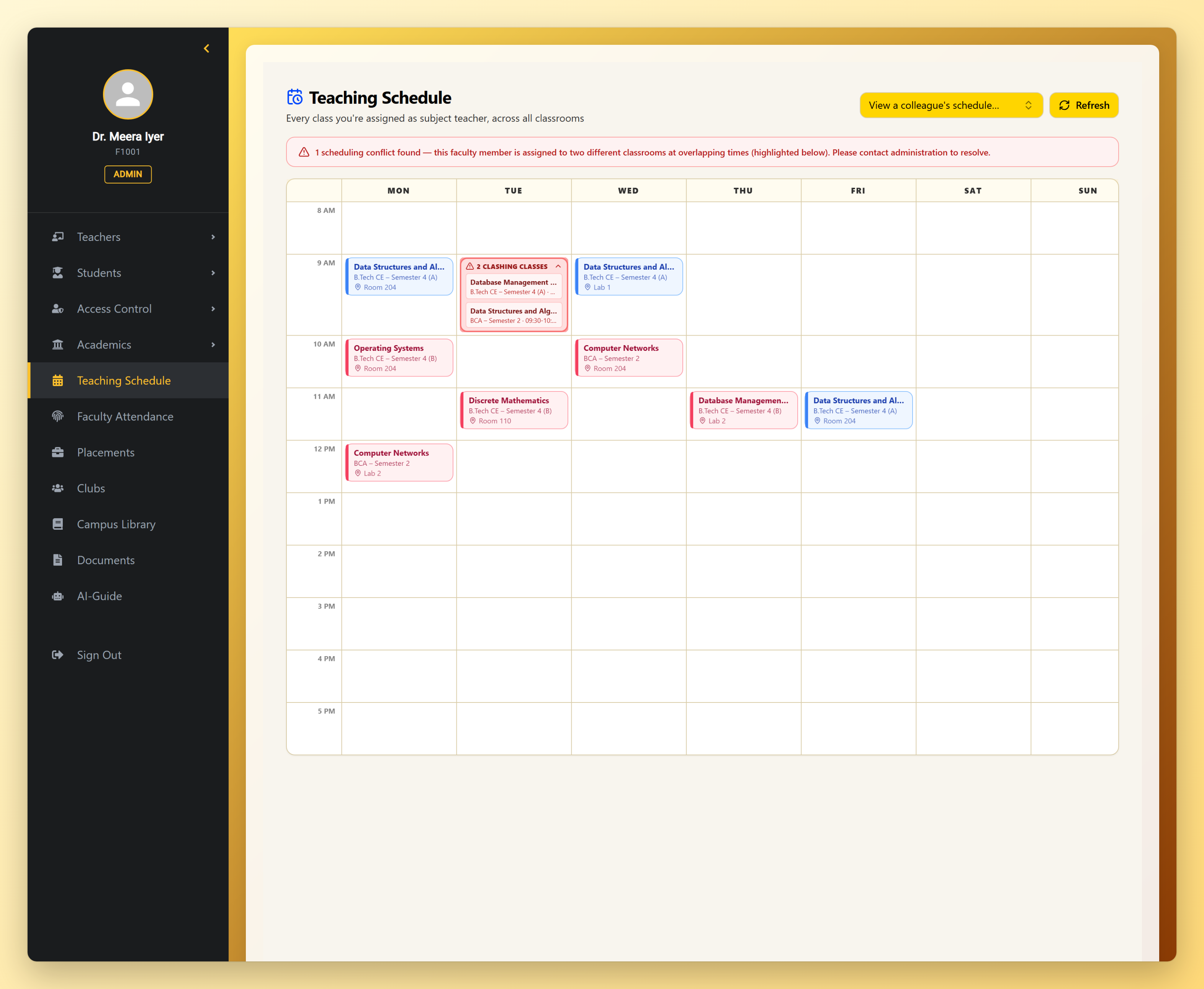
A conflict here means the timetables were saved with an overlap either it was intentional (e.g. temporary co-teaching), or someone clicked "Proceed Anyway" on the warning shown when saving a timetable. Contact your institution's admin to resolve a conflict that shouldn't be there.
You've completed this guide — How to View Teaching Schedules