
About this feature
The Alumni module maintains a permanent directory of former students. There are three ways in: students are archived automatically when they are deleted with the "Add to Alumni" toggle turned on, an admin can add one alumnus at a time with the "Add Alumni" form, or upload many at once from an Excel or CSV sheet with "Bulk Add". Any alumni record can be edited later. Alumni also receive a short update survey by email every few months to share their current employment and location, which keeps the directory current. Super Admins, Admins and Sub Admins can add, edit and delete alumni records; Faculty can only view them.
How to Bulk Add Alumni from Excel
Upload a sheet of former students and add them all at once.
Open "Manage Alumni" and select the "Bulk Add" tab. Click "Template" if you want a blank sheet with the right columns; any sheet works, though, because you choose the columns in the next step.
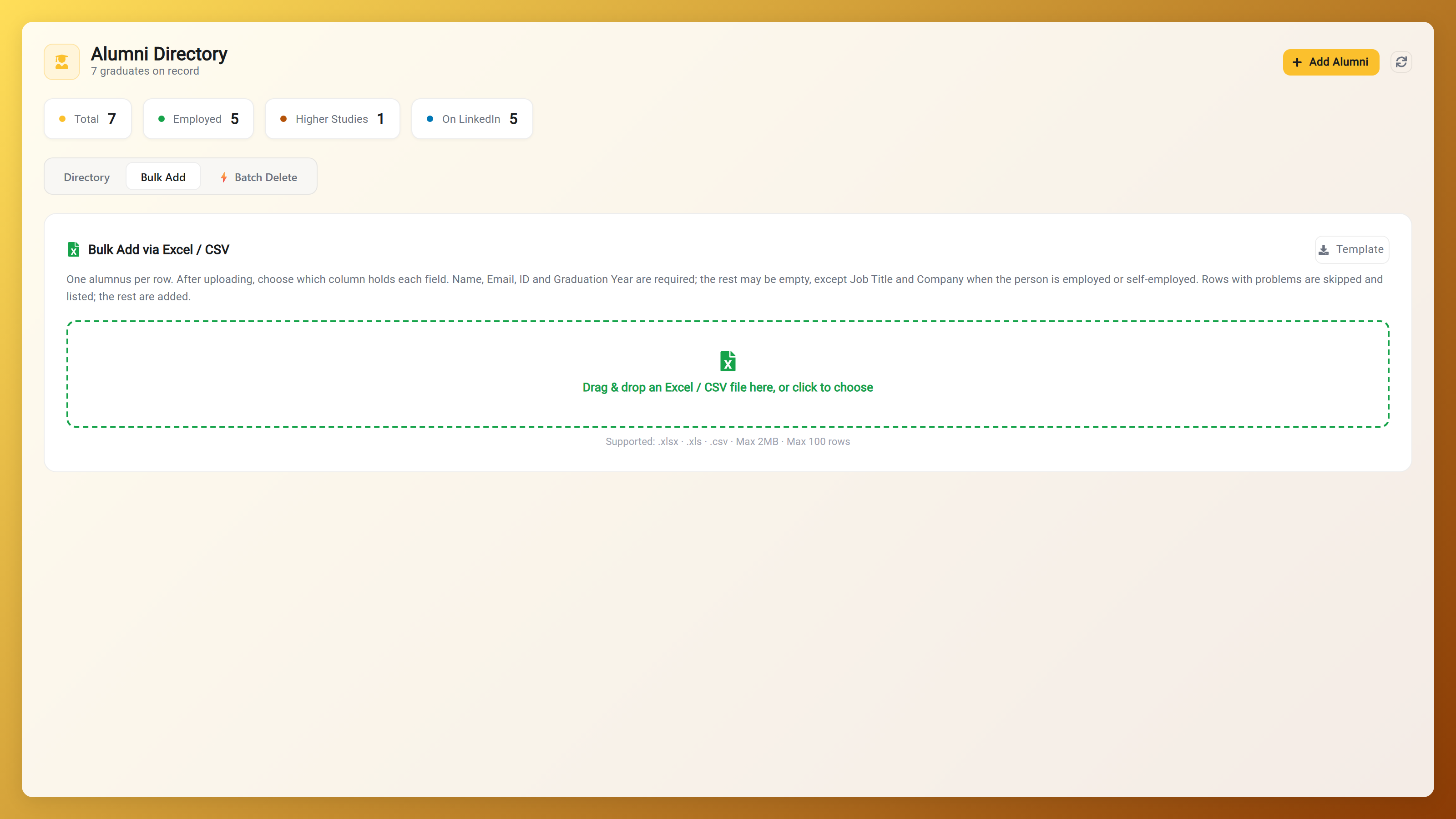
Drag and drop your Excel or CSV file onto the green area, or click it to choose the file. One alumnus per row, up to 100 rows and 2 MB per upload.
Choose which column of your sheet holds each field. UNILinkd guesses from the column headers (for example "Full Name" for Name or "Passing Year" for Graduation Year); check each one and change any that are wrong. Name, Email, ID and Graduation Year must be matched before you can continue. The preview shows the first rows as they will be added.
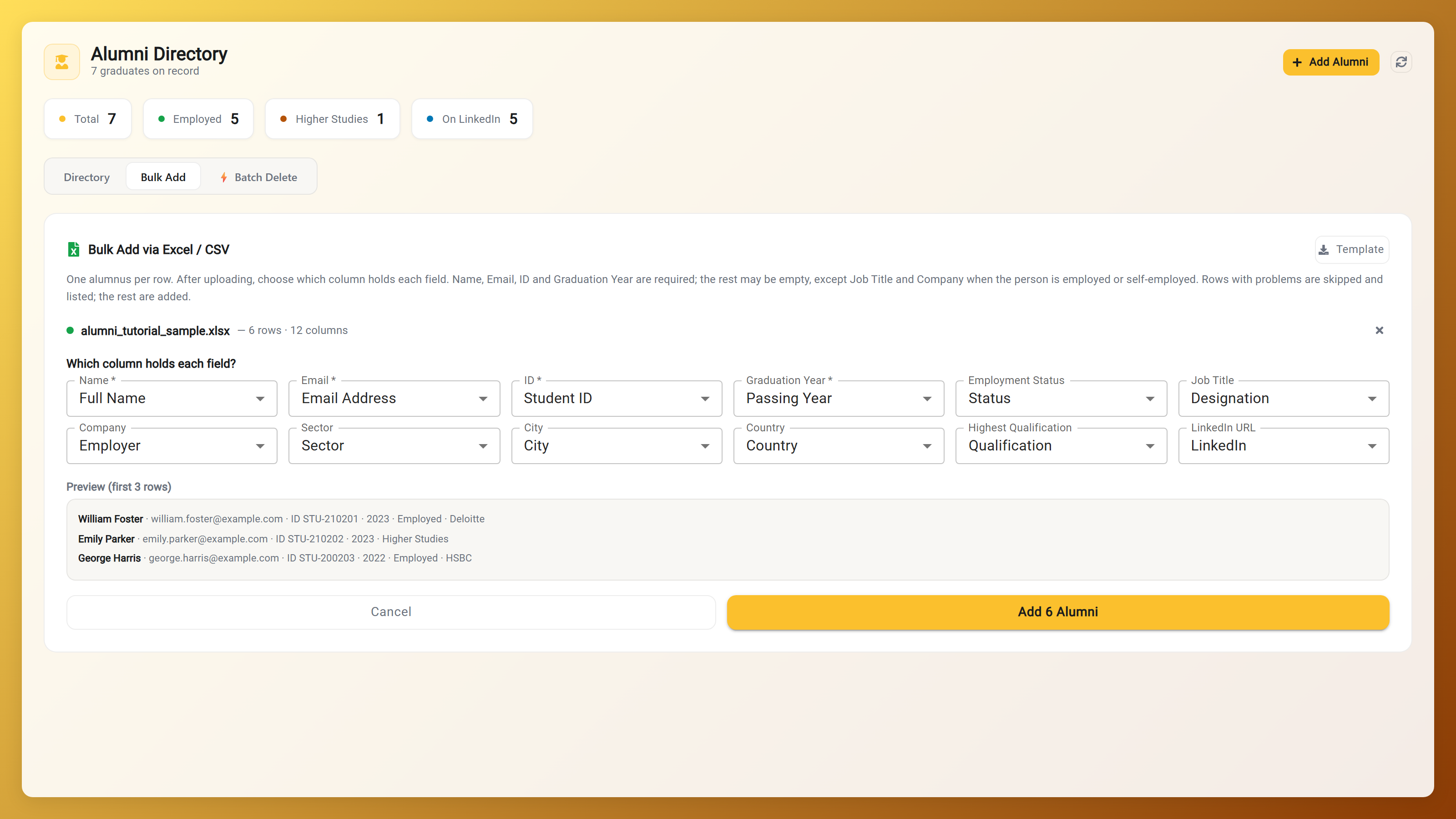
Click "Add" and keep the page open while the rows are checked and saved.
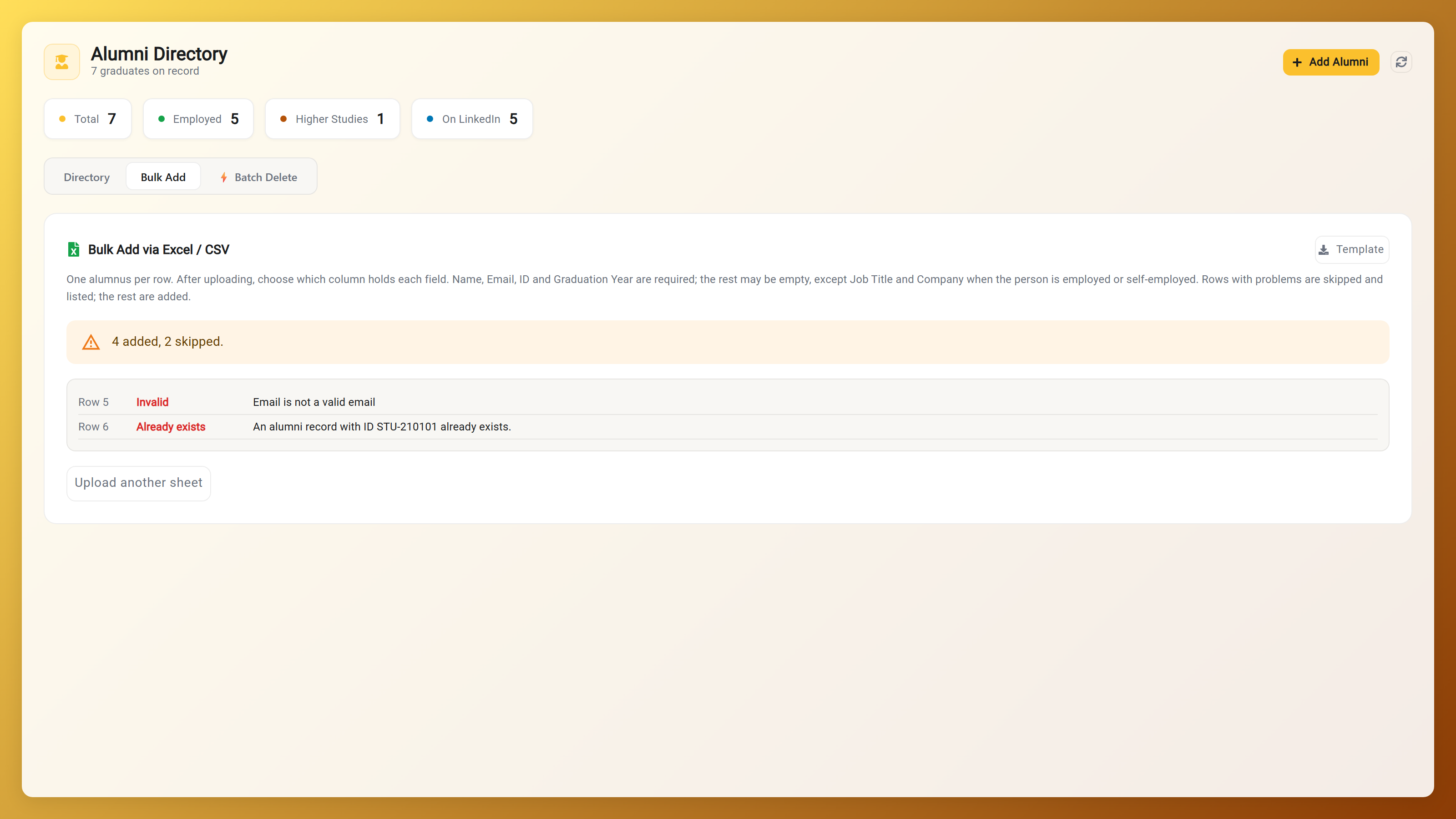
When it finishes you see how many were added and which rows were skipped, with the sheet row number and the reason: for example an invalid email, a missing required value, or someone who is already in the directory. Fix those rows and upload them again; the rows that were added are not affected.
You've completed this guide — How to Bulk Add Alumni from Excel