
About this feature
UNILinkd organises every institute the same way: Institute > Department > Programme > Classroom. A department is the big academic unit, a programme is a course of study inside it, and a classroom is the batch or section where teaching, attendance and chat actually happen. Subjects are kept once in a shared registry and grouped into programmes, students belong to a department, and an attendance policy can be set at any level and is inherited downwards. Only the words change between kinds of institute - a school says Class and Section where a university says Programme and Classroom - so the same steps work for everyone. Read these three guides in order if you are setting up a new campus.
How to Build Your Hierarchy Step by Step
A worked example: from your first department to a classroom ready for attendance.
Plan on paper first. Write your tree the way the examples show it: the departments, the programmes inside each, and the classrooms under each programme. For a college, for instance: Commerce > B.Com Honours > Year 1 and Year 2.
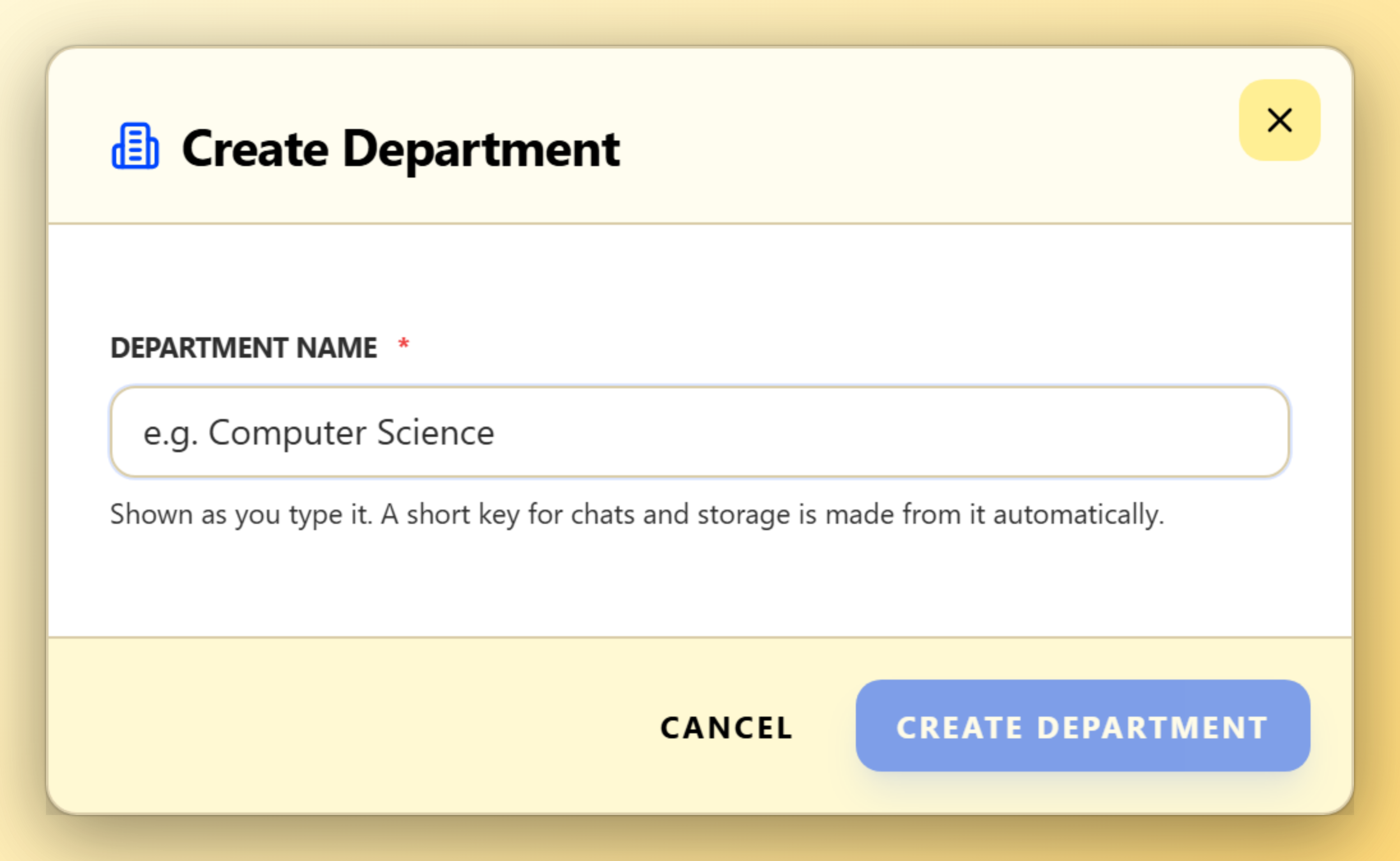
Step 1 - Departments. In the sidebar open Academics > Departments and click "Create Department". Add each department name. Admins and Sub-Admins can do this.
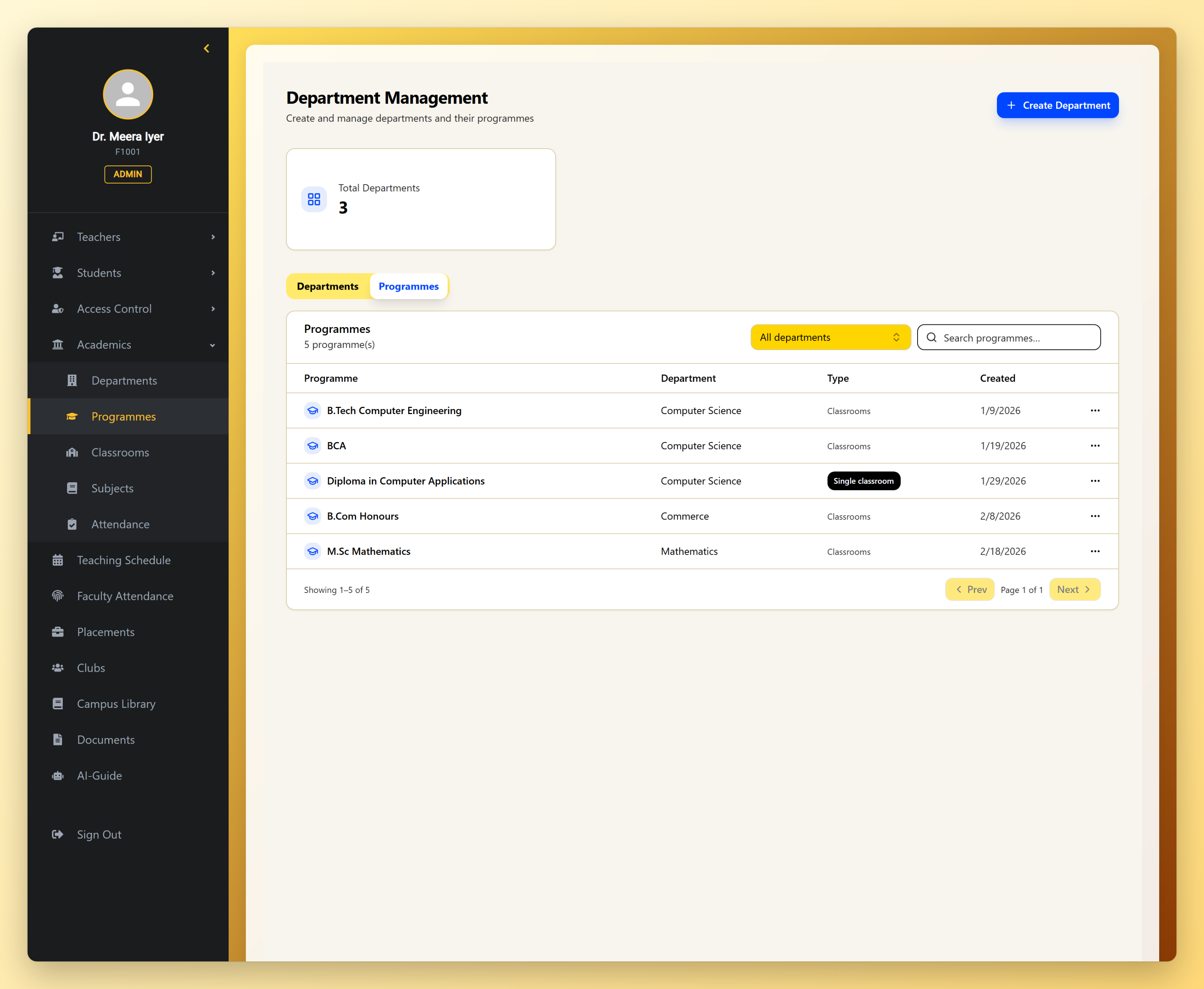
Step 2 - Programmes. Open Academics > Programmes (or the Programmes tab on the Departments page) and create the programmes inside each department. A programme that is just one class, like a DCA diploma, can be created as a single-classroom programme so its classroom is made for you.
Step 3 - Subjects. Add subjects to the Subject Registry, then open a programme and choose "Add from list", "Create new" or "Import from Excel" to group them under it. Faculty will then see the programme's own subjects first when taking attendance.
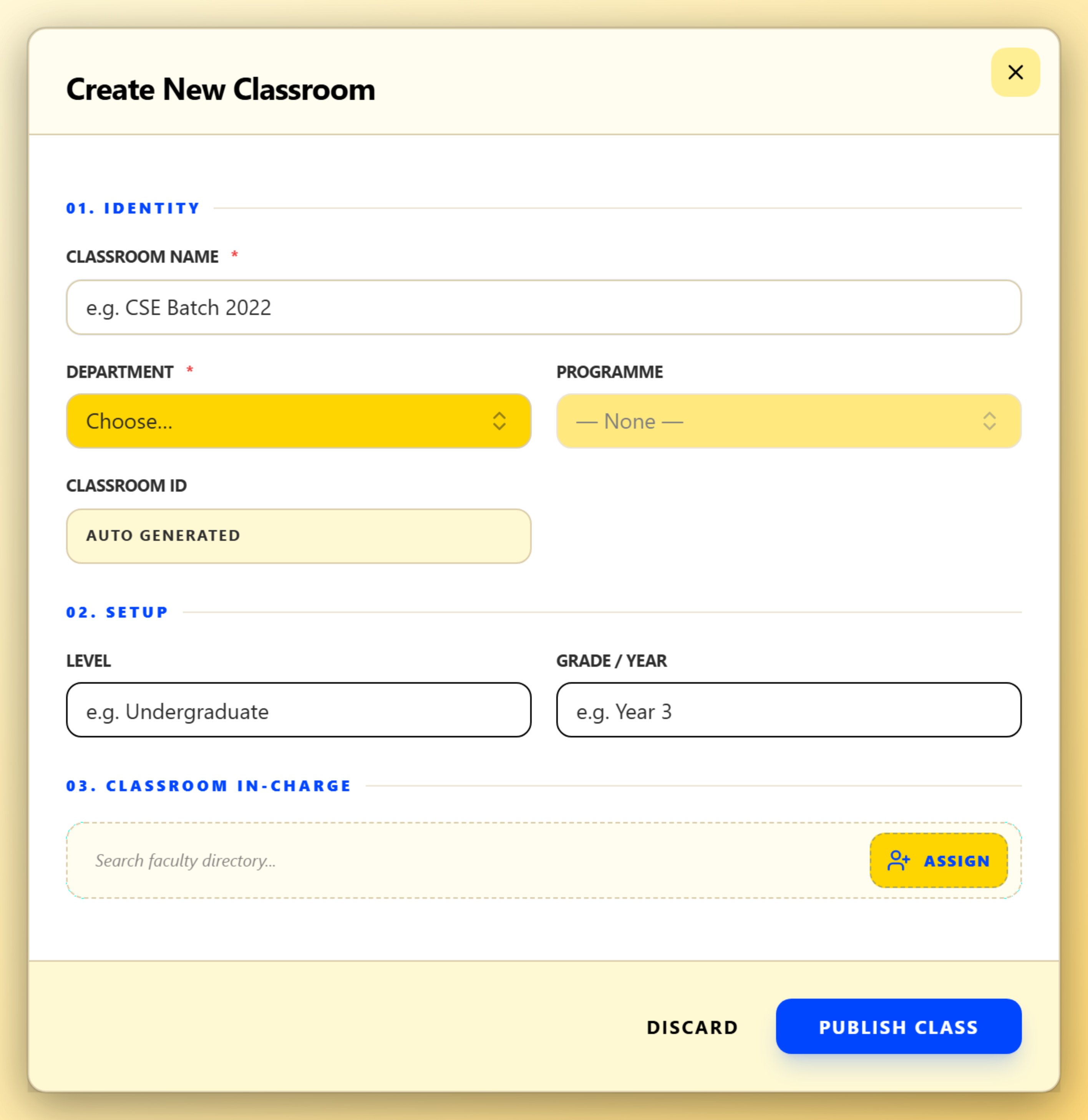
Step 4 - Classrooms. Open Academics > Classrooms and click "New Classroom". Enter the name, choose its department, then its programme, and assign the in-charge teacher. Click "Publish Class". Pick the department before the programme - the programme list only shows programmes of that department.
Step 5 - People. Add teachers and students, and add students to their classrooms. Each student belongs to one department; faculty can join several.
Step 6 - Attendance policy (optional). If a part of your institute takes attendance differently - for example a two-slot day with no subjects - open Departments > Advanced settings and attach a policy to that department, programme or classroom. See "How to Set the Attendance Policy".
Check your work: open Academics > Classrooms and use the department and programme filters. Every classroom should appear under the right department and programme with no "Unassigned" entries.
You've completed this guide — How to Build Your Hierarchy Step by Step