
About this feature
Student accounts give students access to the UNILinkd mobile app attendance reports, classroom chats, the placement portal, clubs, and the e-library. Admins enroll students via CSV or one at a time. A newly enrolled student is "Not Onboarded" until they log into the app for the first time, which activates their account fully. Each student can belong to only one department; an Admin must reset it if they need to change.
How to Enroll Students in Bulk (CSV / Excel)
Upload a spreadsheet to register multiple students at once.
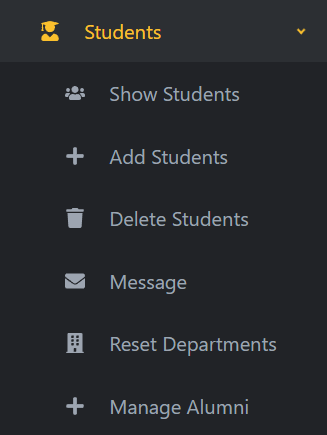
In the sidebar, click "Students" "Add Students".
Prepare your Excel or CSV file with at least two columns: Roll Number (unique student ID) and Email. Column header names can be anything you choose.
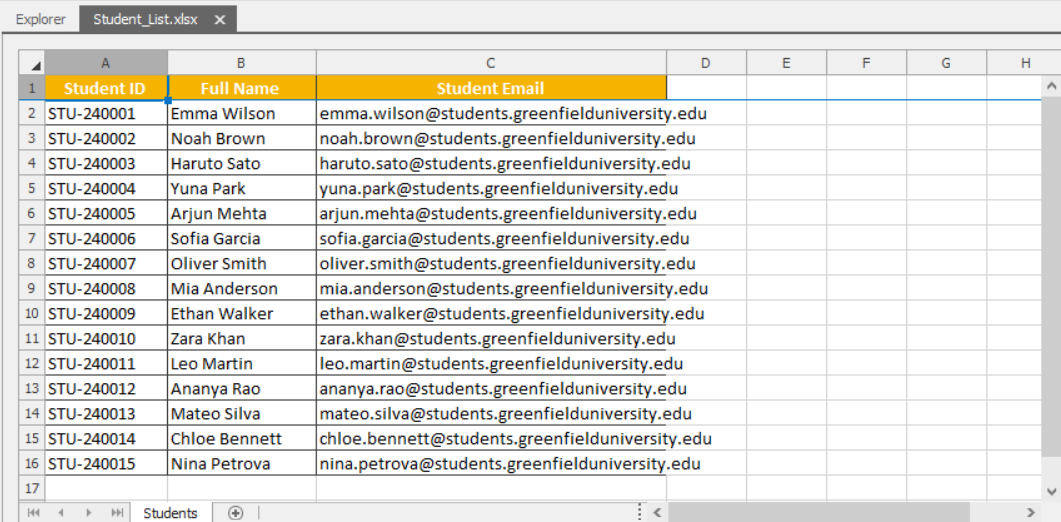
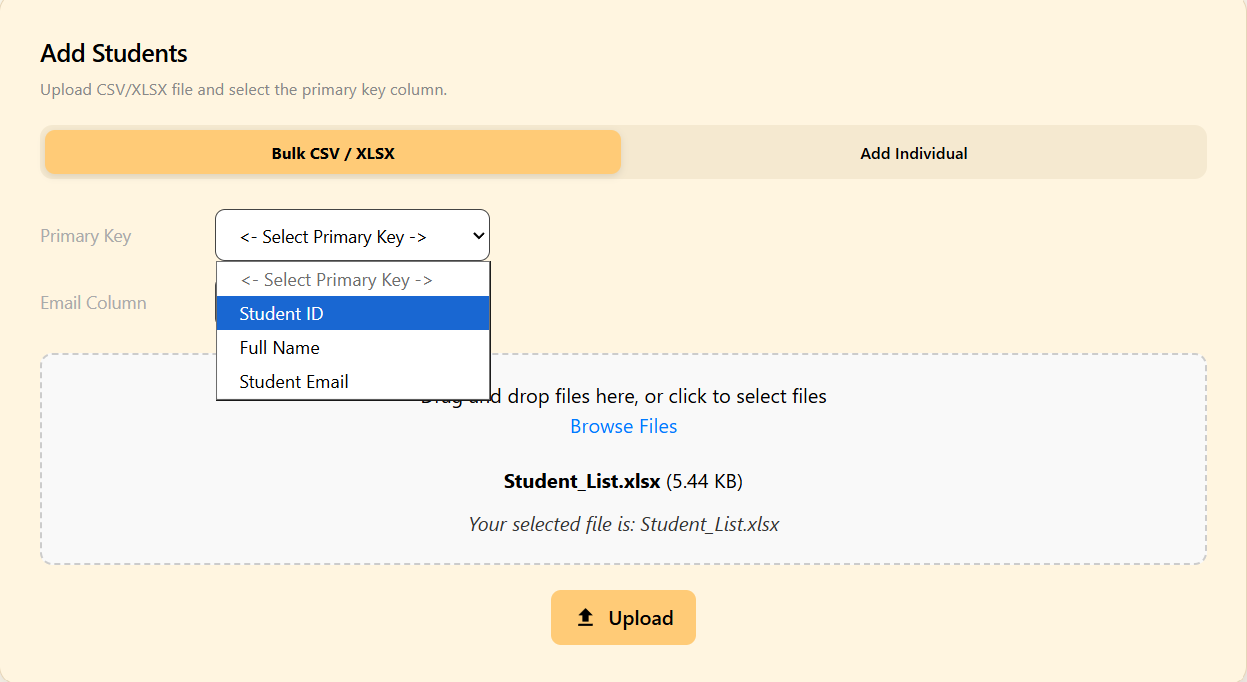
Click "Choose File" and select your file. The system reads your column headers automatically.
Primary Key dropdown select the column that contains Roll Numbers.
Email Column dropdown select the column with email addresses.
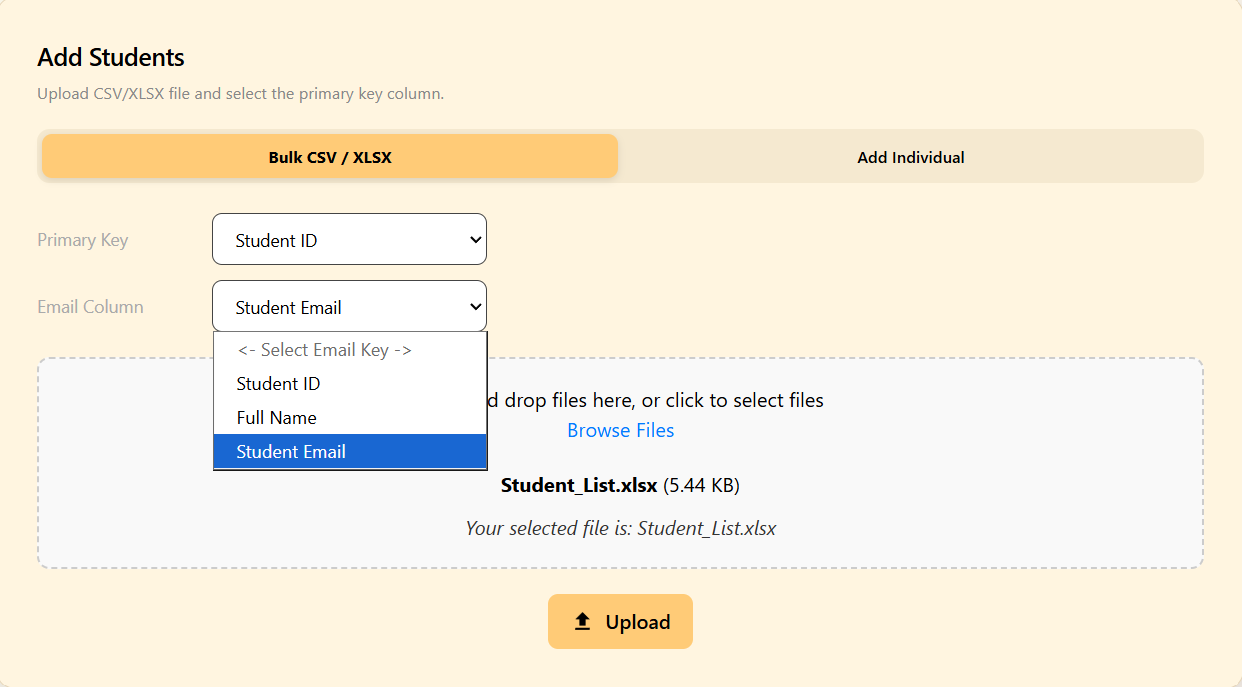
Click "Upload". Students are added to the system. Each student will show "Not Onboarded" until they log into the app for the first time.
You've completed this guide — How to Enroll Students in Bulk (CSV / Excel)