
About this feature
The UNILinkd app is available on Android and iOS for both faculty and students. This section covers account setup, first login, and navigating the app follow the guide for your role. Faculty get additional tools including attendance submission, note creation, Google Meet integration, and announcement posting. Students have access to messaging, clubs, classrooms, the placement portal, and AI study tools.
How to Create Your Account
Set up your UNILinkd account for the first time. Works for both faculty and students.
Before you start: check your email inbox for a message from UNILinkd with the subject "You've been added to your institution". It contains your Institute Code, your ID, your Designation, and app download links. Keep it open.
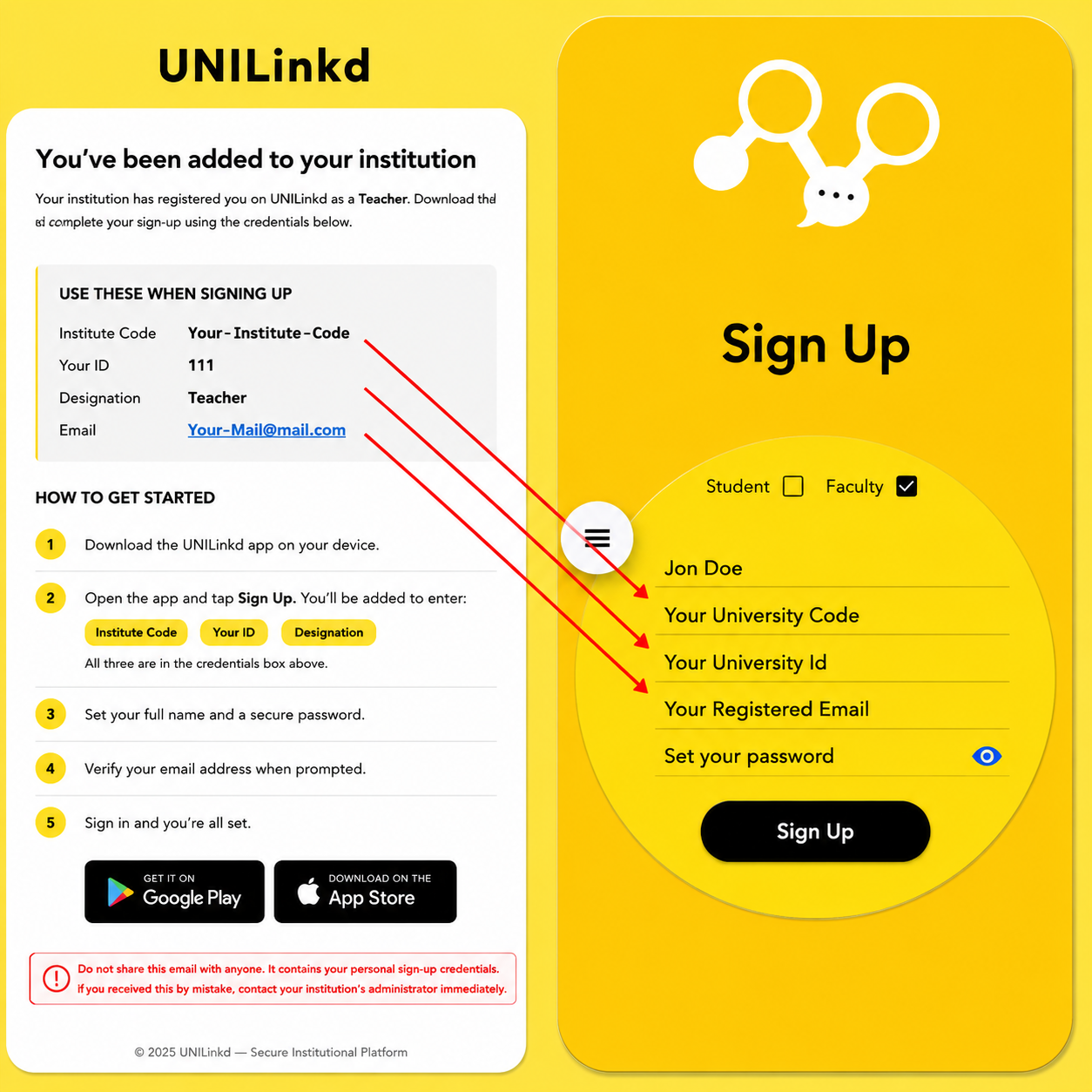
Download the app using the link in the email, or search "UNILinkd" on the Google Play Store (Android) or Apple App Store (iOS).
Open the app and tap "Get Started" or "Sign Up".
Enter your Institute Code and your ID from the onboarding email. Then tick your role: tap Faculty if you are a teacher or staff member, or tap Student if you are a student. Faculty use their Employee ID as the ID; students use their Roll Number.
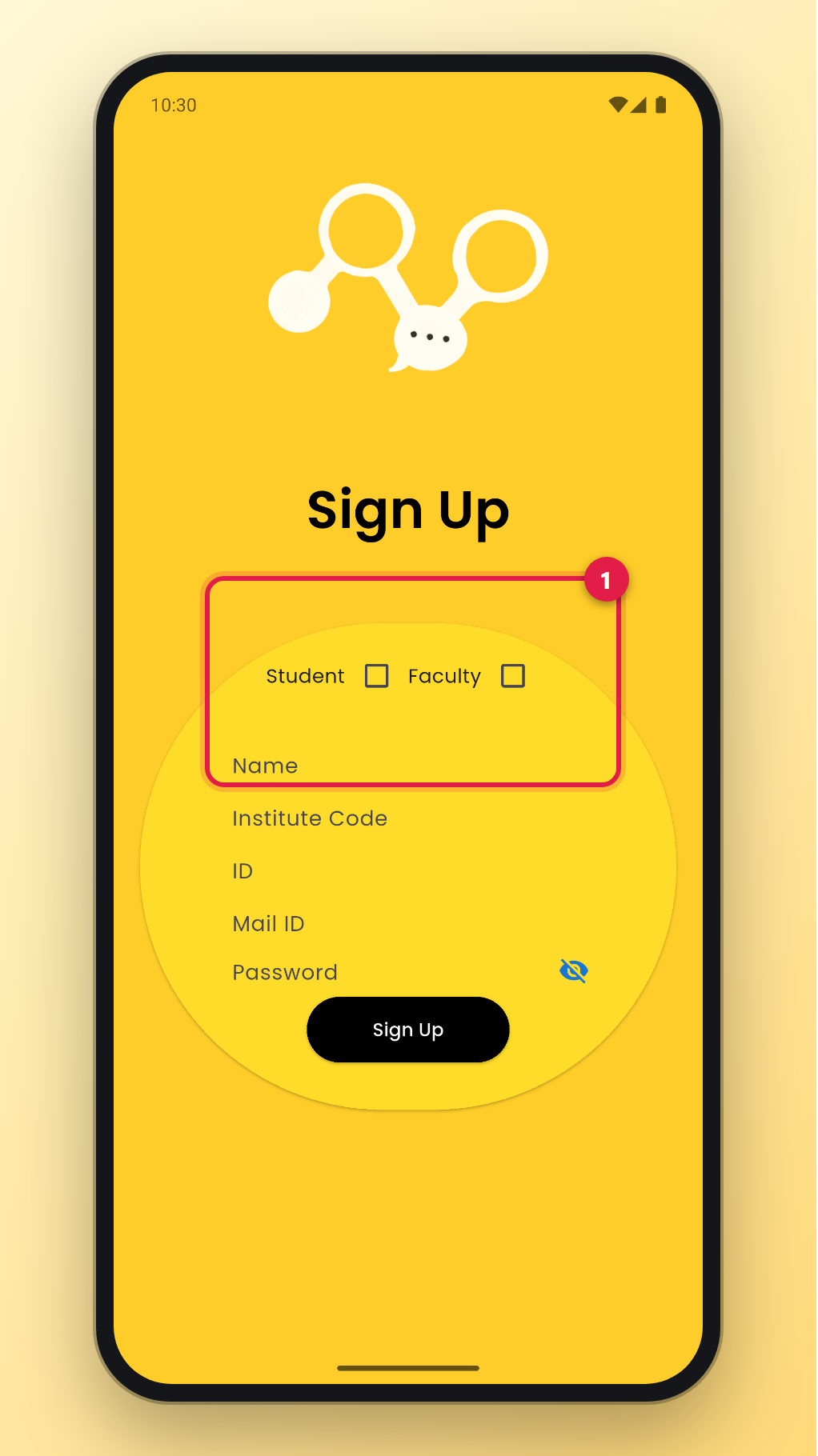
Enter your full name and create a password. Tap "Sign Up".
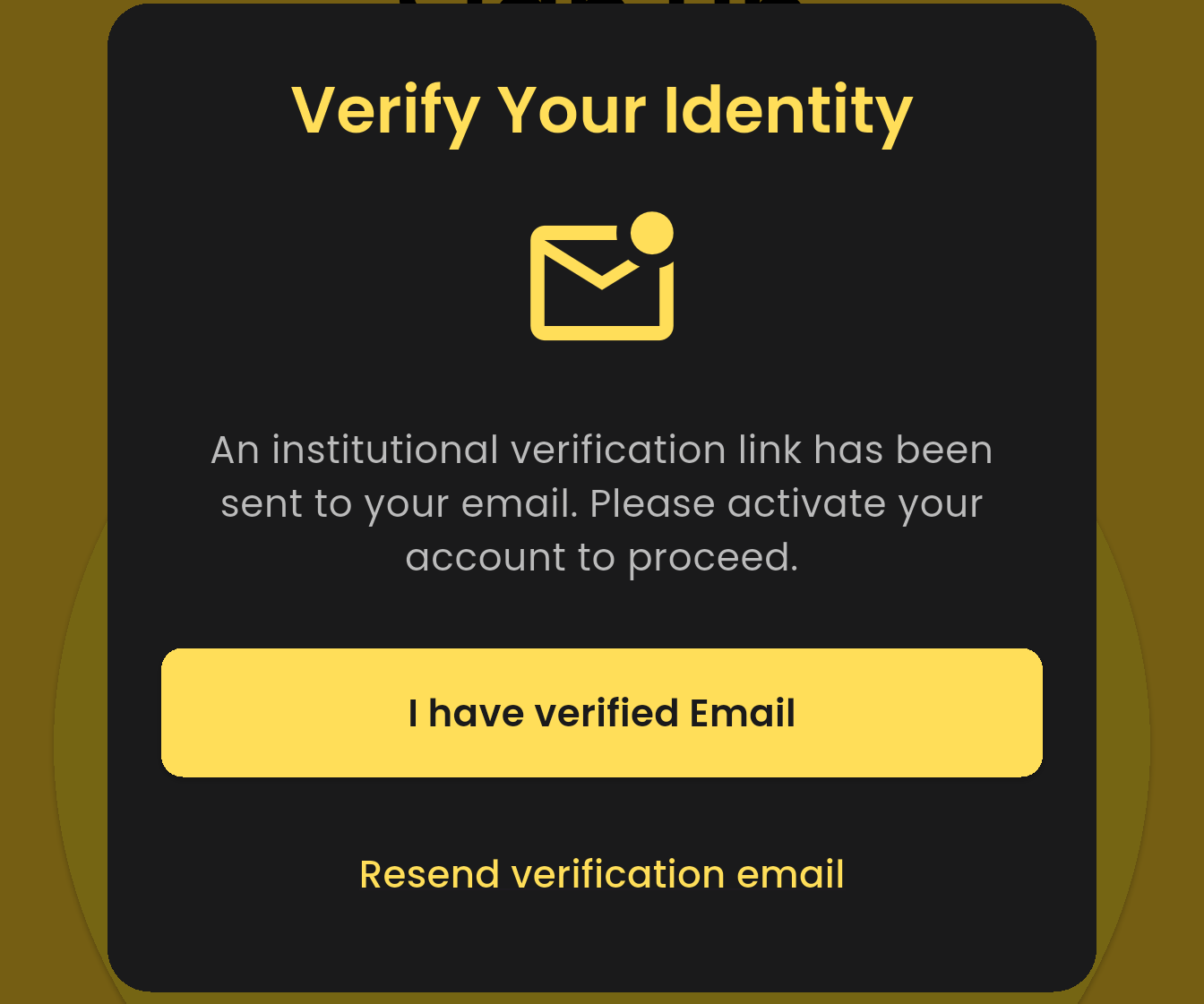
A verification email will be sent to your registered email address. Go to that inbox now.
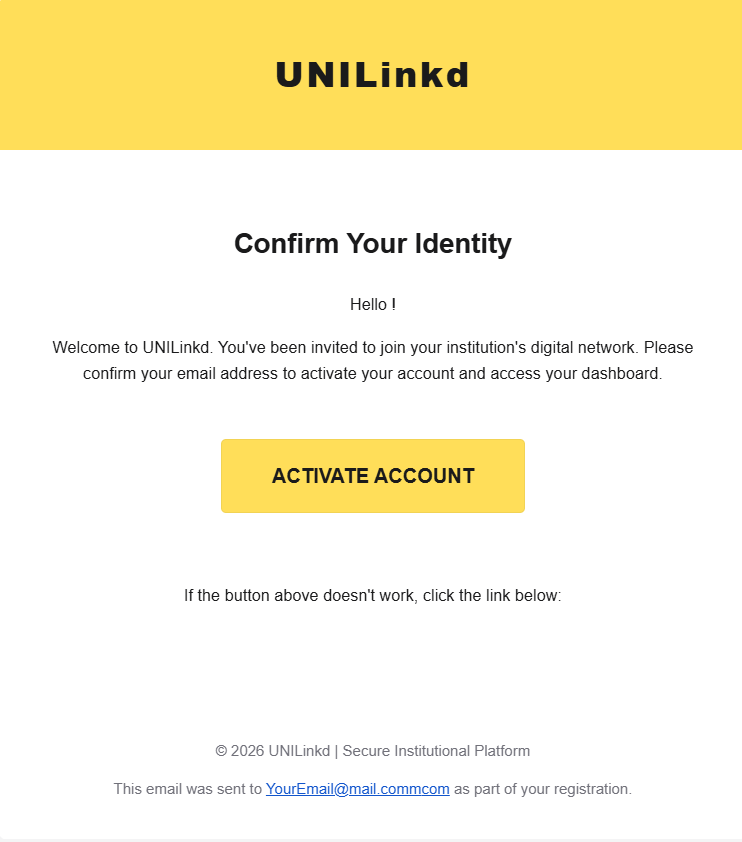
Find the new email from UNILinkd and tap "Verify Email". This activates your account.
Return to the app and tap "I have verified my email". You will be logged in automatically.
You've completed this guide — How to Create Your Account