
About this feature
Attendance is taken per classroom and date. What the form asks for depends on the classroom's attendance policy: some institutes take it subject-wise, others for the whole class with no subject, and some use fixed daily slots such as Morning and Afternoon. Registers a faculty member takes are private to them, but can be shared with a colleague as view-only or editable. Students can only view their own attendance; if something looks wrong they should contact the faculty member who took that register. Depending on the institute's policy, students may not see attendance at all - it is still counted.
How to Review, Edit and Export Your Registers (Faculty)
Filter your registers, fix a mistake, retry a sync, or export a classroom's workbook.
Open "Attendance Registry" from the Library tab. The list shows summary stats and the registers you took, plus any a colleague shared with you, tagged "Shared by <name> - Can edit" or "View only". Use Filters to narrow by classroom, subject and dates; "Clear filters" resets them.
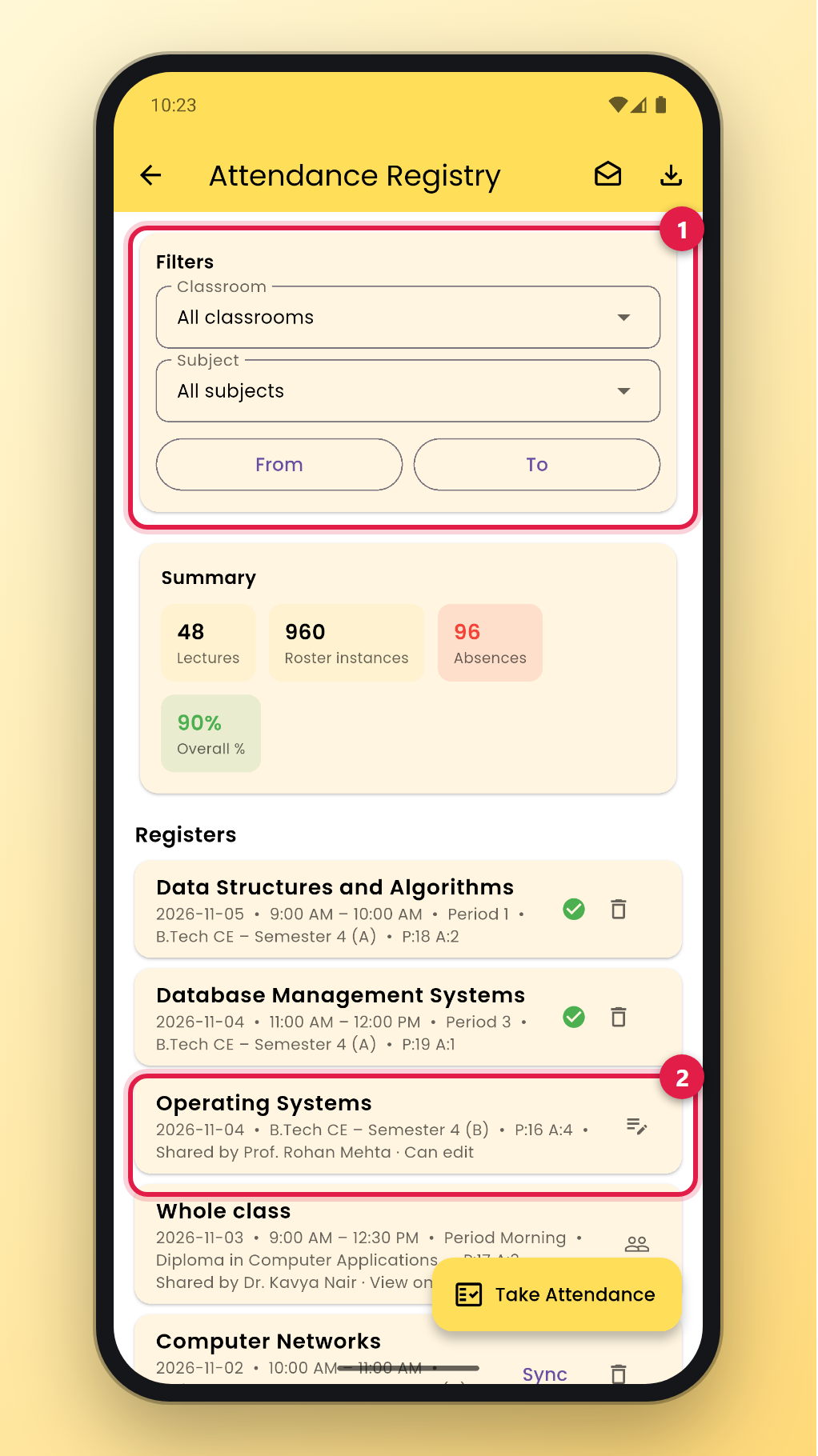
Tap a register to open it. Tap the sync icon on one that has not synced yet to retry it.
To fix a mistake, open the register, change the classroom, date, slot or anyone's mark under "Lecture details" and the roster, and tap "Save Changes". Registers shared with you as view-only cannot be edited; only the person who took a register can delete it ("Delete this register?").
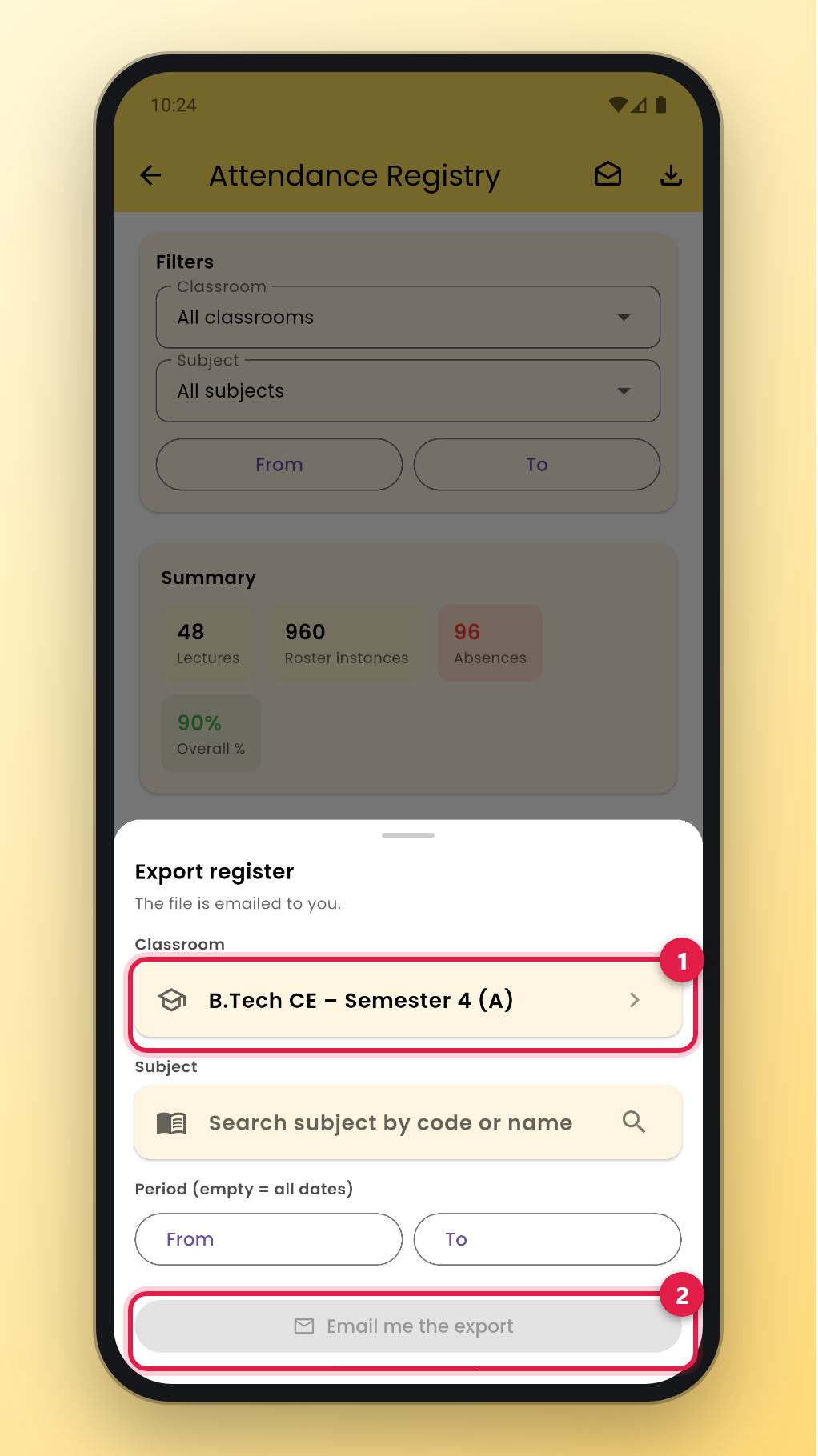
Tap the export icon (top right). Choose the classroom, then the subject (skipped for whole-class classrooms), and optionally a From and To date - leave the period empty for all dates. Tap "Email me the export". The workbook has a summary, a tab per month, the register grid and an About sheet, and the link is valid for 2 days.
The drafts icon shows any registers that failed to submit and are waiting to retry - tap it to resend them once you are back online.
You've completed this guide — How to Review, Edit and Export Your Registers (Faculty)