
About this feature
Groups work like WhatsApp group chats but within UNILinkd any registered user at your institution can join with a group code or be added directly. Both faculty and students can create groups. Channels are optional topic threads inside a group, letting you separate conversations by subject, project, or purpose. Super Groups are one-way broadcast spaces where only the creator can post ideal for large-scale announcements.
How to Create a Super Group (Broadcast)
Broadcast announcements to large groups only the creator can post.
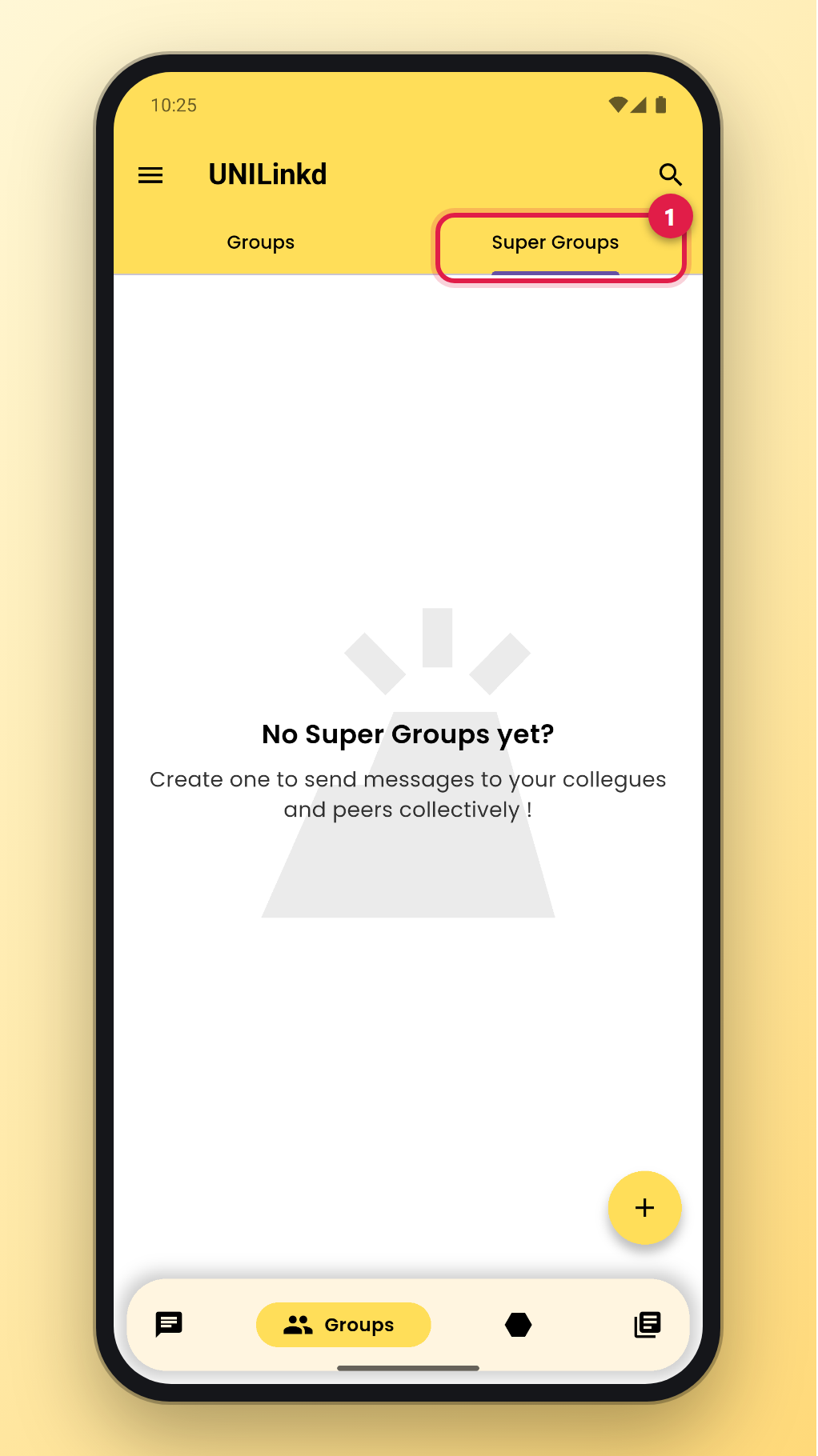
Go to the "Groups" tab and tap the "Super Groups" sub-tab.
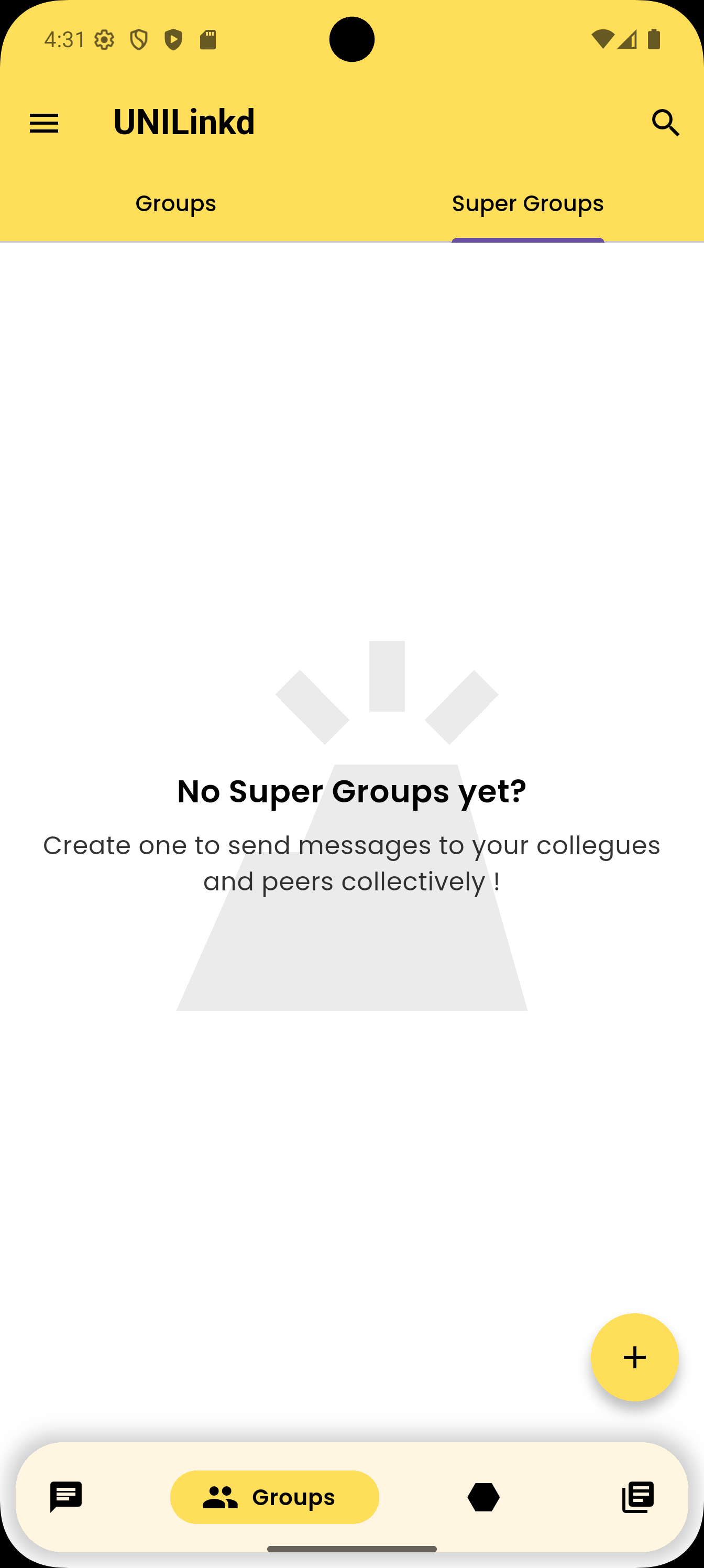
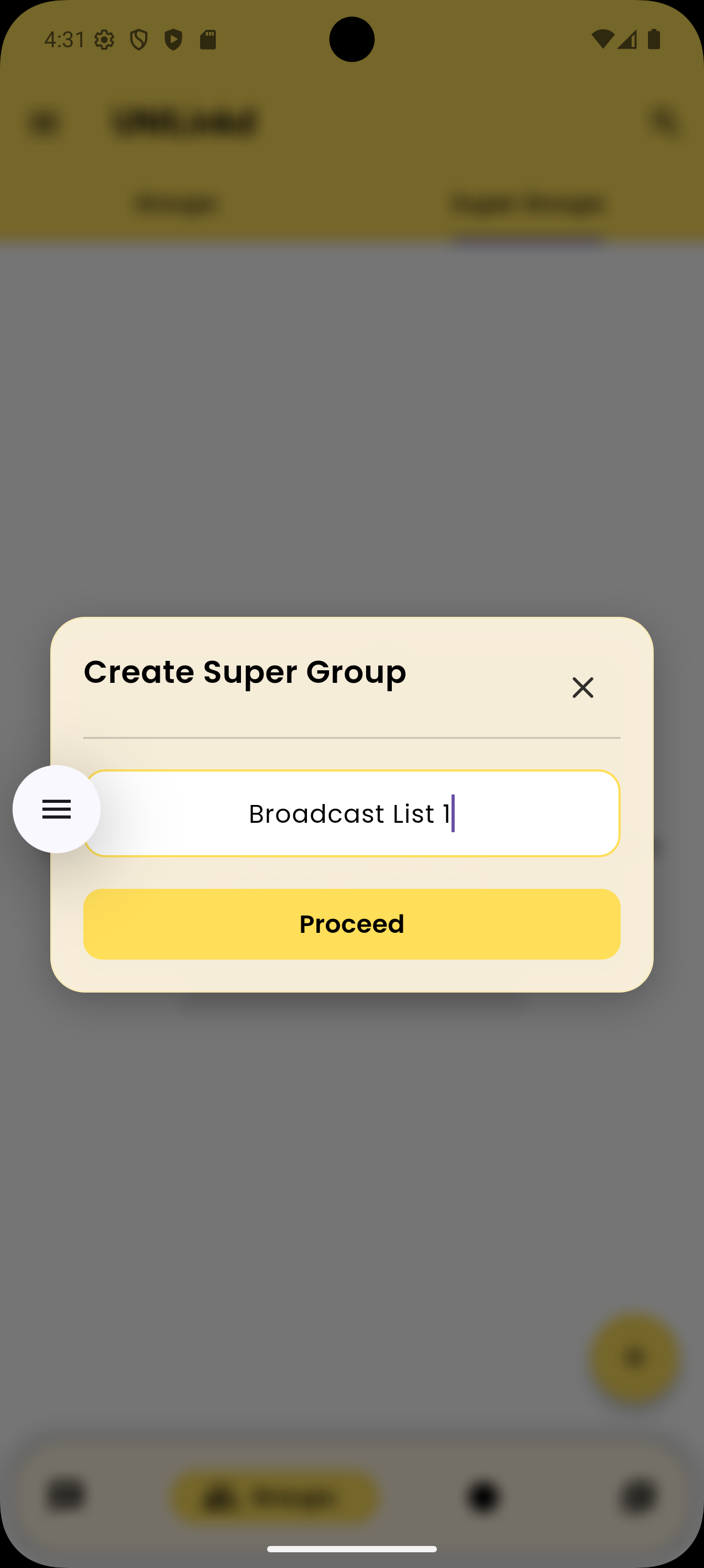
Tap "+" to create a Super Group. Add members and post your announcement. Only you (the creator) can post members receive and read but cannot reply.
Super Groups are ideal for institution-wide or department-wide announcements that should not have reply threads.
You've completed this guide — How to Create a Super Group (Broadcast)