
About this feature
The UNILinkd app is available on Android and iOS for both faculty and students. This section covers account setup, first login, and navigating the app follow the guide for your role. Faculty get additional tools including attendance submission, note creation, Google Meet integration, and announcement posting. Students have access to messaging, clubs, classrooms, the placement portal, and AI study tools.
How to Join Your Department
Students: select your academic department on first login.
On first login, the app will prompt you to select your department (e.g. "B.Sc Computer Science, Batch 2024").
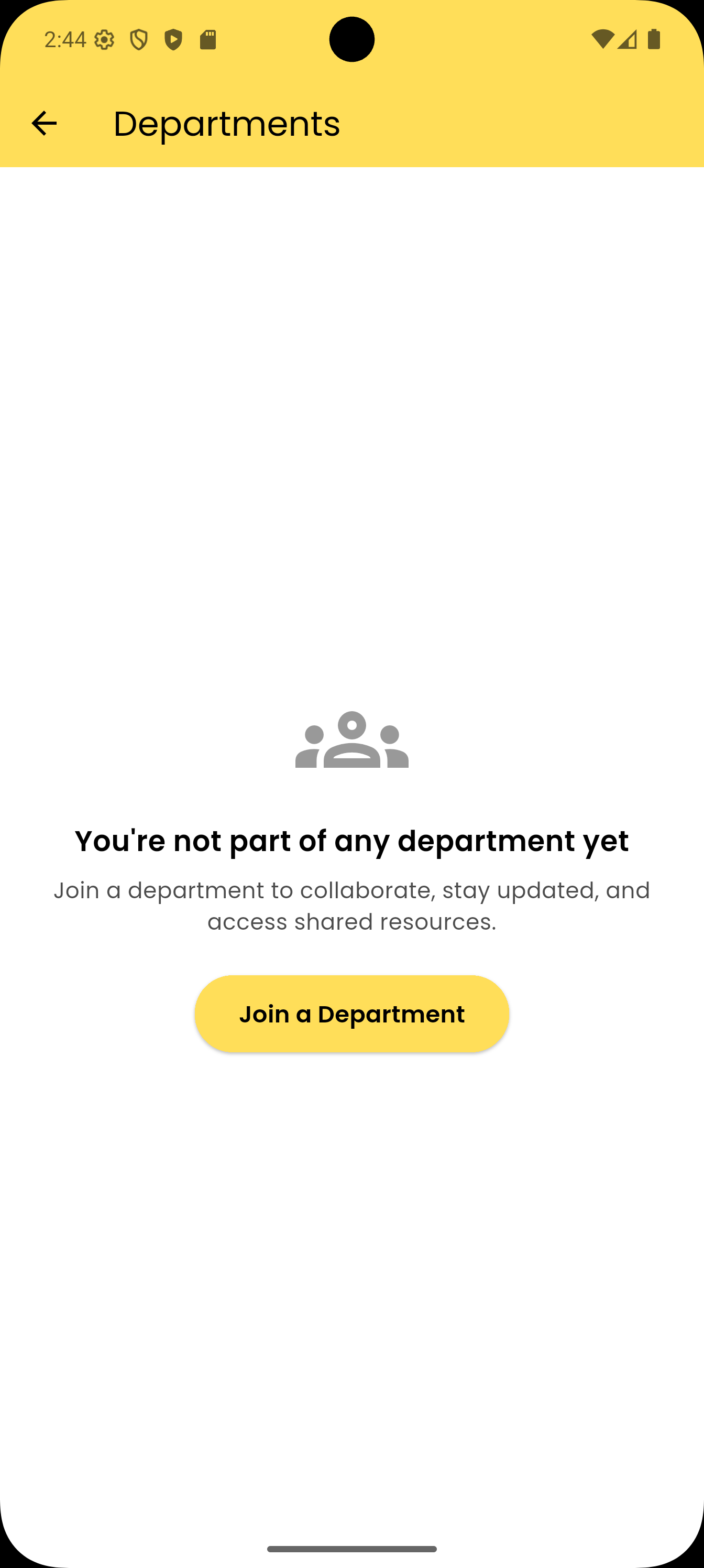
You can only belong to ONE department. Choose carefully. If you pick the wrong one, ask your faculty admin to reset your department assignment.
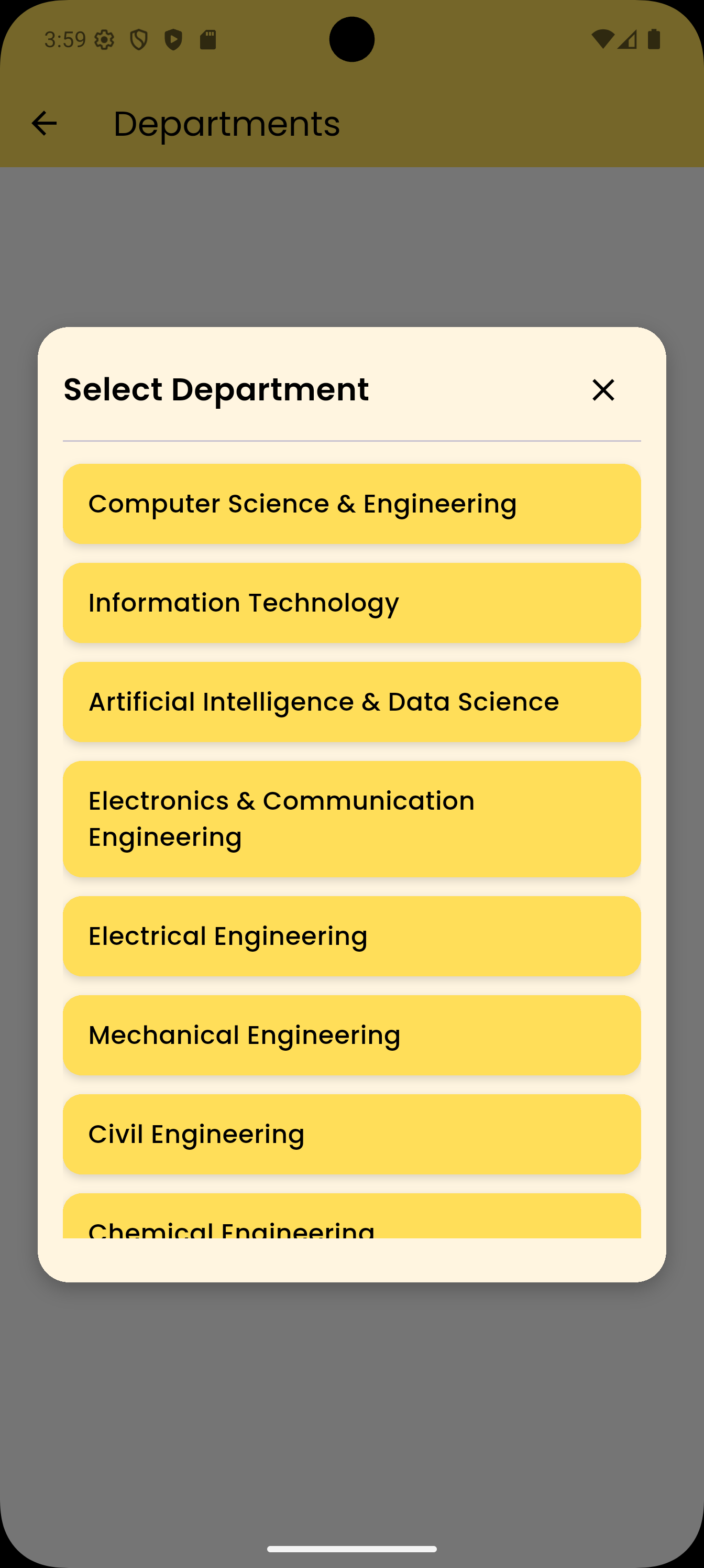
Once selected, you are added to that department's group and will see department-specific announcements and content. Please note that Students can only select single department while Faculty members can join multiple .
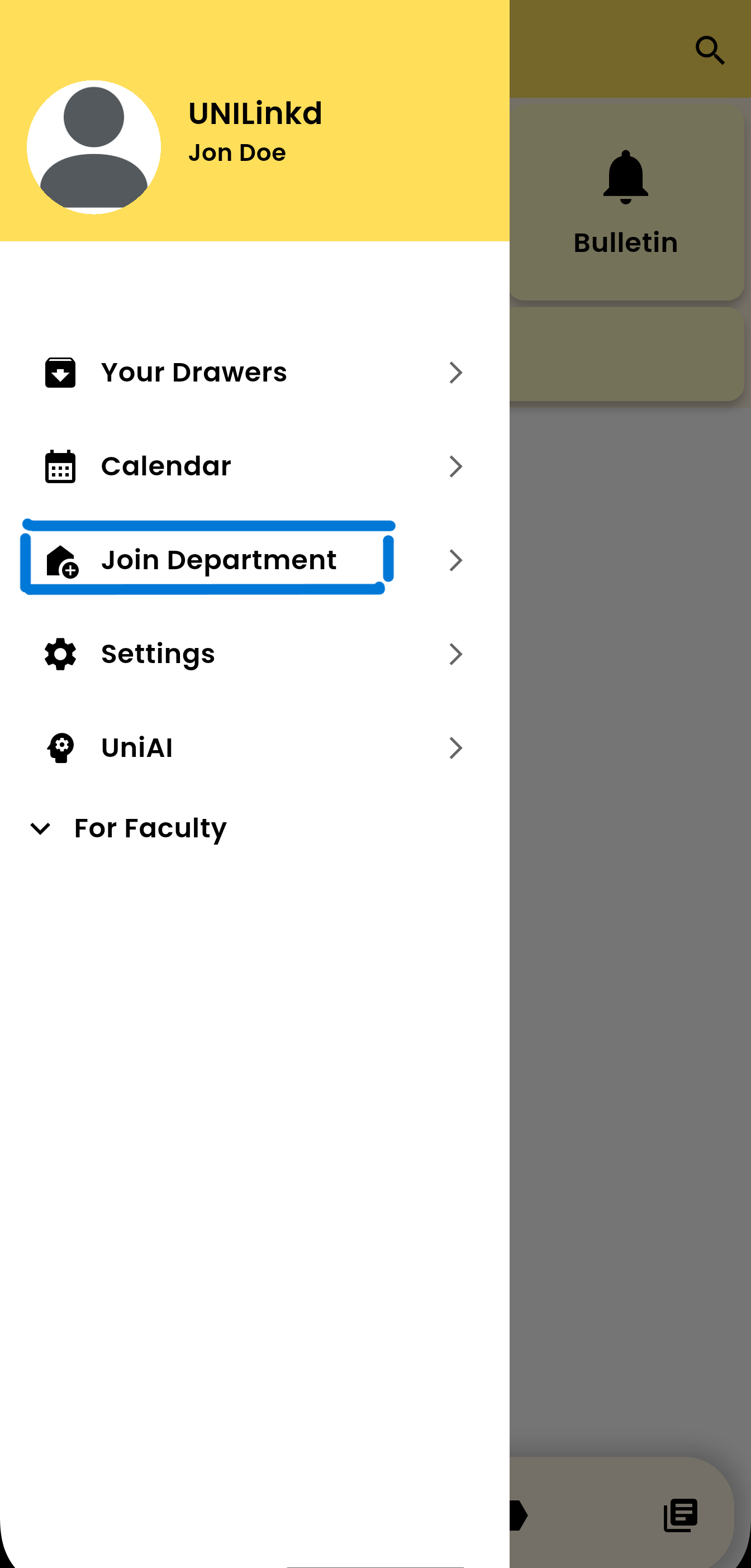
You can also use side-navigation menu to browse and join departments .
You've completed this guide — How to Join Your Department