
About this feature
Classrooms are set up by your institution's admins on the web dashboard. Faculty are assigned as incharge teachers; students are assigned automatically. Each classroom has a group chat for real-time communication between teacher and students, a weekly timetable, and shared resources. Faculty can additionally create Google Meet sessions that are shared only with classroom students. This replaces separate WhatsApp groups and physical timetable sheets for every class. Faculty can also open a dedicated Teaching Schedule to see every class they are assigned to teach across all their classrooms in one place.
Joining and Chatting in a Classroom (Students)
What you can do in a classroom chat depends on your teacher's settings.
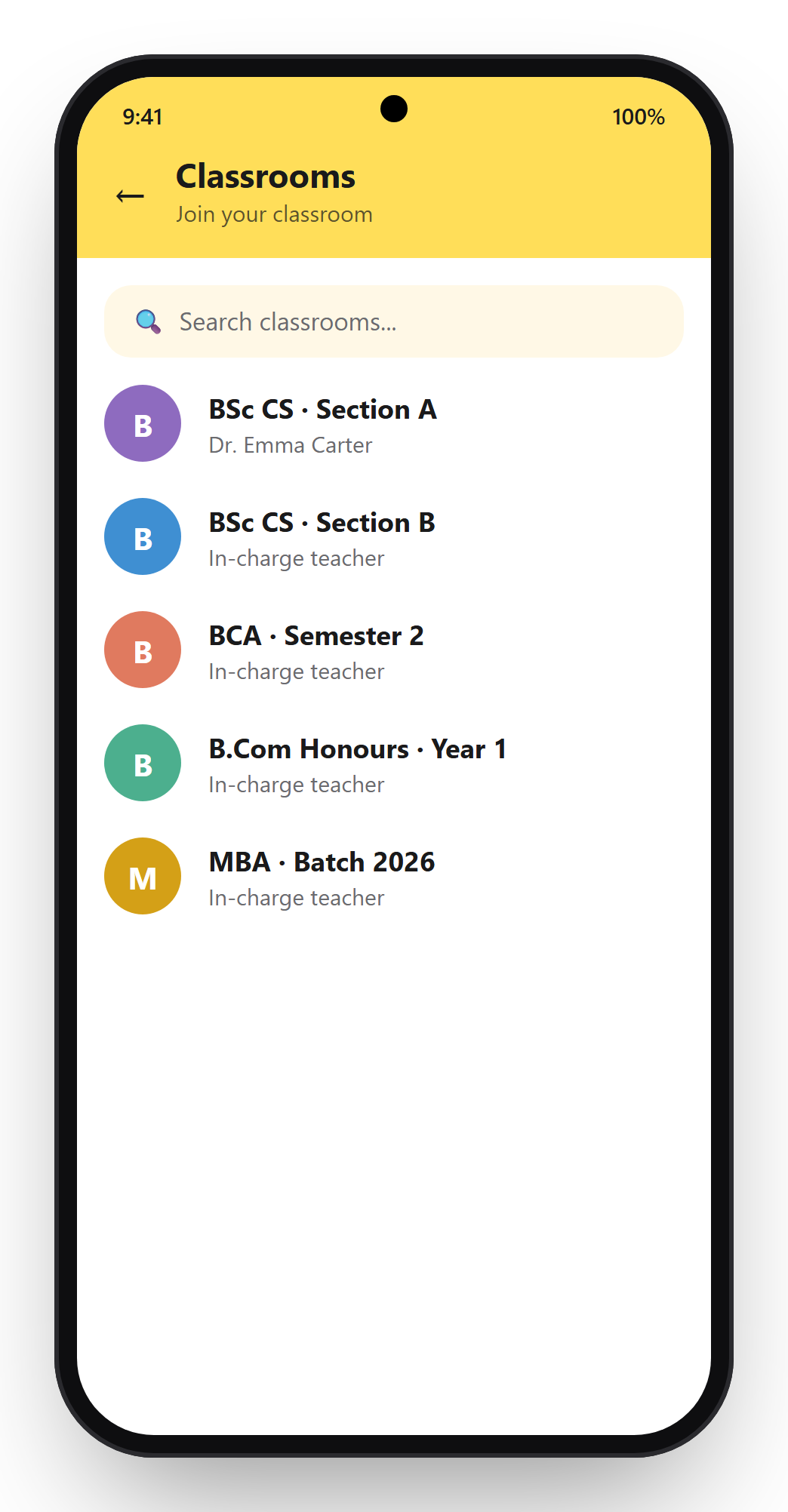
Tap "Library" > "Classrooms", find your classroom (you can search by name) and tap it to join. Once you have joined, it opens straight from your chats.
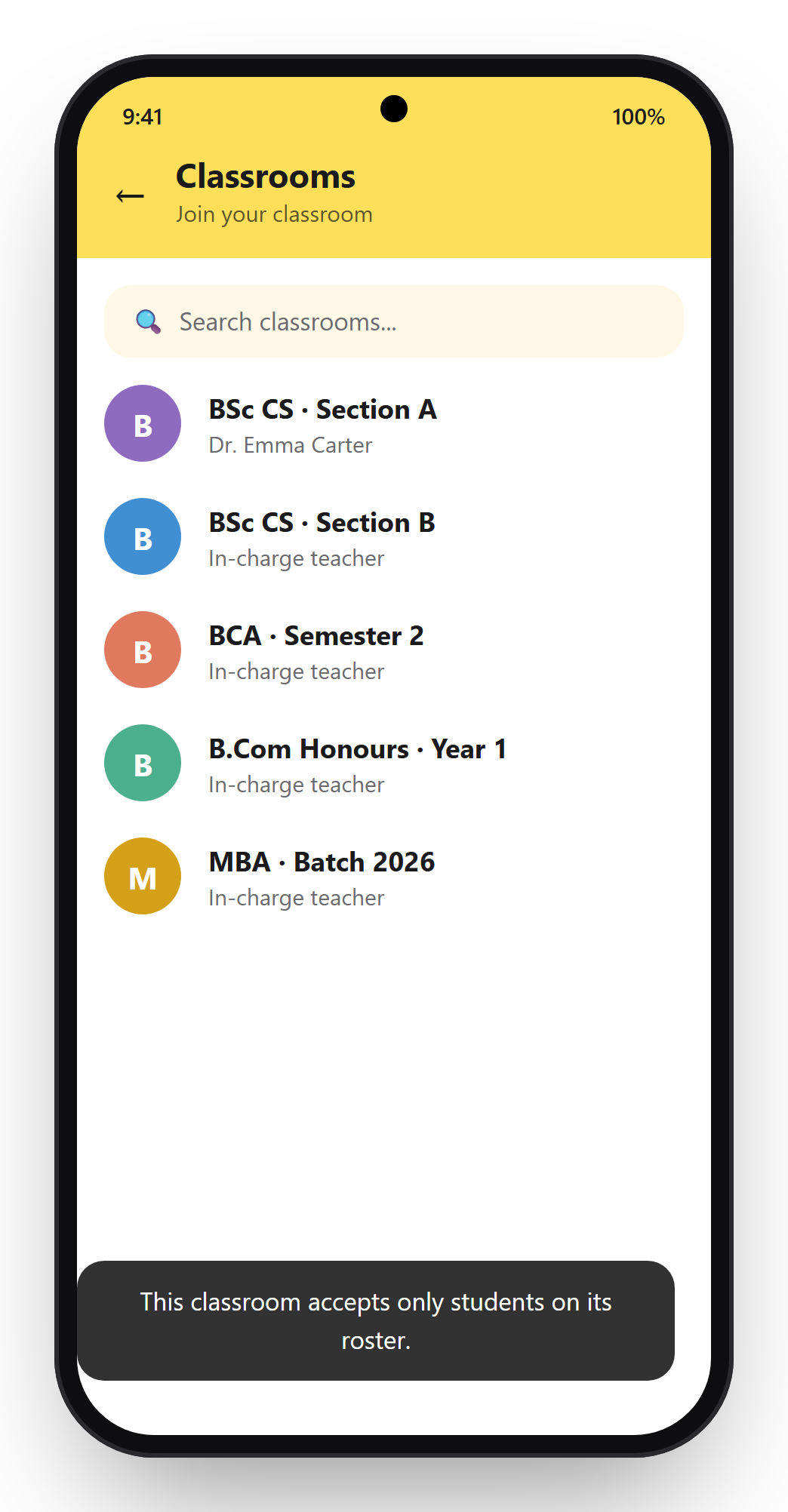
Some classrooms accept only students who are on their roster. If yours is one and you are not on the roster, you will see "This classroom accepts only students on its roster." Ask your teacher or admin to add you, then try again.
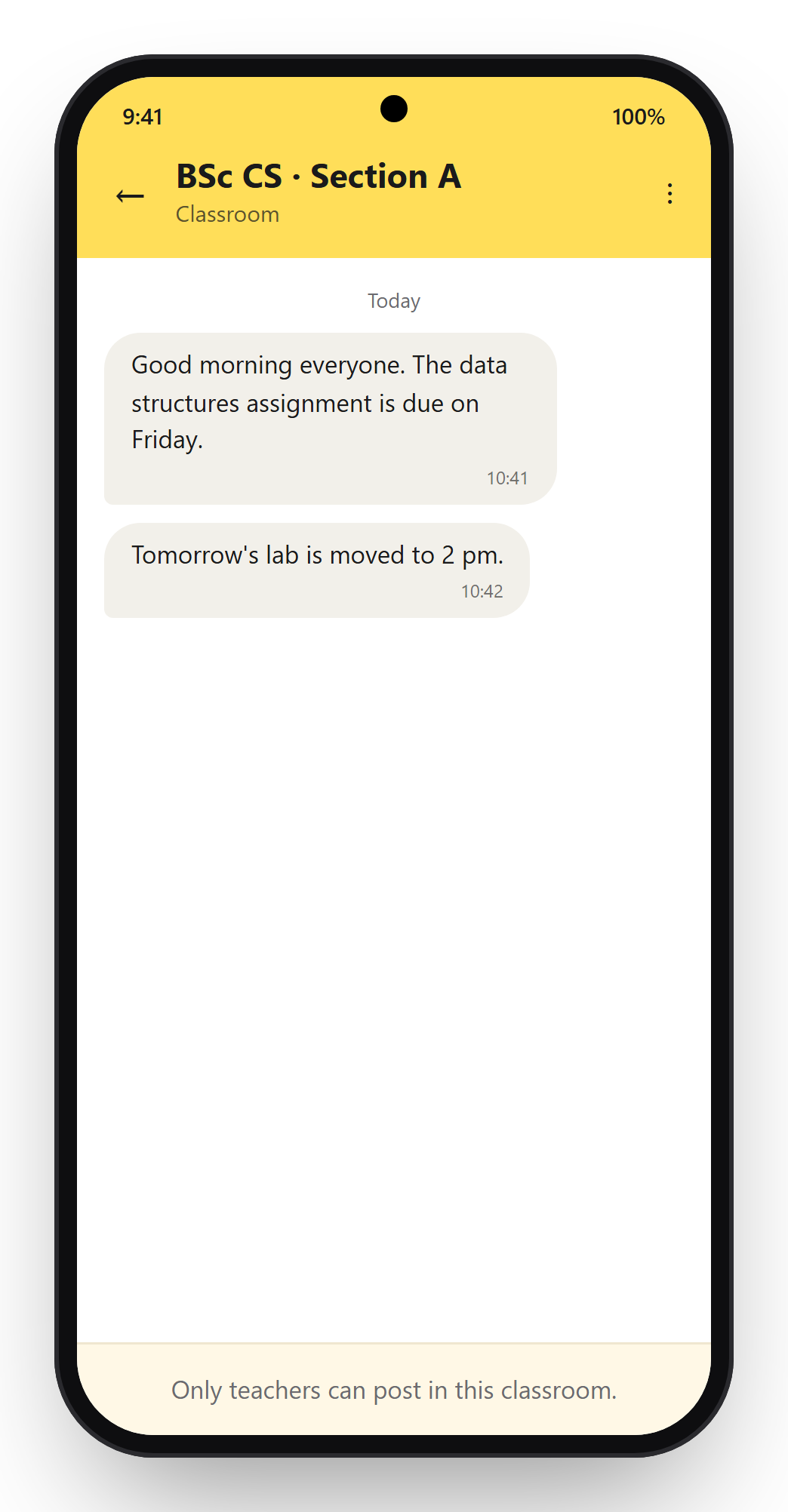
If student chat is off, the message bar is replaced by "Only teachers can post in this classroom." You can still read everything your teacher posts.
When the classroom opens you may briefly see "Checking if you can reply...". If your teacher has switched student chat on, the normal message bar appears and you can post.
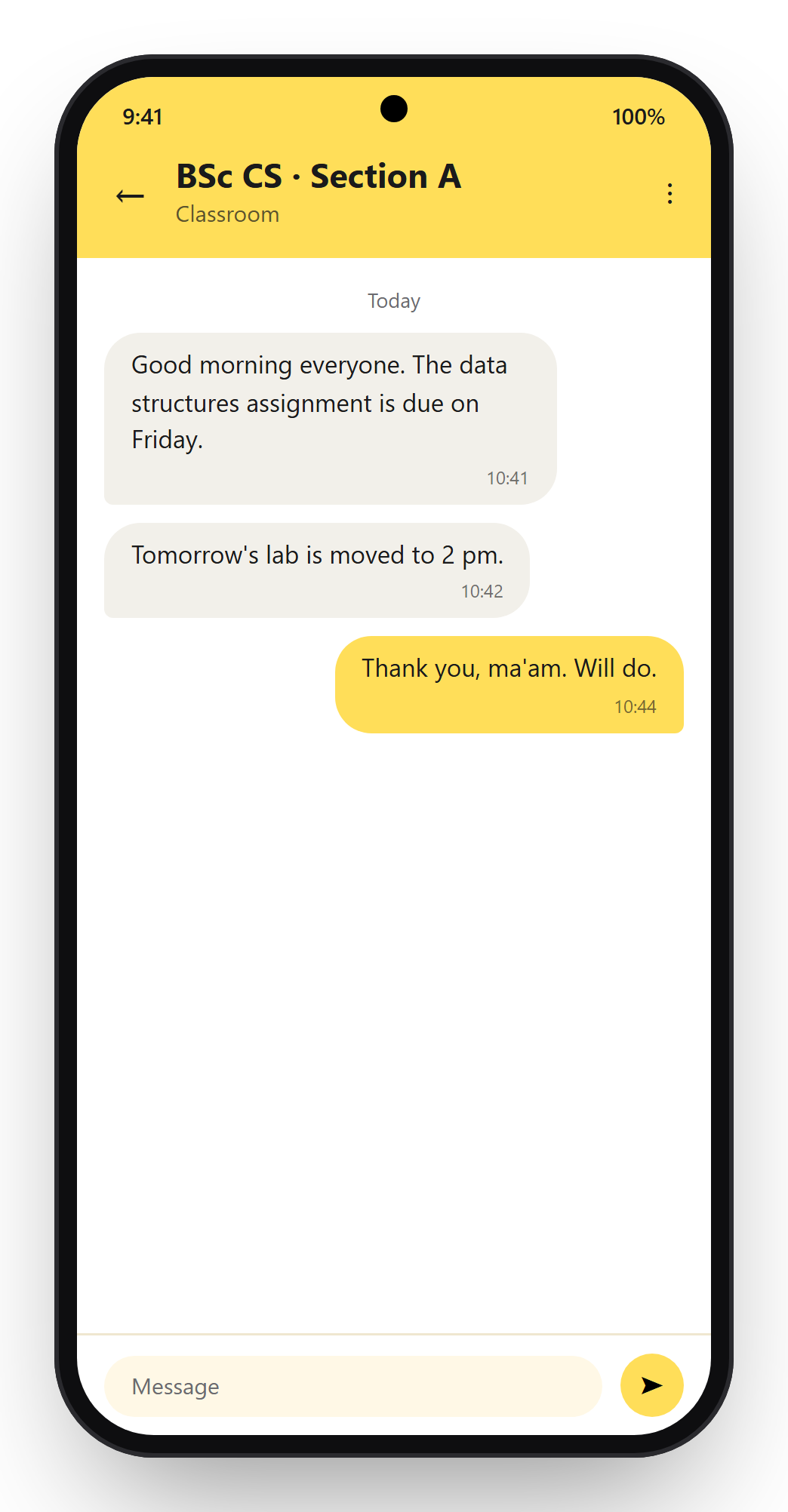
Teachers can change these settings at any time. A message you sent while chat was on stays; if chat is switched off, new messages from students are not delivered.
You've completed this guide — Joining and Chatting in a Classroom (Students)