
About this feature
Classrooms are set up by your institution's admins on the web dashboard. Faculty are assigned as incharge teachers; students are assigned automatically. Each classroom has a group chat for real-time communication between teacher and students, a weekly timetable, and shared resources. Faculty can additionally create Google Meet sessions that are shared only with classroom students. This replaces separate WhatsApp groups and physical timetable sheets for every class. Faculty can also open a dedicated Teaching Schedule to see every class they are assigned to teach across all their classrooms in one place.
How to Control Who Can Join and Chat (Faculty)
From the app, switch student chat on or off and choose whether any student or only your roster can join.
Every classroom has two settings, and they apply to students only. Teachers are never restricted: they can always join and post. Admins and the classroom's in-charge teacher can change them. The same settings are on the web dashboard.
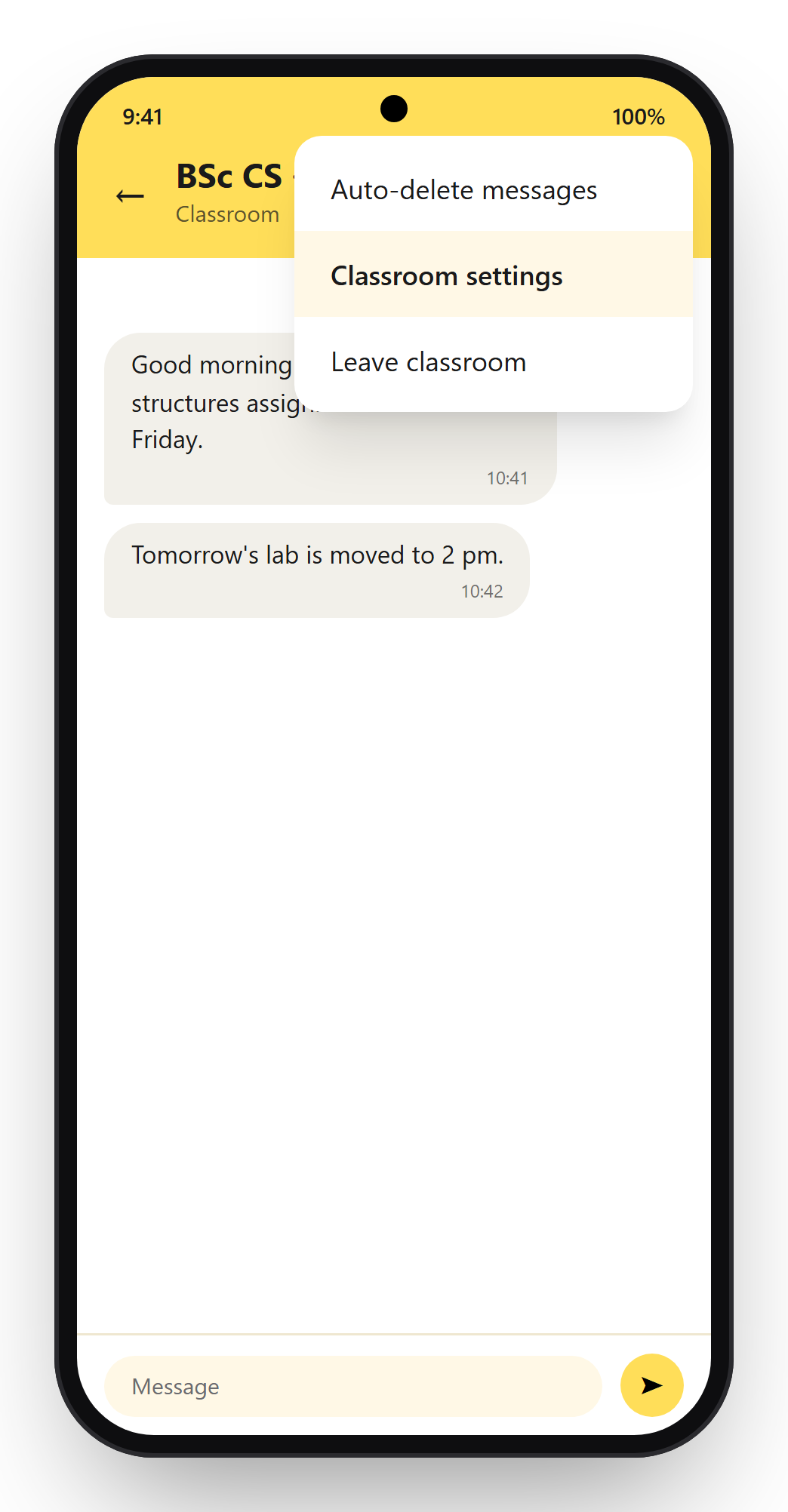
Open the classroom chat from Library > Classrooms, then tap the three-dot menu at the top and choose "Classroom settings". The option appears for faculty.
A sheet opens with the classroom name. "Students can chat" is a switch. Off (the default): students can read but only teachers post. On: students who have joined can post too.
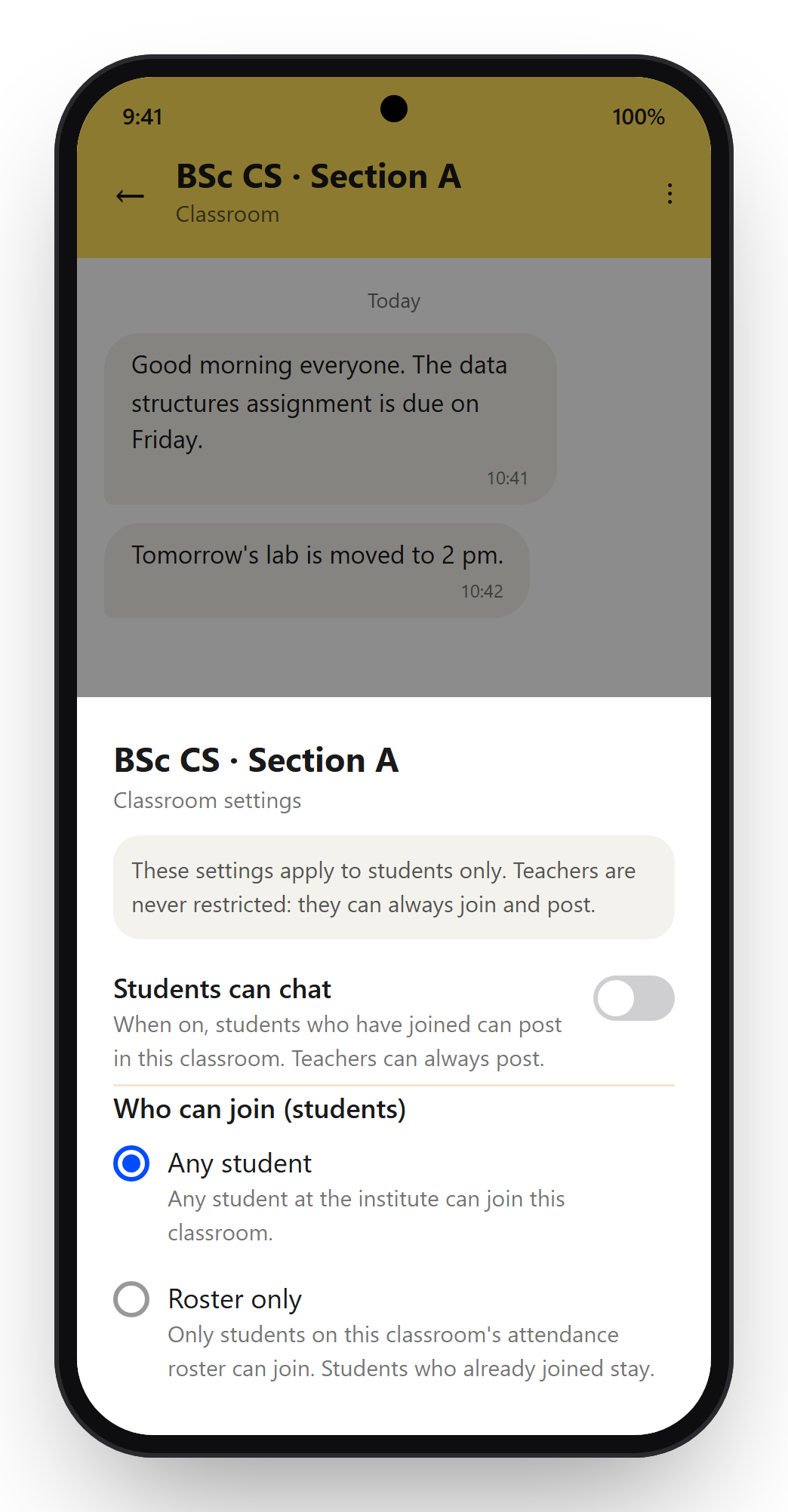
"Who can join (students)": choose "Any student" so any student at the institute can join, or "Roster only" so only students on this classroom's attendance roster can. This is checked when a student joins; students who already joined always stay.
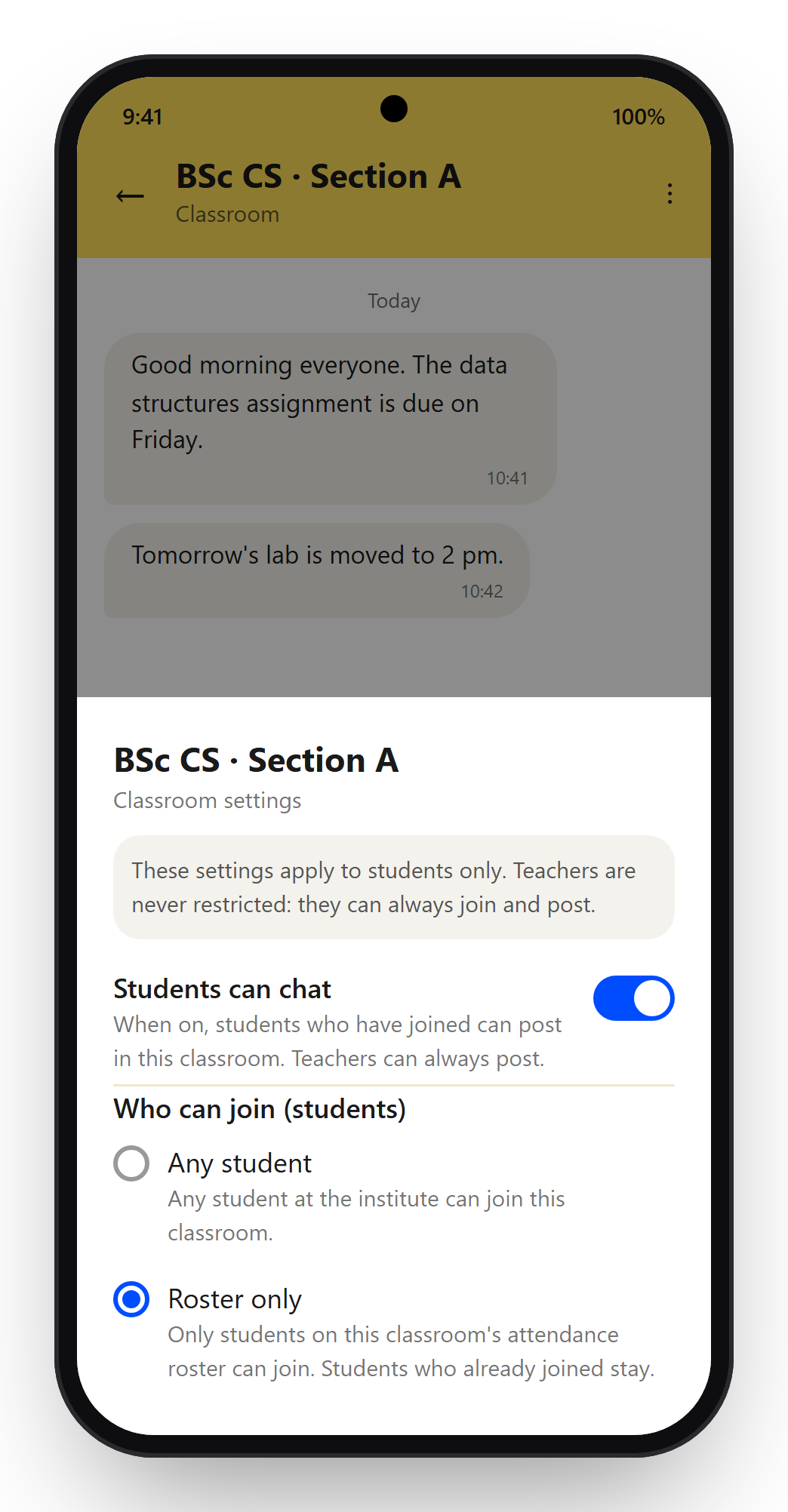
Each change saves at once and a "Saved" message confirms it. If you are not allowed to change the settings, the app shows the reason instead. If the sheet cannot load, tap "Retry".
You've completed this guide — How to Control Who Can Join and Chat (Faculty)