
About this feature
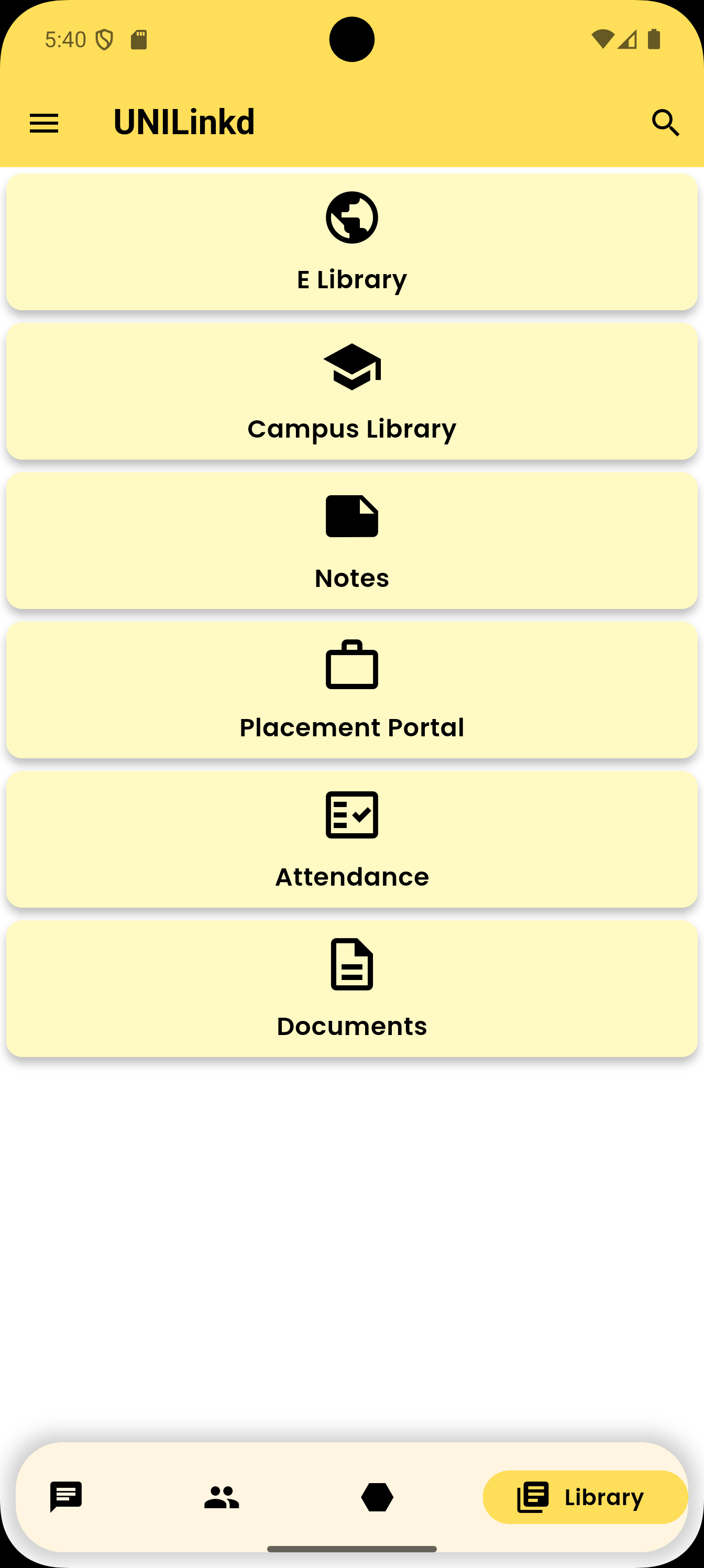
The Library tab has three distinct areas. The E-Library is UNILinkd's own digital content platform a curated collection of free and paid books available to any UNILinkd user, permanently. Even after a student graduates, they keep access to any content they purchased on the E-Library it stays with the account, not the institution. The Campus Library is your institution's physical book catalog, managed by your institution's admins, searchable by genre, author, or subject to check availability before visiting in person. Documents is where you self-serve download certificates and letters your institution has made available to you your name, email, and ID fill in automatically.
How to Find and Download Your Documents
Self-serve download certificates and letters your institution has made available to you.
Open the "Library" tab at the bottom of the app, then tap "Documents".
You will see a search bar for finding a document by name search only runs when you tap the search icon or submit, not as you type. Below it, a paginated list of documents currently available to you.
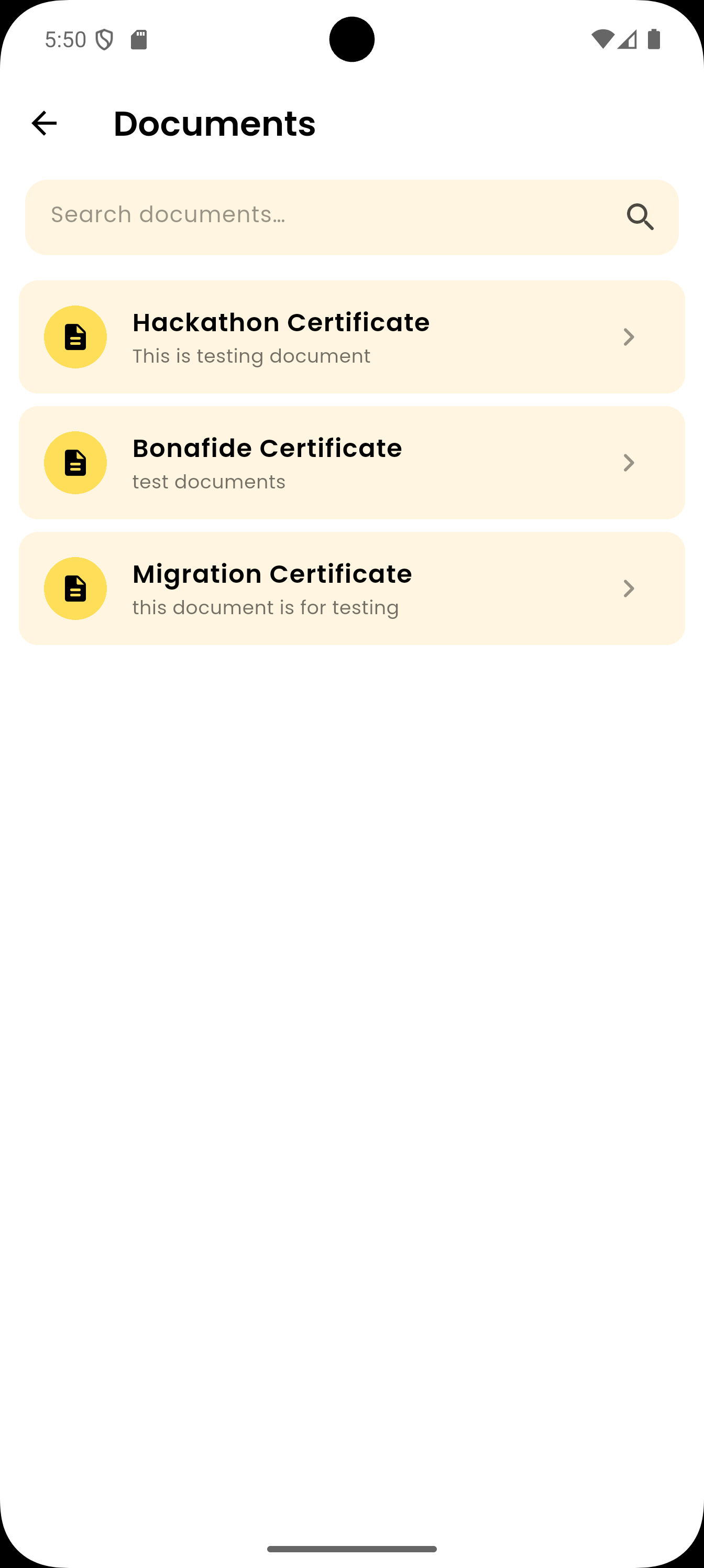
Tap a document to open it. Your name, email, and ID fill in automatically wherever the template uses those fields.
Tap "Download to Device" to save a PDF copy, or use the Print/Share options in the preview to print or share it directly.
If a document you were expecting isn't in the list, your account may not have been granted access to it yet check with your institution's admin.
You've completed this guide — How to Find and Download Your Documents