
About this feature
Drawers are your personal media library inside UNILinkd. As files, lecture slides, PDFs, and images get shared across many different chats DMs, groups, classrooms, and clubs they get buried in conversation history and are hard to retrieve. Drawers let you create named folders and save any received file into them with a single tap, creating a private organized archive across all your conversations.
How to Use Drawers
Save and organize files, images, and documents from multiple chats into named folders.
Drawers are personal pseudo-folders where you can save media from any chat DMs, groups, classrooms, or clubs. They are private to you.
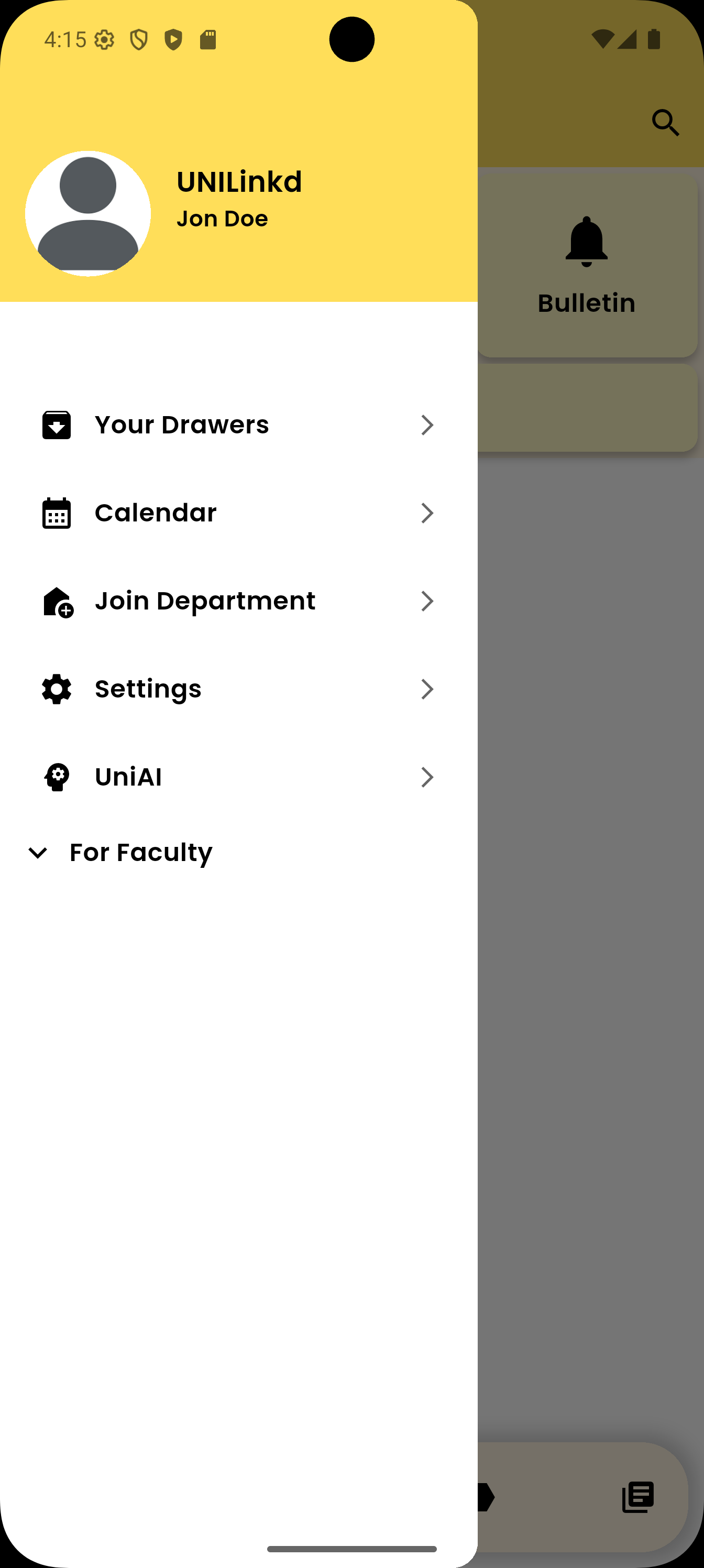
Open the side drawer (☰) and tap "Drawers". You will see your existing drawers (folders) here.
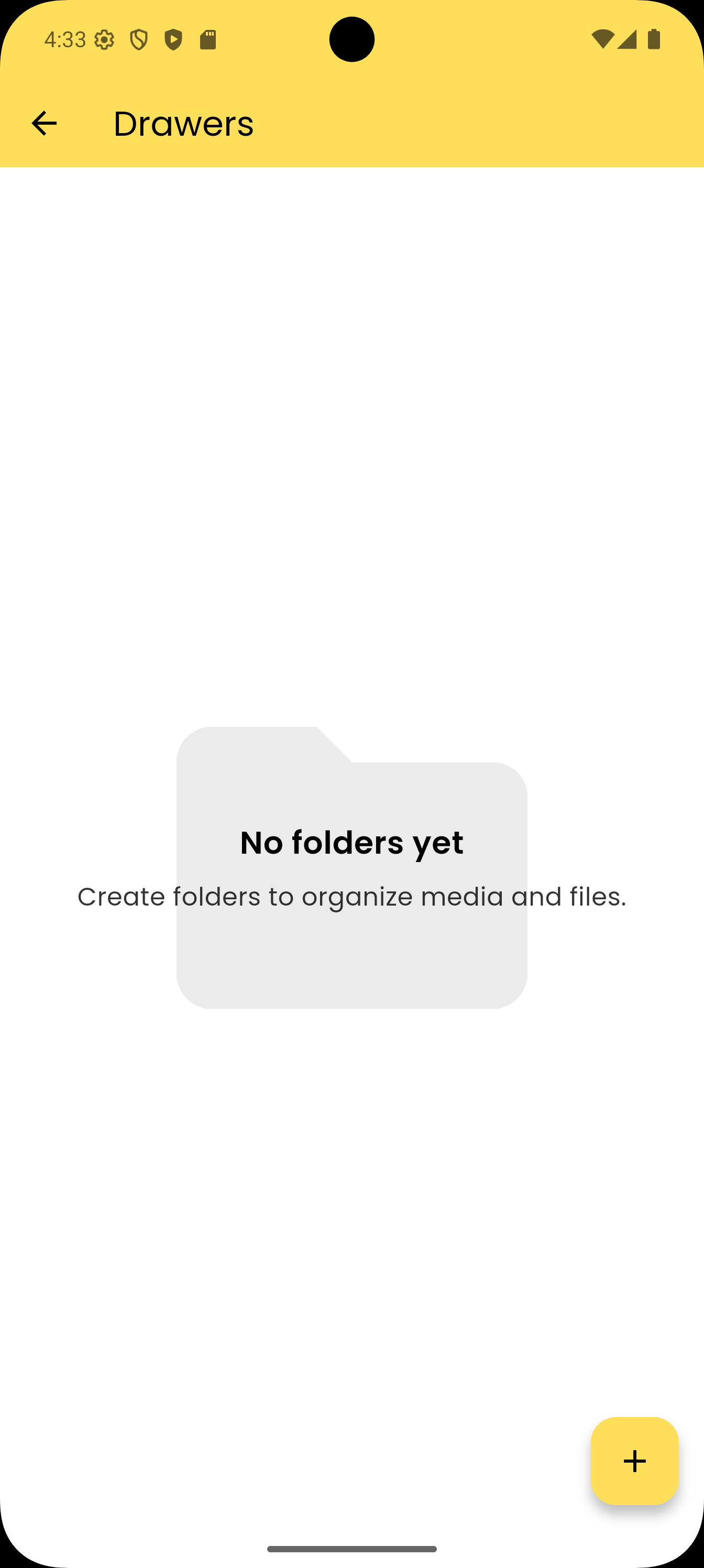
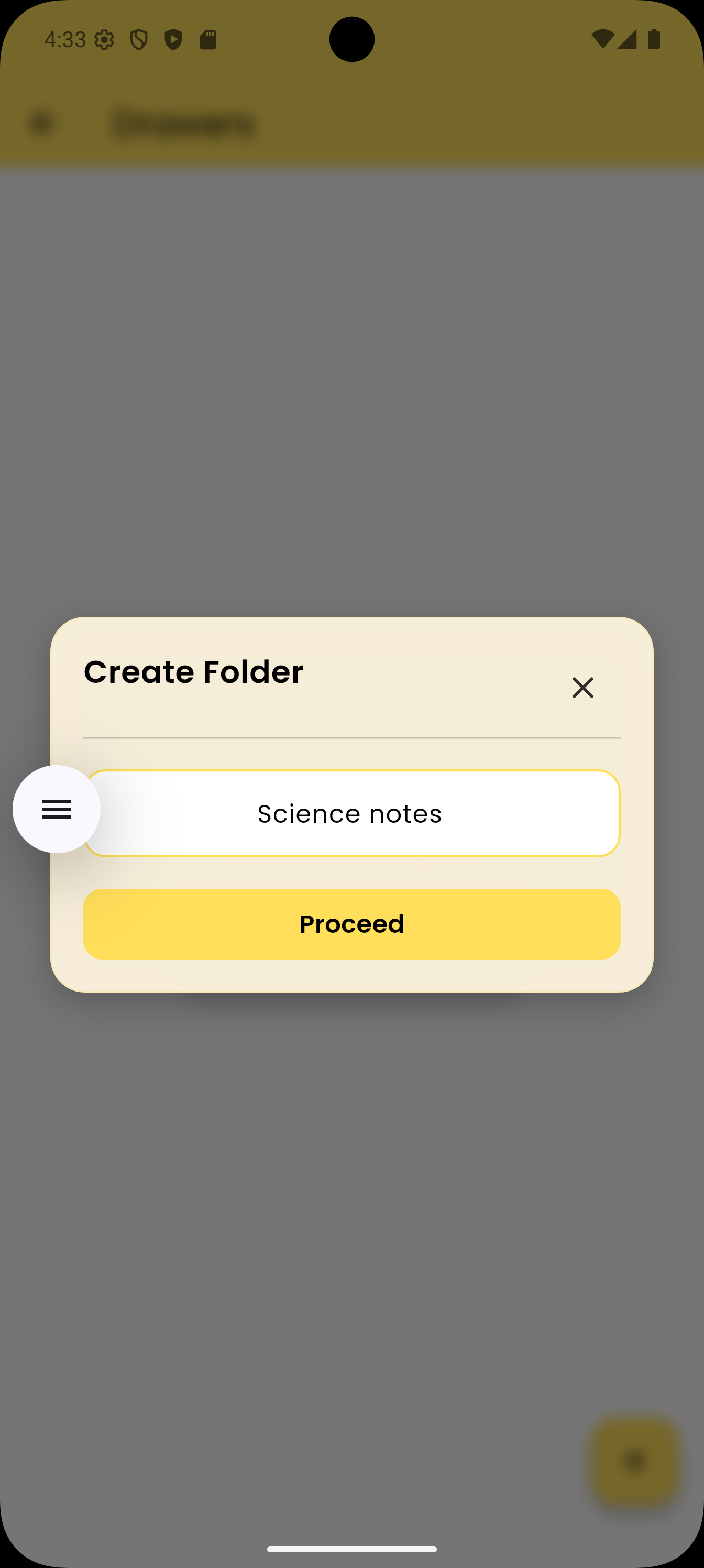
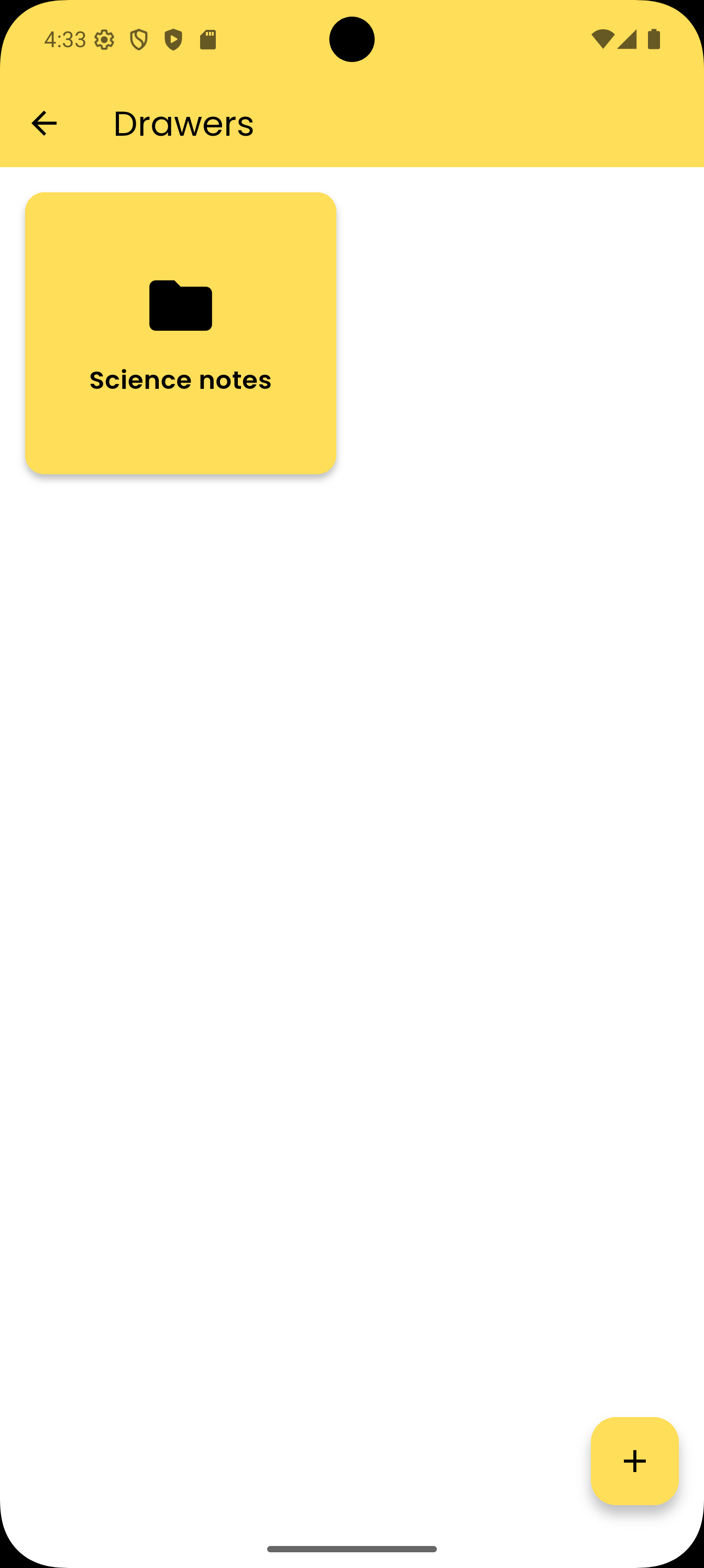
To create a drawer, tap "+" and give it a name (e.g. "Lecture Notes", "Lab Reports", "Club Photos").
To save a file to a drawer: in any chat, long-press the file or image tap "Save to Drawer" choose the drawer.
Open a drawer to see all saved media from across all your conversations, organized in one place. You can search within a drawer too.
You've completed this guide — How to Use Drawers