
Mobile AppSubjects
About this feature
Subjects are managed centrally by your institution's admins on the web dashboard. On the app, both faculty and students can browse the same list useful for double-checking a subject's exact code or name. You cannot add, edit, or delete subjects from the app.
How to Browse Subjects
Easy
2 min read
Look up any subject code or name registered at your institution.
1
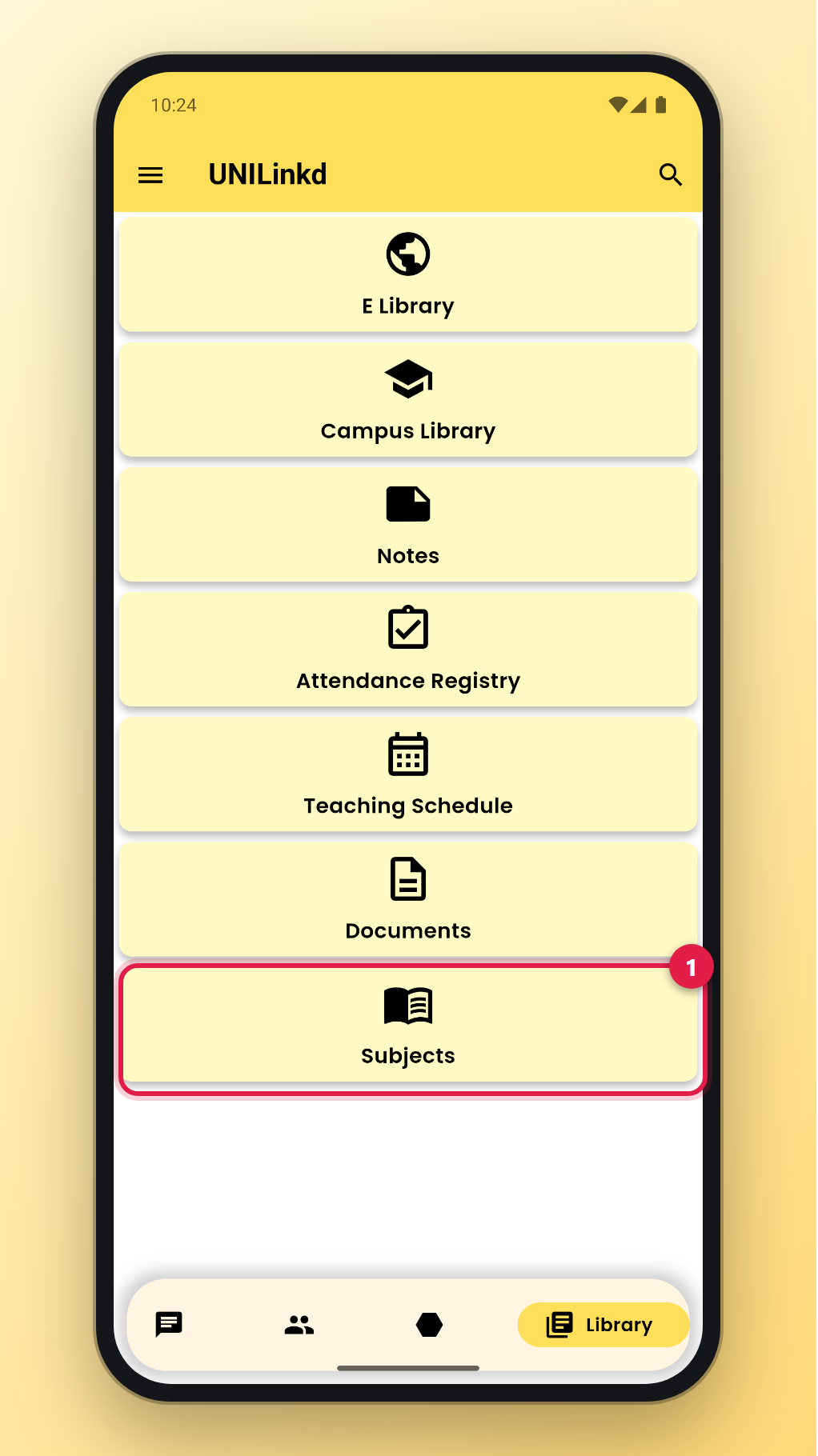
Tap the "Library" tab, then "Subjects".
2
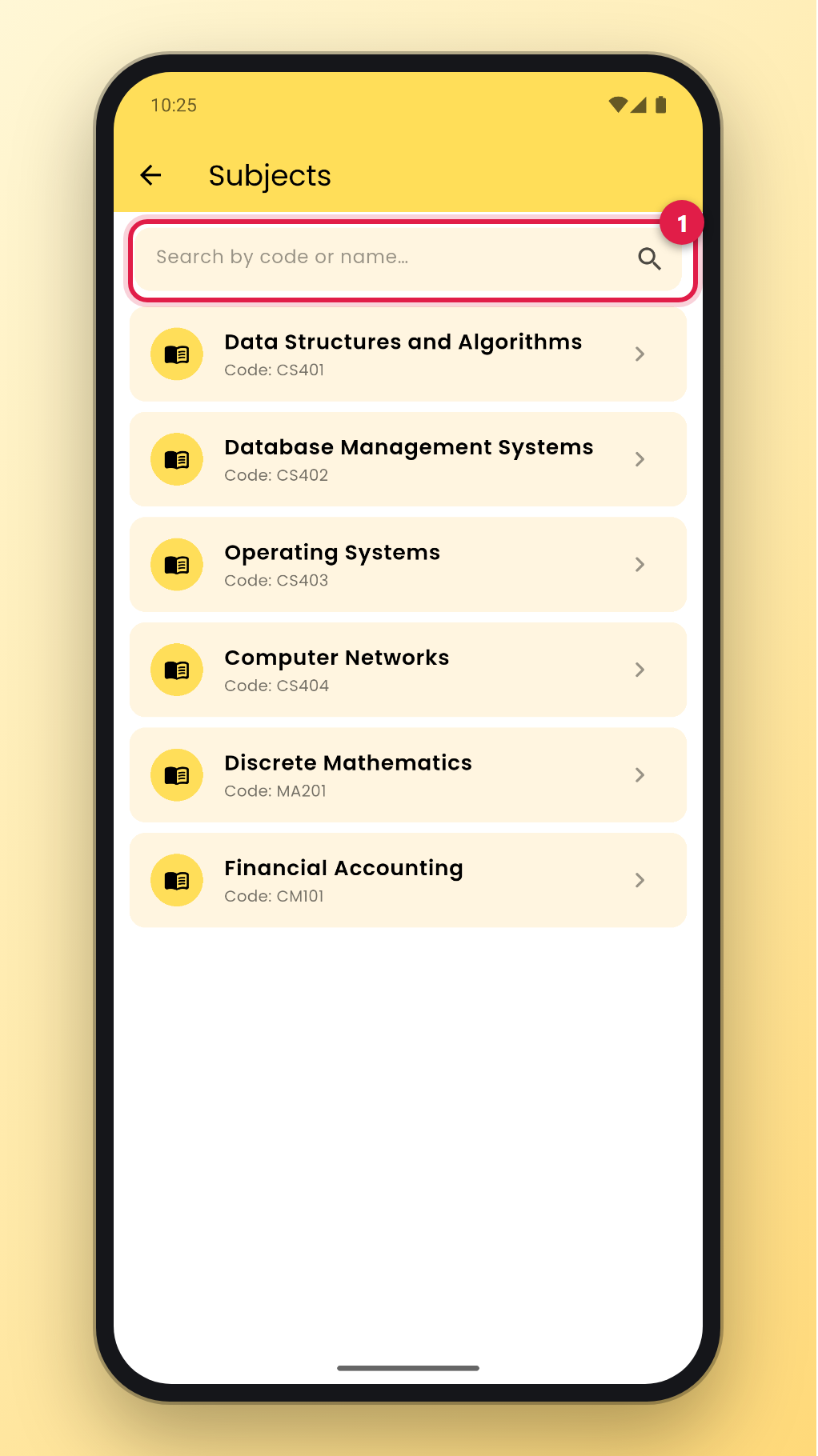
Search by code or name, or scroll the list and tap "Load more" for additional results.
3
Tap any subject to see its full details code, who added it, and when.
4
This list is read-only on the app. To add, edit, or remove a subject, an Admin or Sub-Admin needs to do it from the web dashboard.
You've completed this guide — How to Browse Subjects