
About this feature
Attendance is taken per classroom and date. What the form asks for depends on the classroom's attendance policy: some institutes take it subject-wise, others for the whole class with no subject, and some use fixed daily slots such as Morning and Afternoon. Registers a faculty member takes are private to them, but can be shared with a colleague as view-only or editable. Students can only view their own attendance; if something looks wrong they should contact the faculty member who took that register. Depending on the institute's policy, students may not see attendance at all - it is still counted.
How to View Your Attendance (Students)
Check how many classes you attended out of those held, overall and subject by subject.
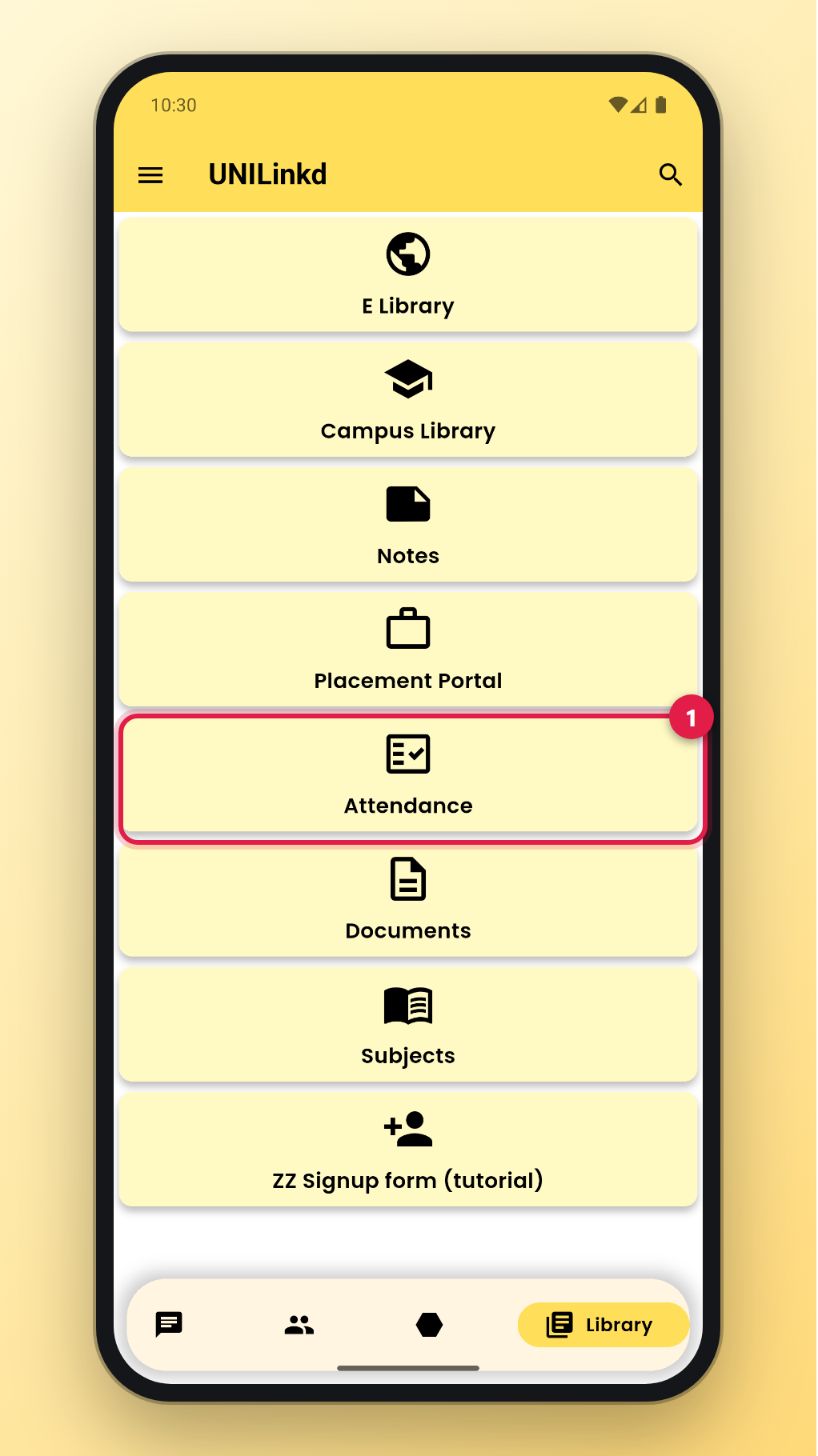
Tap the "Library" tab, then "Attendance". If your institute has chosen not to show attendance to students, this stays empty - ask your department.
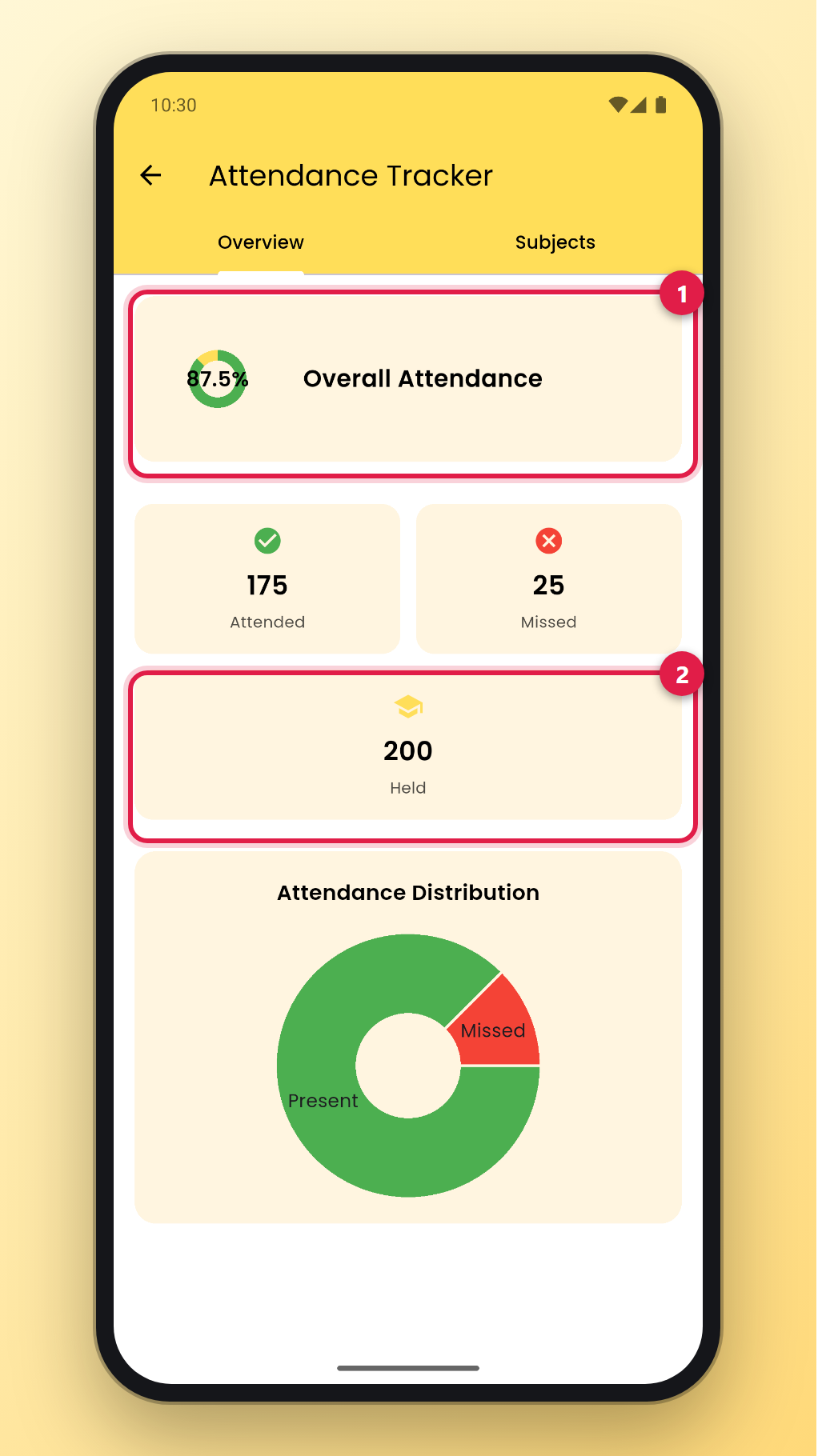
The Overview shows your overall percentage and cards for attended, missed and held. "Held" is the number of classes taken since you joined the classroom - there is no fixed planned total.
The Subjects tab shows each subject with attended / held and the percentage. A classroom that takes attendance for the whole class appears as "Whole class" instead of a subject.
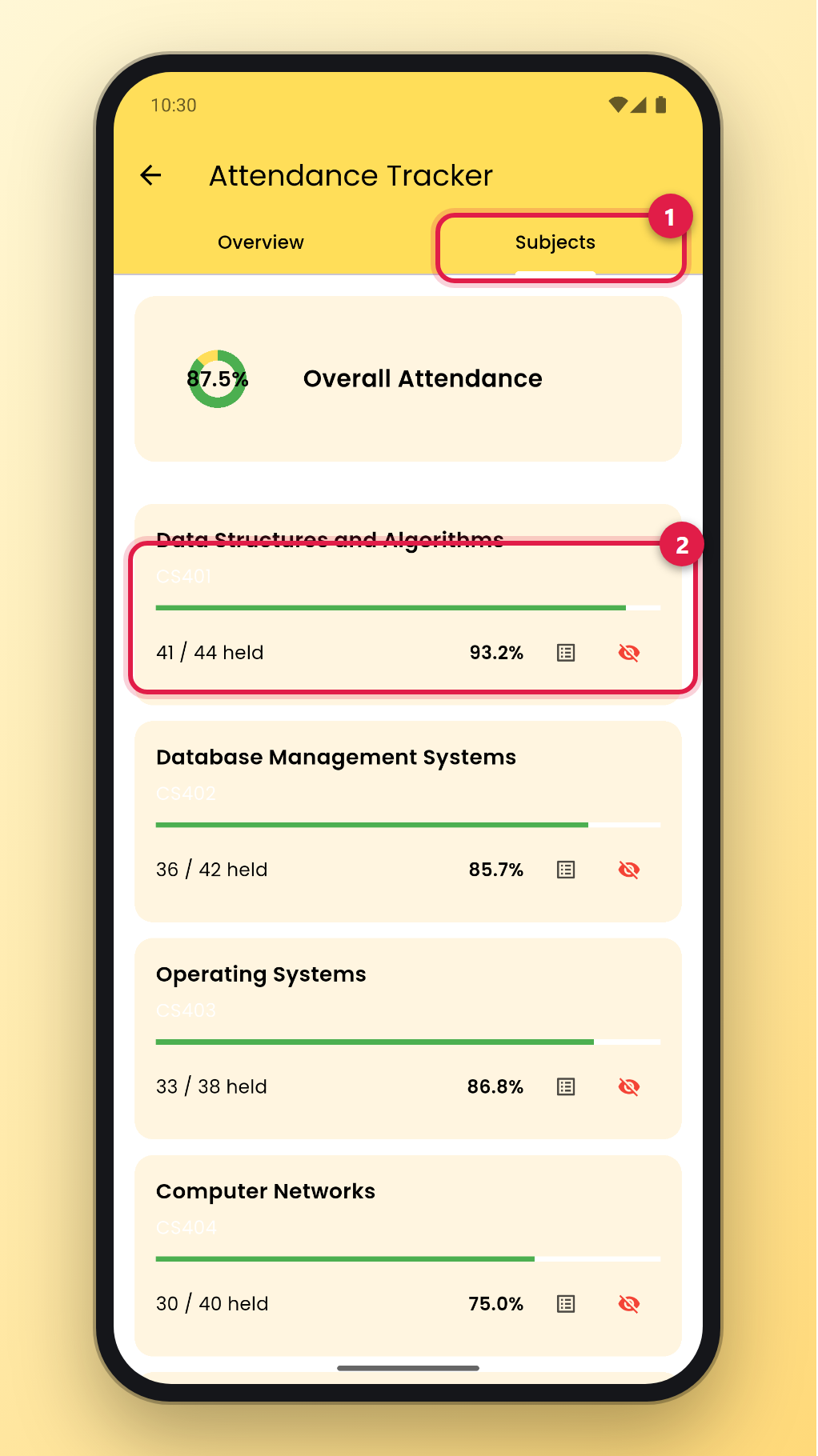
Tap the absences icon to see the days you were missed and the reason marked - Absent, On leave, Excused, or a note from the faculty.
You can hide a subject from your own overview with the toggle on its card, then tap "UPDATE" to save.
If something looks wrong, contact the faculty member who took that register - records are entered by them, not by you.
You've completed this guide — How to View Your Attendance (Students)