
About this feature
Classrooms are set up by your institution's admins on the web dashboard. Faculty are assigned as incharge teachers; students are assigned automatically. Each classroom has a group chat for real-time communication between teacher and students, a weekly timetable, and shared resources. Faculty can additionally create Google Meet sessions that are shared only with classroom students. This replaces separate WhatsApp groups and physical timetable sheets for every class. Faculty can also open a dedicated Teaching Schedule to see every class they are assigned to teach across all their classrooms in one place.
How to View Your Teaching Schedule
See every class you are assigned to teach across all your classrooms, in one weekly calendar.
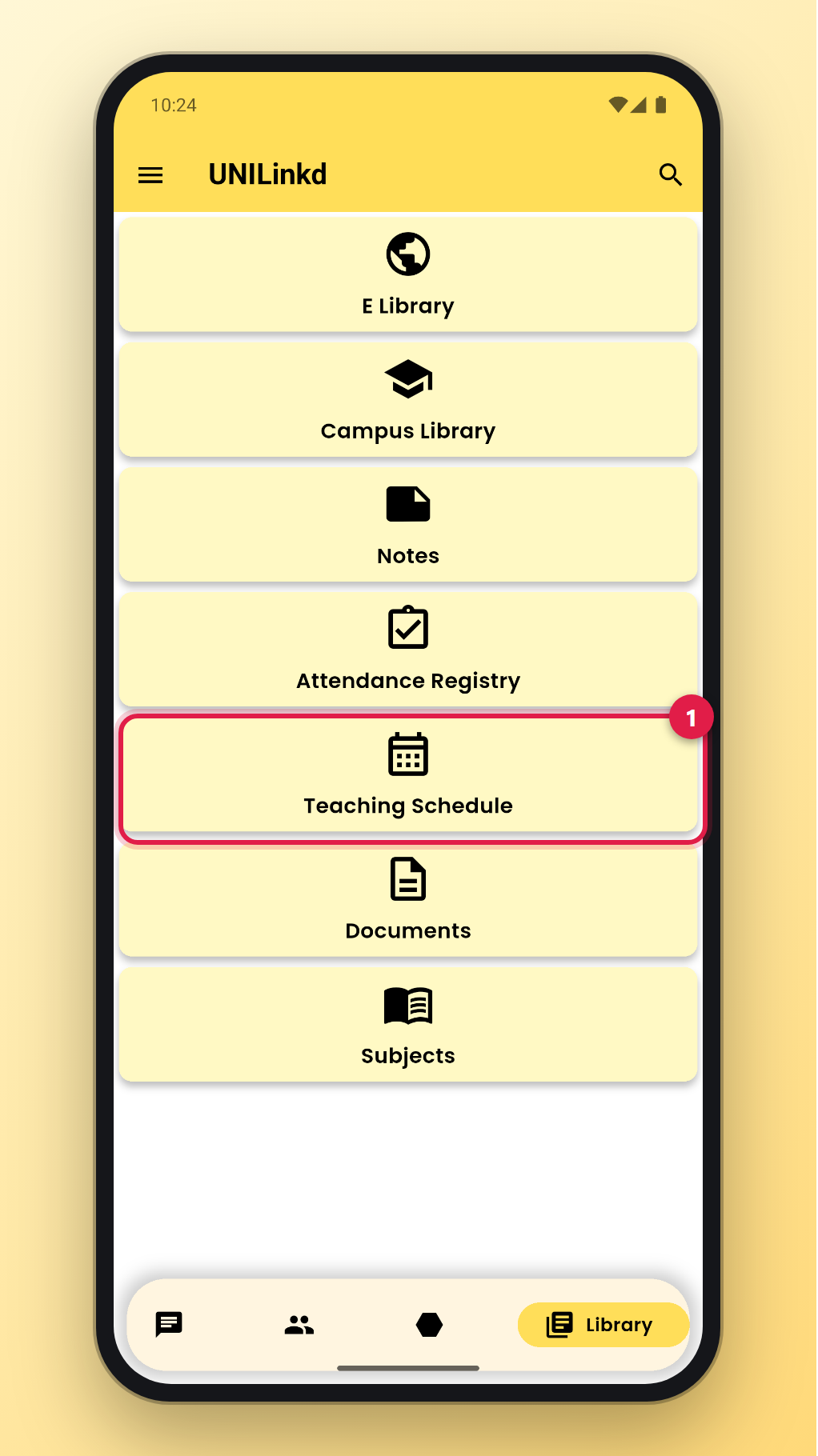
Tap "Library" and look for the "Teaching Schedule" card. This only appears for Faculty accounts.
Your schedule is shown as a weekly calendar with hours down the side and days across the top the same view as the web dashboard. Each class is color-coded by classroom.
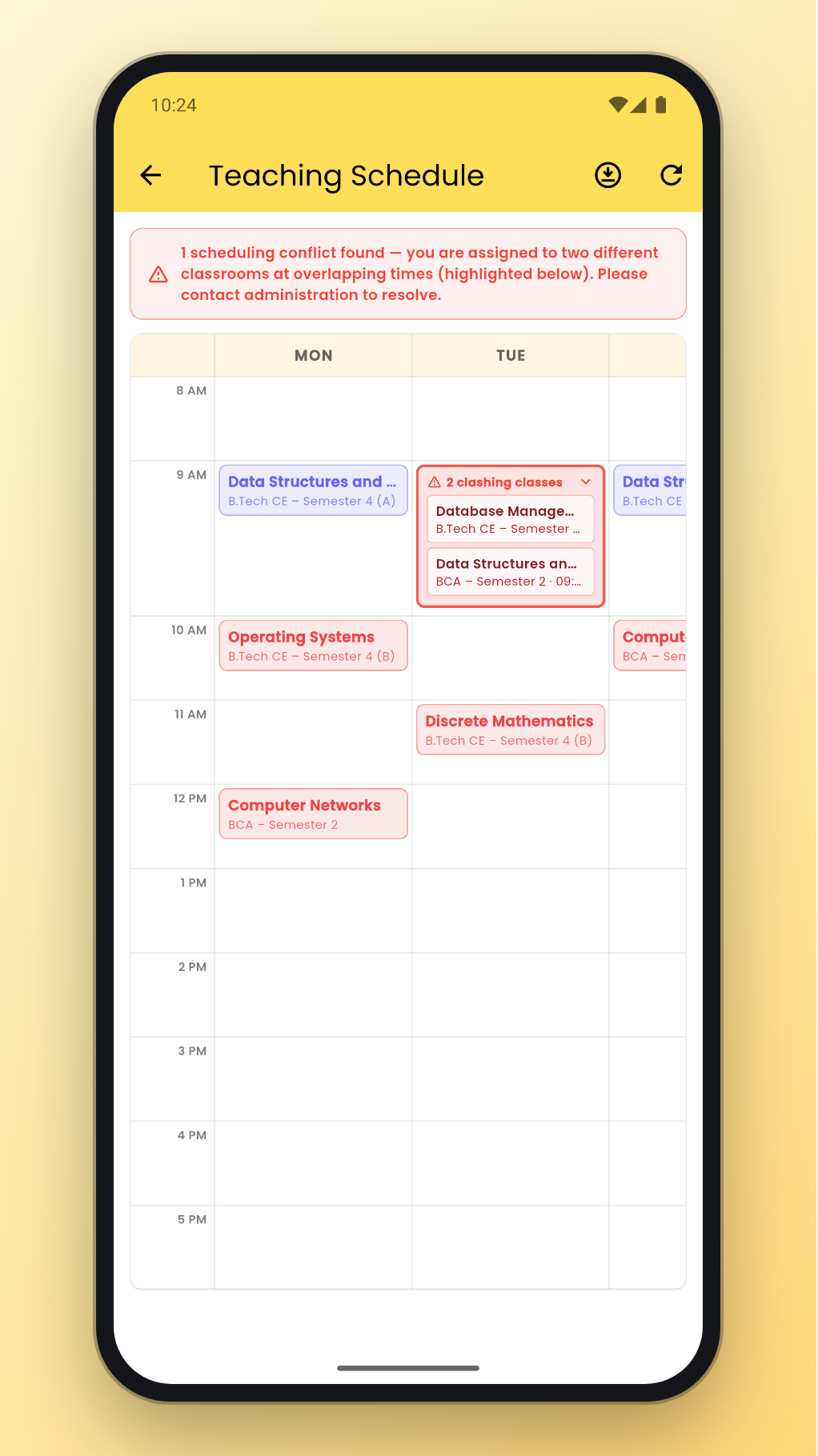
If you open this screen without internet, you will see a "Showing a locally saved copy" banner and your last-synced schedule instead of an error.
Tap the download icon in the top bar to explicitly "Save offline copy" before you expect to lose signal, so your latest schedule is always available even when offline.
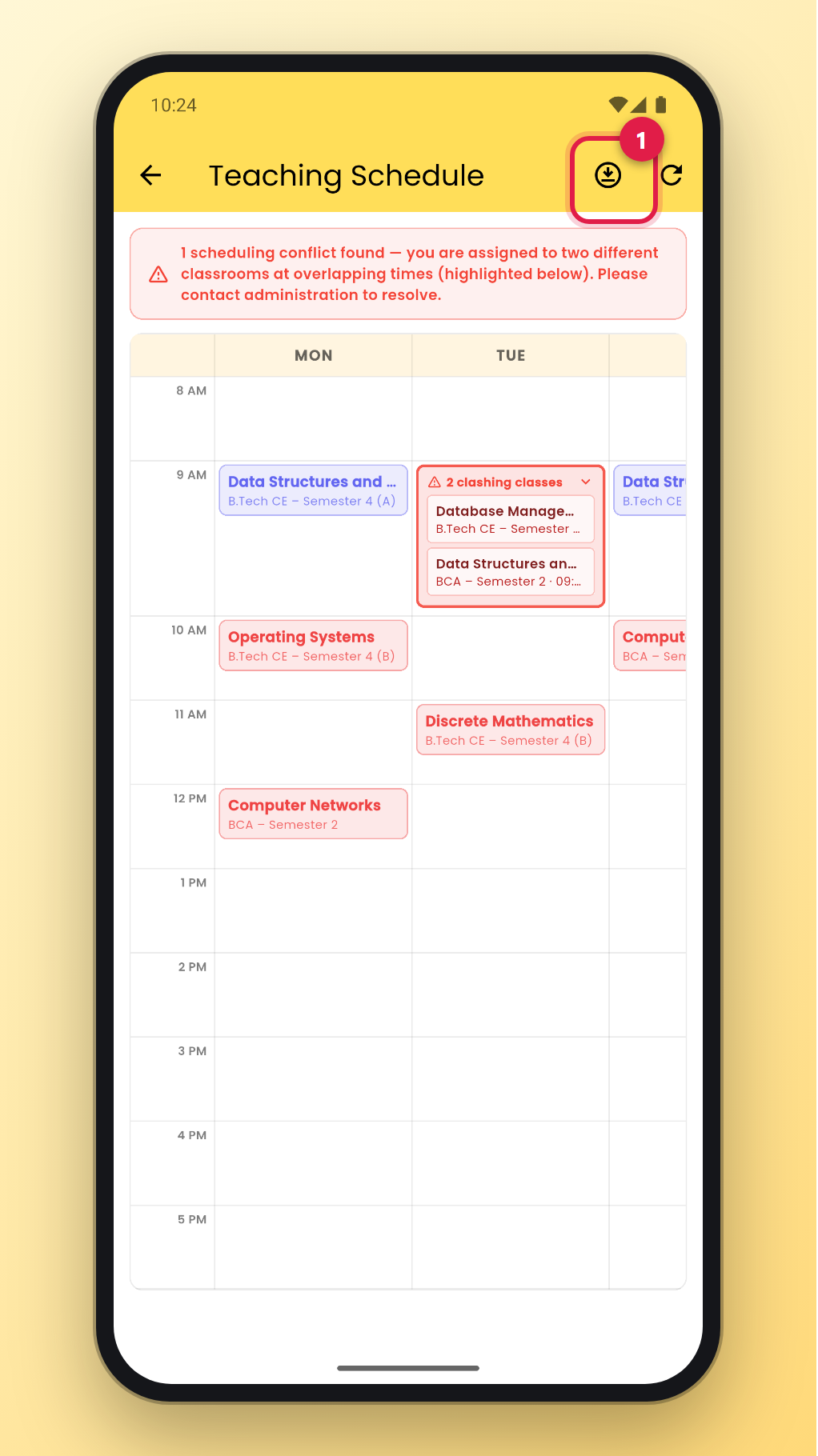
If you are scheduled in two different classrooms at an overlapping time, both classes are merged into one red cell labeled "N clashing classes". Tap it to expand and see the full detail, then tap again to collapse.
Viewing a colleague's schedule is only available on the web dashboard, not in the app.
You've completed this guide — How to View Your Teaching Schedule