
About this feature
The Alumni module maintains a permanent directory of former students. There are three ways in: students are archived automatically when they are deleted with the "Add to Alumni" toggle turned on, an admin can add one alumnus at a time with the "Add Alumni" form, or upload many at once from an Excel or CSV sheet with "Bulk Add". Any alumni record can be edited later. Alumni also receive a short update survey by email every few months to share their current employment and location, which keeps the directory current. Super Admins, Admins and Sub Admins can add, edit and delete alumni records; Faculty can only view them.
How to View and Manage Alumni
Access the alumni directory and manage alumni profiles.
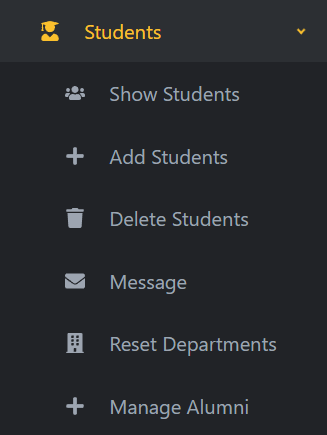
In the sidebar, click "Students", then "Manage Alumni".
The Alumni Directory lists every former student on record: those archived when they were deleted with the "Add to Alumni" toggle, and those added by hand or from a sheet. The counters at the top show the total, how many are employed or in higher studies, and how many have LinkedIn linked.
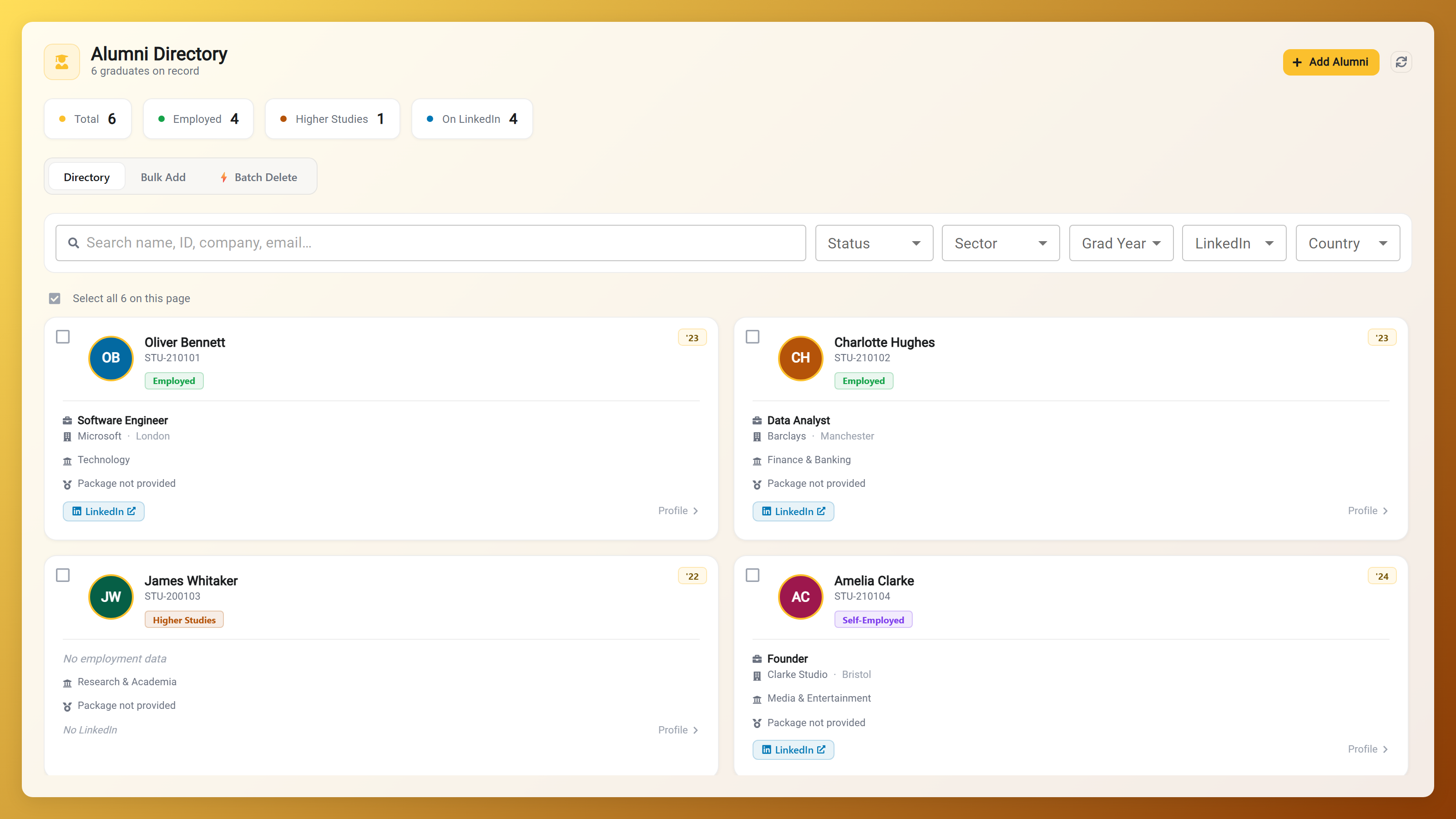
Use the search box to find someone by name, ID, company or email, and the Status, Sector, Grad Year, LinkedIn and Country filters to narrow the list.
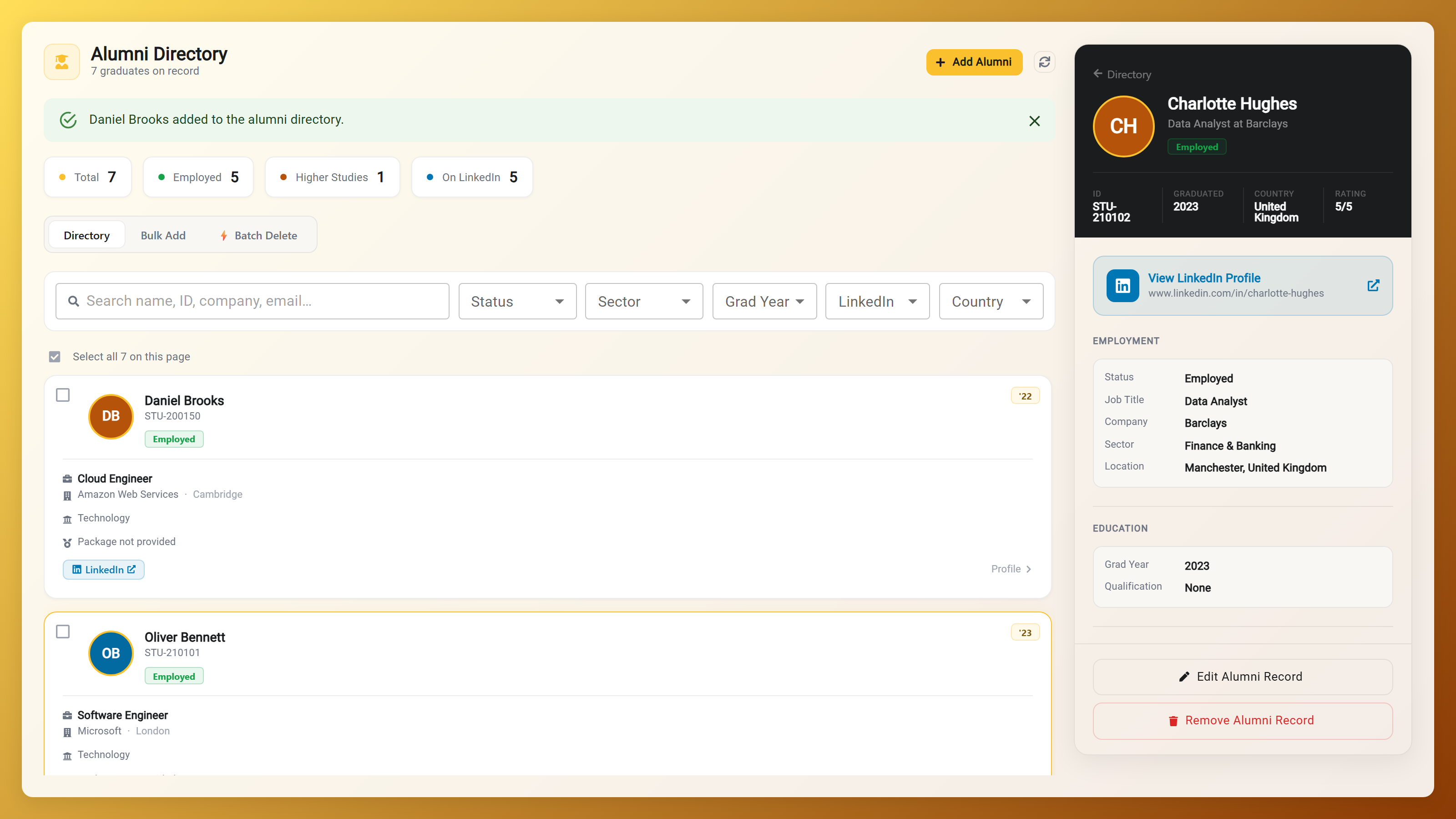
Click a card to open the full profile on the right: employment, education, survey ratings and contact details. Super Admins, Admins and Sub Admins also see "Edit Alumni Record" and "Remove Alumni Record" at the bottom; Faculty can only view.
You've completed this guide — How to View and Manage Alumni