
About this feature
Access Control manages the hierarchy of administrative power at your institution. Each role in UNILinkd has a specific set of permissions from the Super Admin who has full control, to Faculty who can only view records and submit attendance. Only Super Admins can create or modify Admin accounts. This section lets you view who currently has elevated access and manage their roles.
Role Privileges at a Glance
One picture of what each role can and cannot do, from Super Admin down to Student.
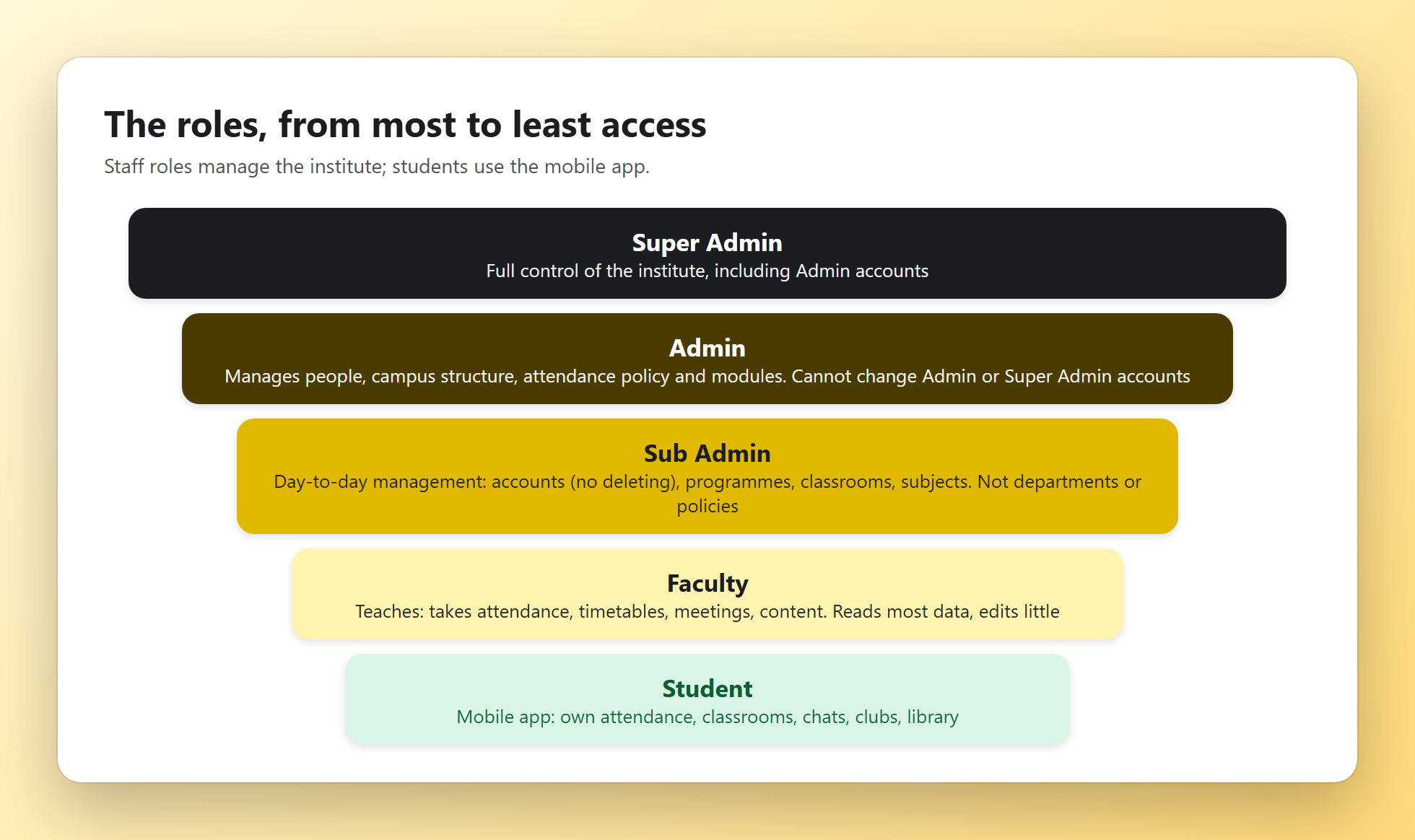
UNILinkd has five roles: Super Admin, Admin, Sub Admin, Faculty and Student. They run from most to least access. Staff roles manage the institute from the dashboard and the app; students use the mobile app. Your role shows as a badge under your name in the sidebar.
The table lists the main privileges by role. A tick means allowed, "view" means read-only, and a dash means not allowed. The server checks every action, so a person who somehow sees a button still cannot do what their role does not allow.
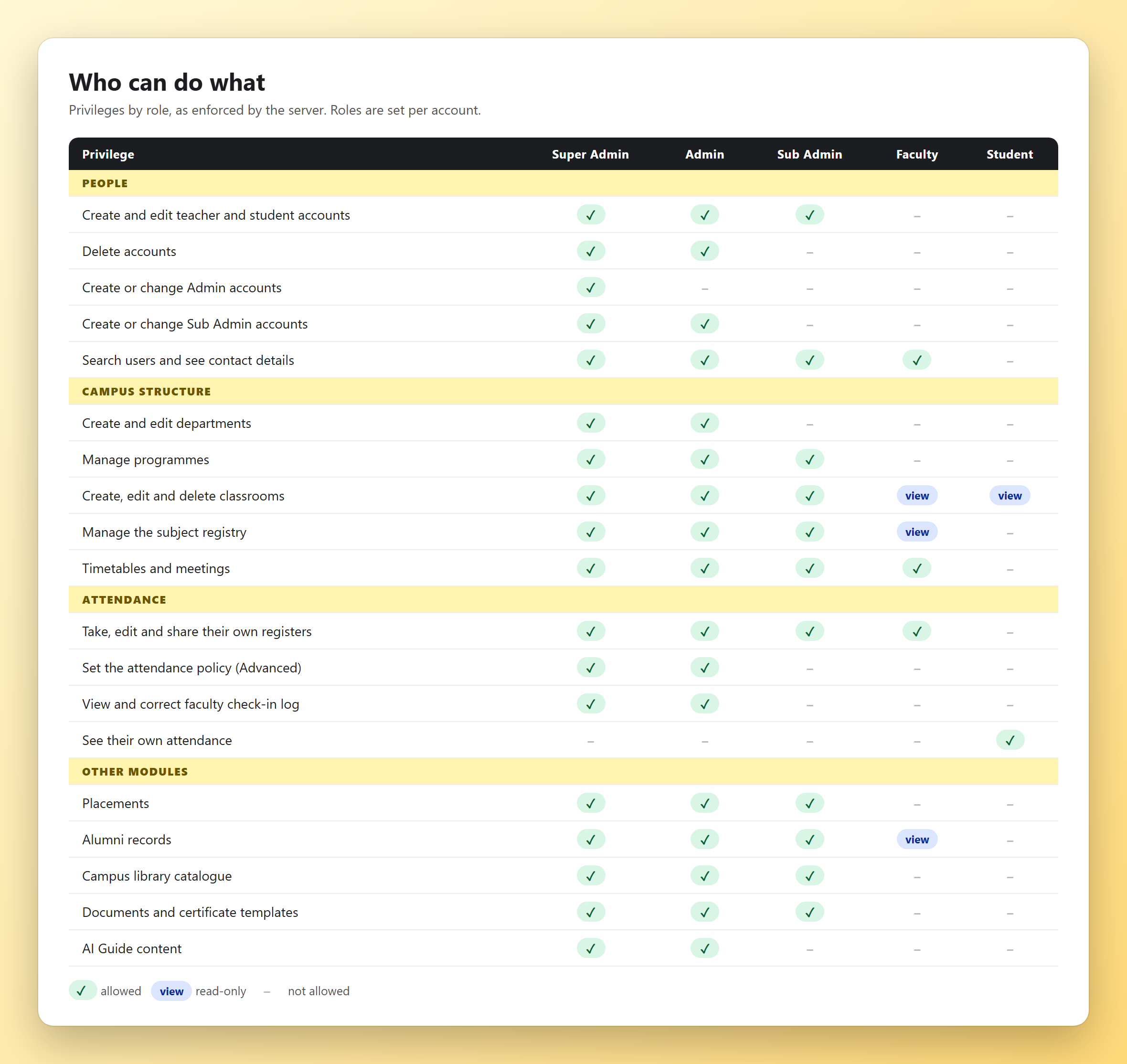
People: Super Admin, Admin and Sub Admin can create and edit teacher and student accounts. Only Super Admin and Admin can delete accounts. Only a Super Admin can create or change Admin accounts; an Admin can manage Sub Admins; a Sub Admin cannot change other staff roles.
Campus structure: departments can be created and edited by Super Admin and Admin. Programmes, classrooms and the subject registry are also managed by Sub Admins. Faculty can see classrooms and subjects, and create timetables and meetings for their classes.
Attendance: Super Admin, Admin, Sub Admin and Faculty can take attendance, and each person's registers are their own (see "Who Can See and Change Attendance"). Only Super Admin and Admin can set the attendance policy and view or correct the faculty check-in log.
Other modules: placements and documents are managed by Super Admin, Admin and Sub Admin; alumni records by the same roles, with Faculty able to view them. The AI Guide is managed by Super Admin and Admin. The library catalogue is managed by Super Admin, Admin and Sub Admin.
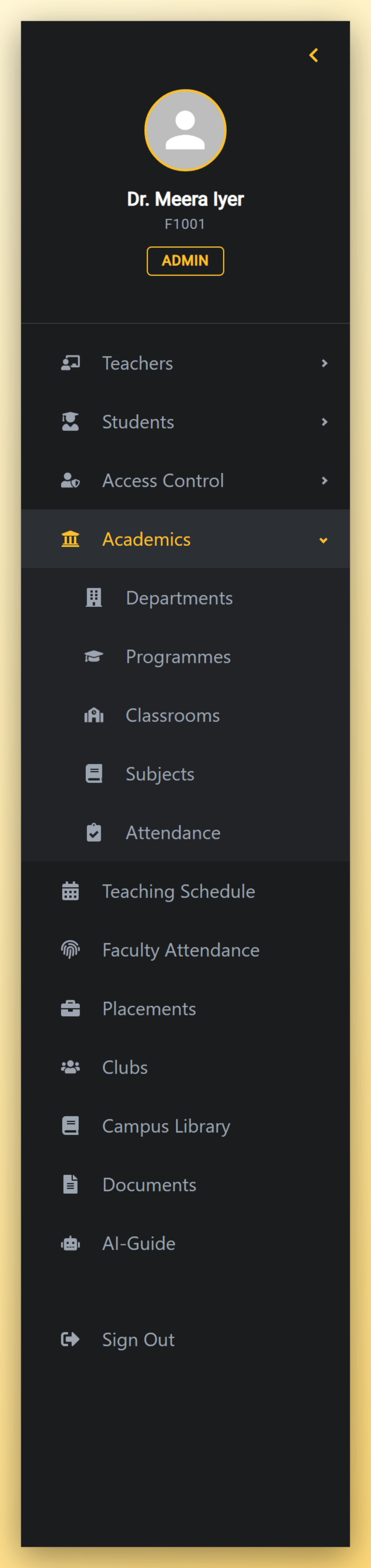
What you cannot see you cannot use: sidebar items such as Add Teachers, Delete Teachers, Documents and AI-Guide only appear for the roles allowed to use them, and the Advanced settings option on a department appears only for Admin and Super Admin.
You've completed this guide — Role Privileges at a Glance