
About this feature
The Attendance Registry replaces manual attendance sheets. Faculty take a register for a classroom on a date - from the mobile app or the dashboard - marking each student present or absent (or on leave / excused). What the form asks for depends on the classroom's attendance policy: some institutes take attendance subject-wise, others for the whole class with no subject, and some use fixed daily slots such as "Morning" and "Afternoon". Registers you take are private to you; you can share any one of them with a colleague as view-only or editable. You can review, filter, correct and delete your registers, see live summary stats, and export a full workbook that is emailed to you. In the sidebar, Attendance sits inside the "Academics" group together with Departments, Programmes, Classrooms and Subjects.
How to Set the Attendance Policy (Advanced)
Decide what the attendance form asks for and how attendance is counted, per department, programme or classroom.
The attendance policy is optional and for Admins and Super Admins. Most institutes never need it: with no policy, attendance works as a normal subject-wise register. A policy never changes registers that were already taken.
In the sidebar open Academics > Departments. On the department's row, open the menu (the three dots) and click "Advanced settings".
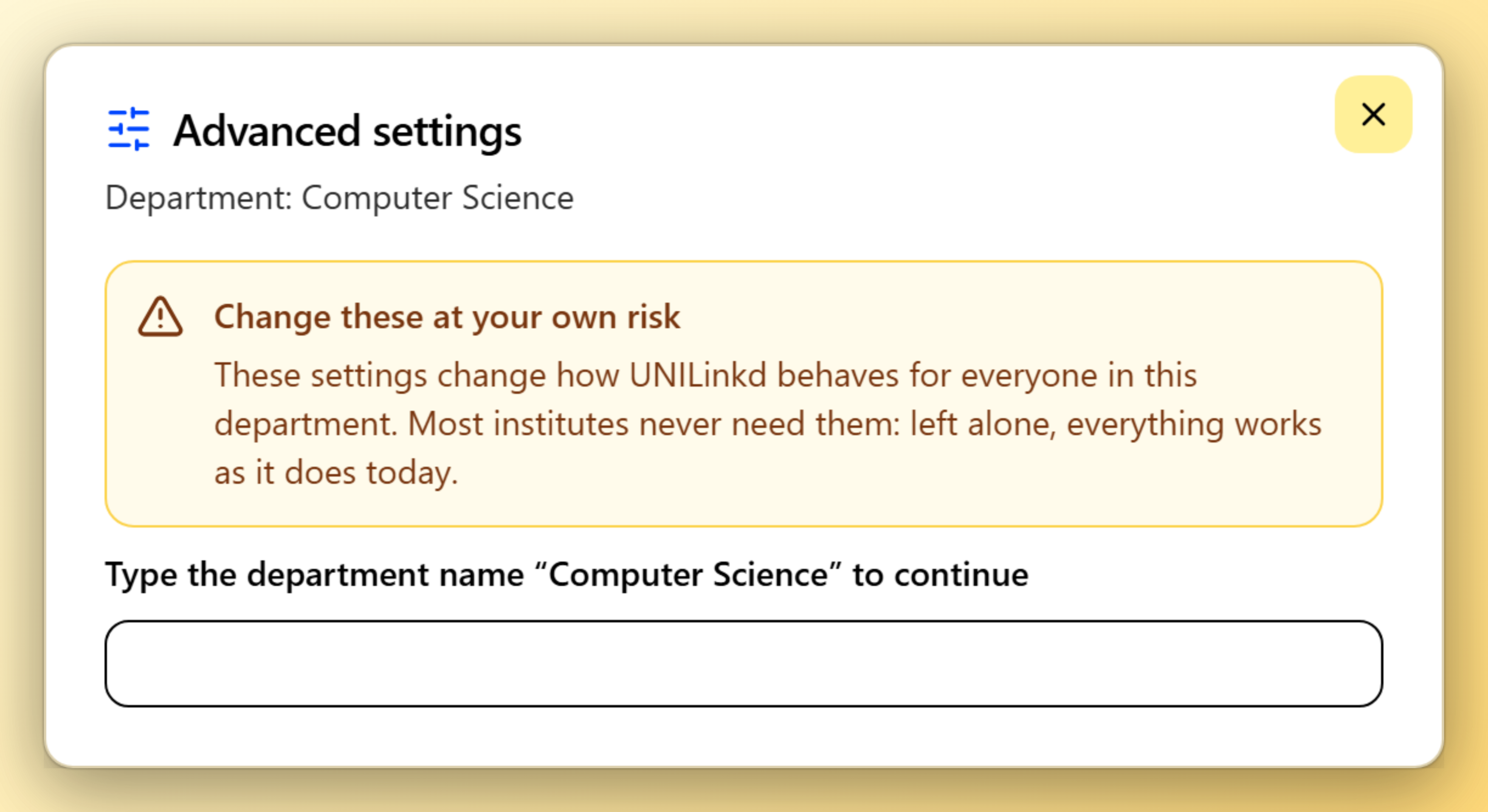
Read the warning, then type the department's name to unlock Advanced settings. Click "Attendance policy".
The window has two tabs. "Where it applies" lists the department, its programmes and their classrooms - choose a policy for each, or leave it as "Same as the department". A policy given to a higher level can be locked so lower levels cannot override it. "Policies" lists your institute's policies.
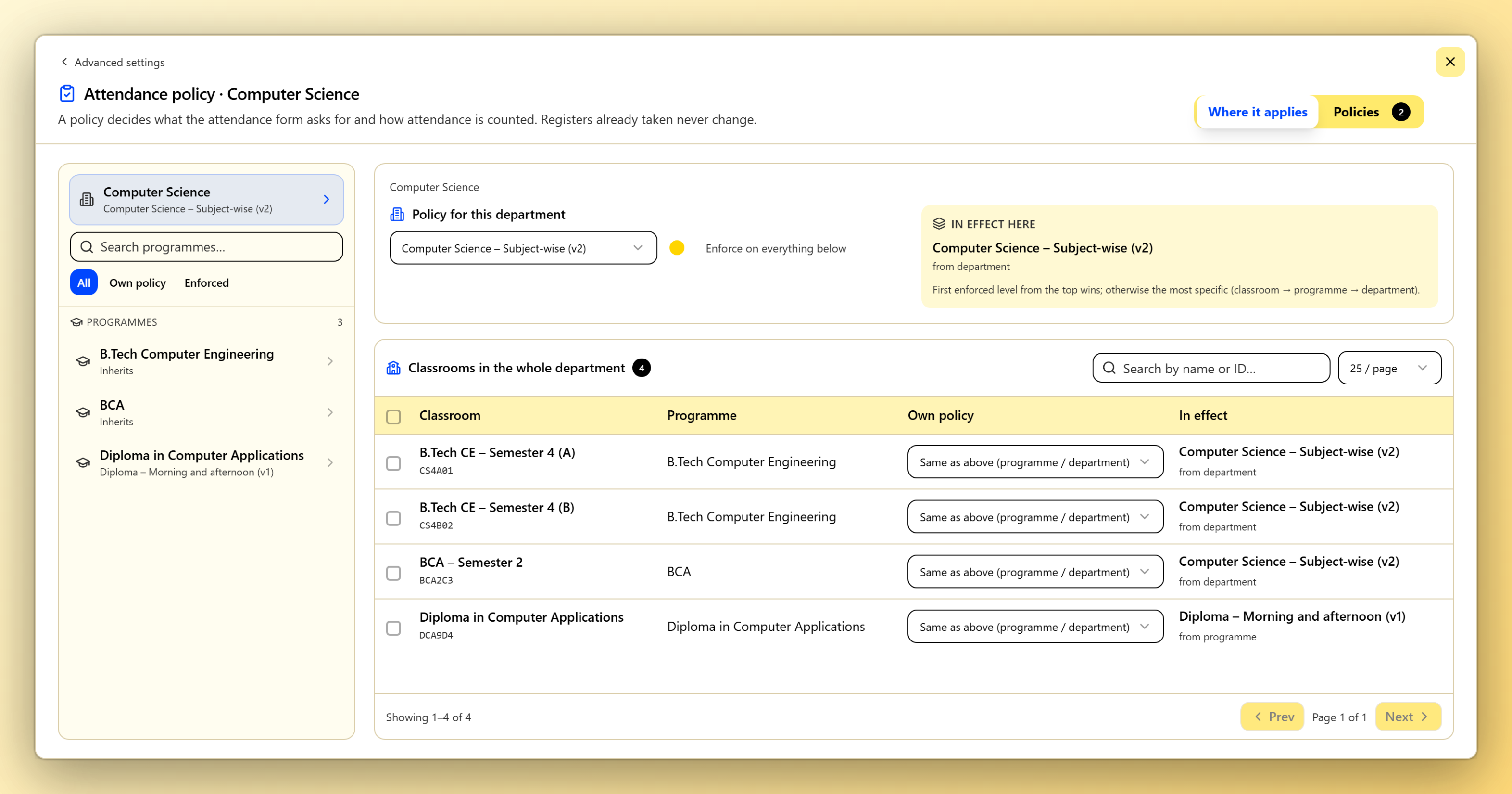
To create a policy, open the "Policies" tab and choose "New policy from a preset...". To change one, click it - saving makes a new version from a date you choose, and earlier versions are kept.
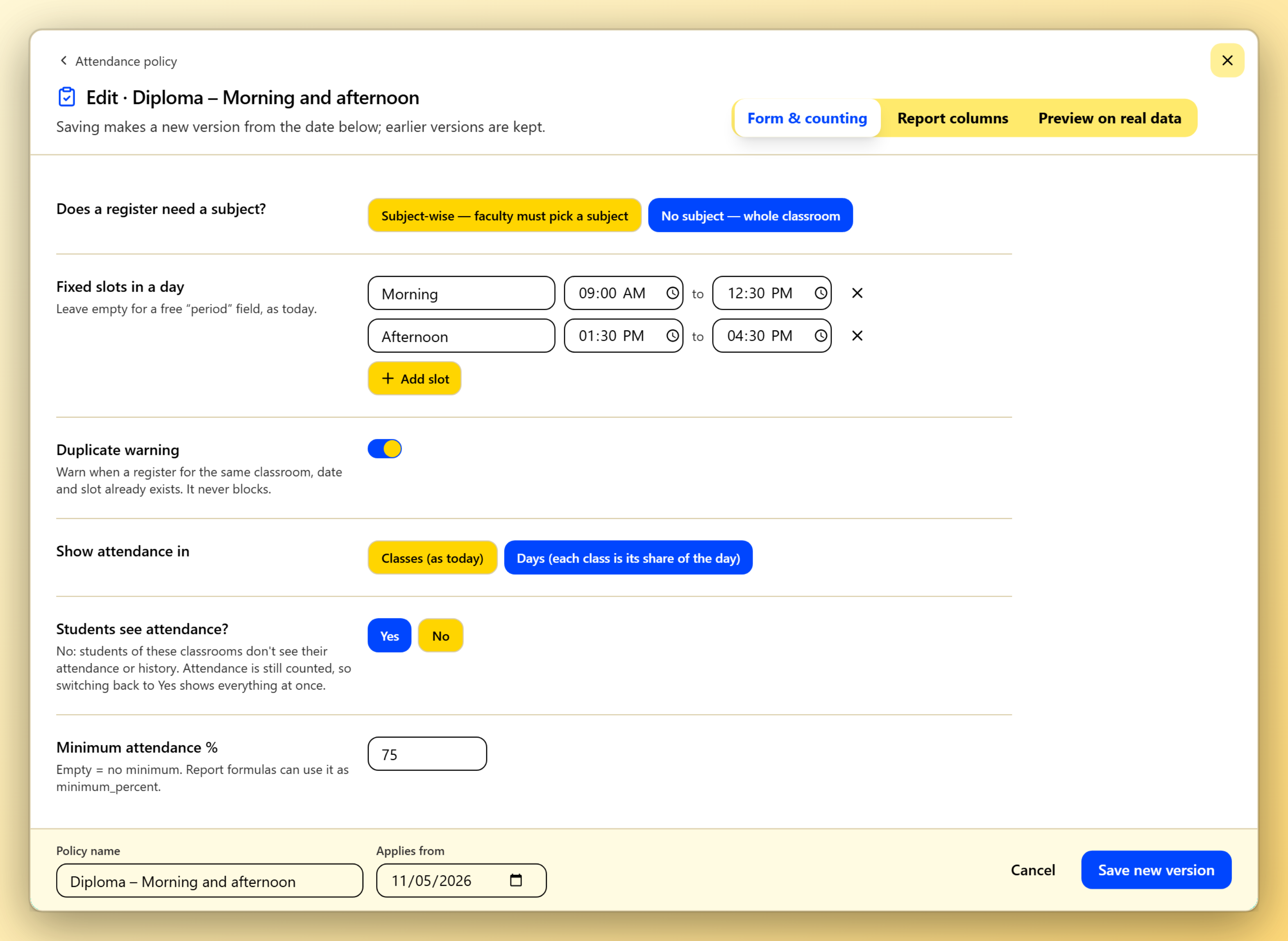
In "Form & counting", set: whether a register needs a subject (subject-wise or whole class), fixed slots in a day (name with optional start and end time), the duplicate warning, whether attendance is shown in classes or days, whether students see their attendance (Yes/No), and the minimum attendance %.
"Report columns" lets you add your own columns and header cells to exports using simple formulas over each student's numbers, for institutes that count attendance in their own way.
Before saving, open "Preview on real data". It runs the draft over existing registers and shows each student's numbers "As today" next to "Under this draft". Nothing is saved while previewing.
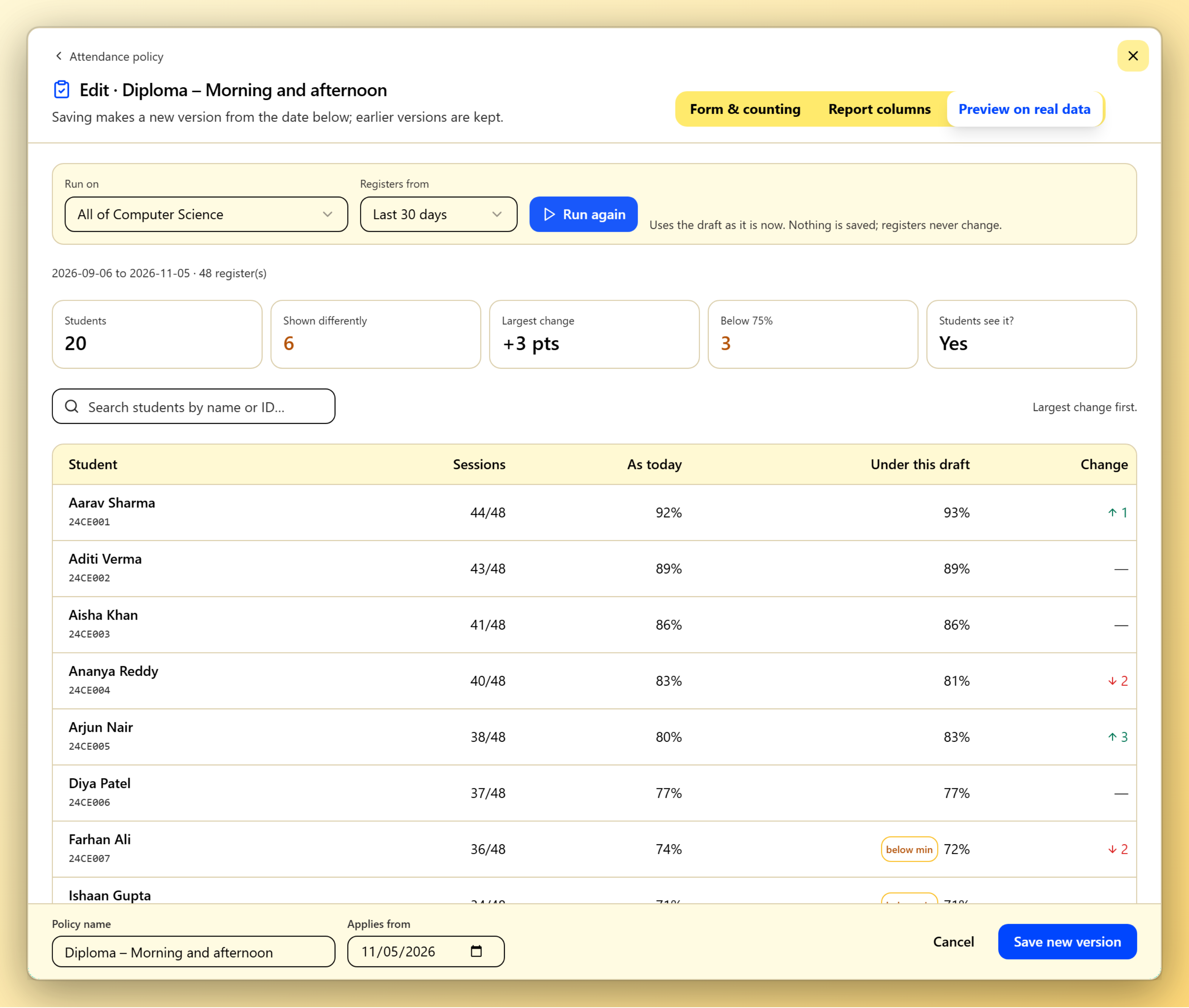
Set a name and the "Applies from" date, then click "Create policy" (or "Save new version"). Faculty will see the new form the next time they take attendance.
If students-see-attendance is set to No, students do not see their attendance or history, but it is still counted - switching back to Yes shows everything at once.
You've completed this guide — How to Set the Attendance Policy (Advanced)