
About this feature
The Alumni module maintains a permanent directory of former students. There are three ways in: students are archived automatically when they are deleted with the "Add to Alumni" toggle turned on, an admin can add one alumnus at a time with the "Add Alumni" form, or upload many at once from an Excel or CSV sheet with "Bulk Add". Any alumni record can be edited later. Alumni also receive a short update survey by email every few months to share their current employment and location, which keeps the directory current. Super Admins, Admins and Sub Admins can add, edit and delete alumni records; Faculty can only view them.
How to Add an Alumnus
Add a former student to the alumni directory by hand.
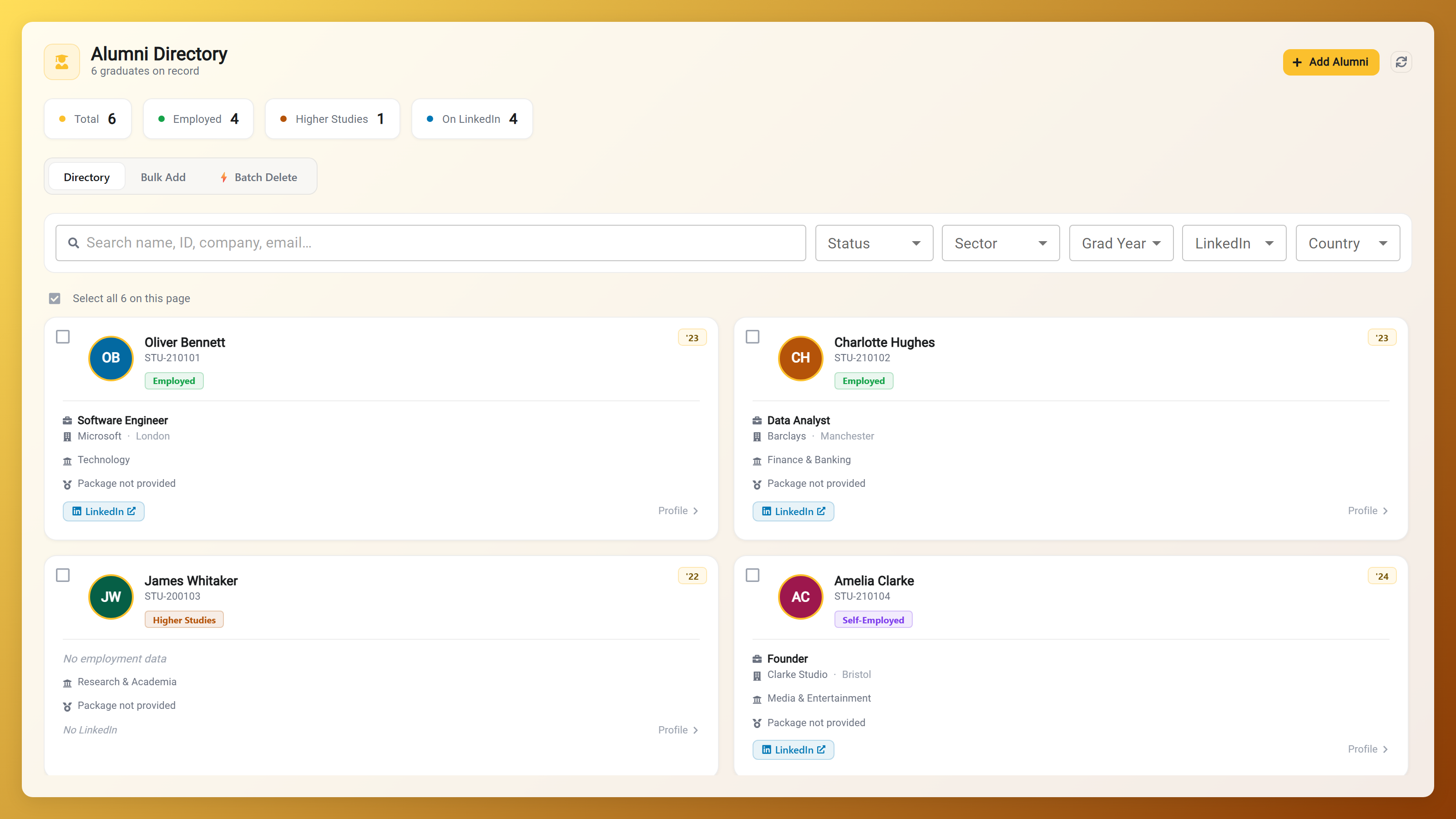
Open "Students", then "Manage Alumni", and click the yellow "Add Alumni" button at the top-right. The button is shown to Super Admins, Admins and Sub Admins.
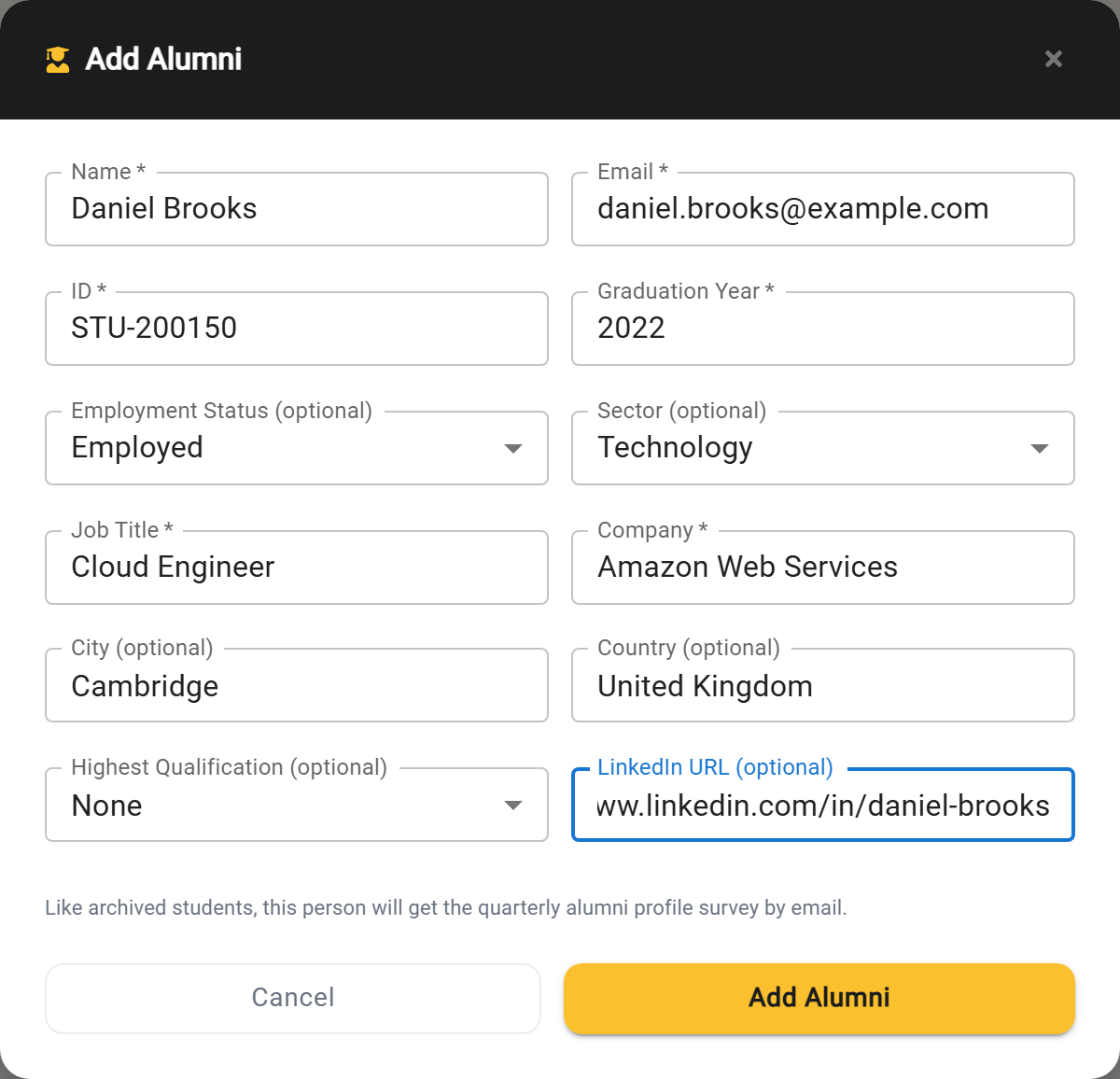
Fill in the form. Name, Email, ID and Graduation Year are required. Employment Status, Sector, City, Country, Highest Qualification and LinkedIn URL are optional. Job Title and Company become required when the status is Employed or Self-Employed.
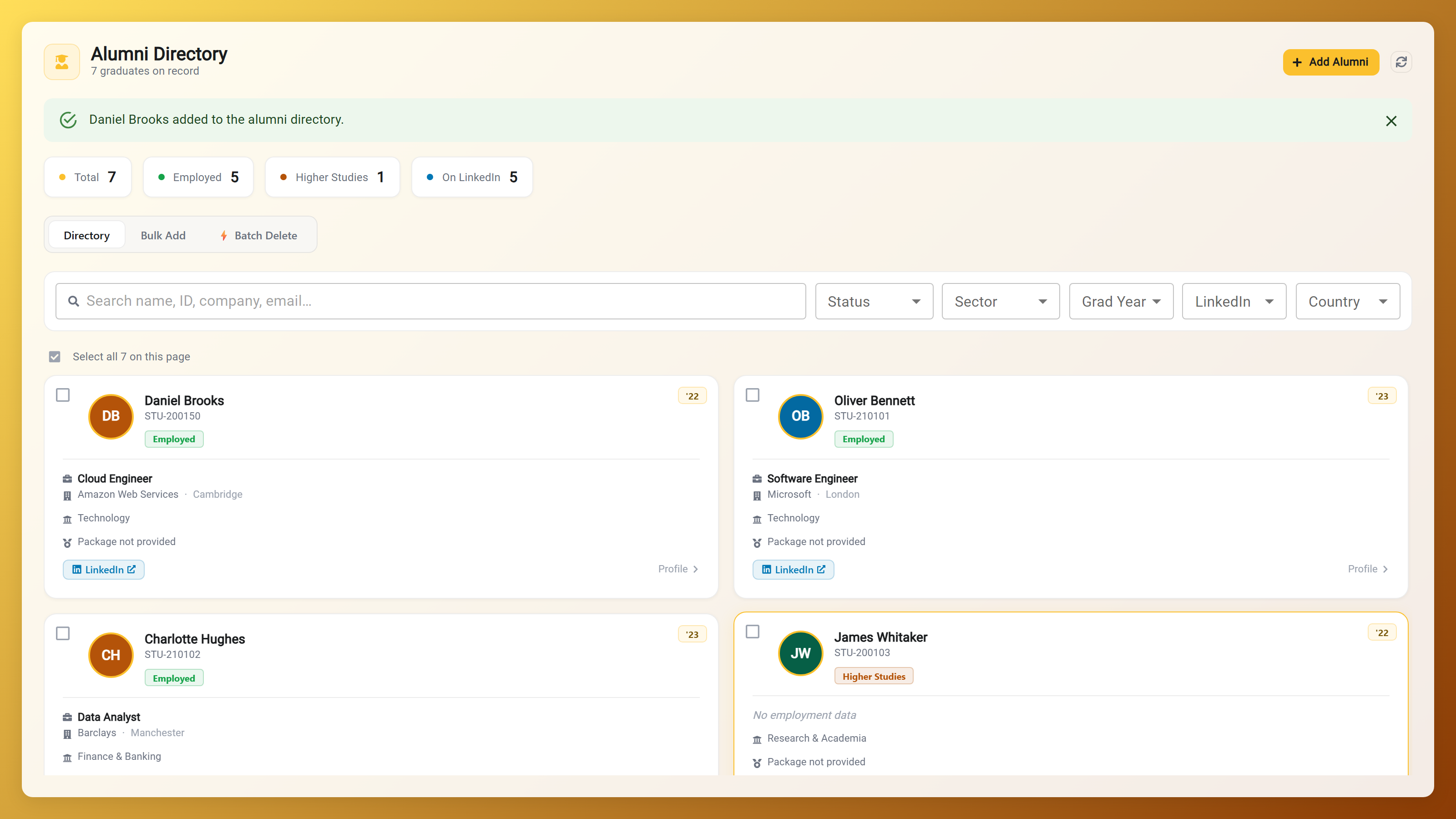
Click "Add Alumni". The new record appears at the top of the directory with a confirmation message.
If the email or ID already belongs to another alumni record, or to someone who is still an active student of your institute, the form tells you and nothing is saved. To move a current student into the directory, delete them from Students with "Add to Alumni" turned on instead.
Like archived students, people you add here receive the alumni update survey by email every quarter.
You've completed this guide — How to Add an Alumnus